

Every Business Central developer or consultant has faced it: you’re testing a purchase order, hit Post, and a validation message pops up. Then another. And another.
Each one halts your flow and demands attention, even when you already know what it’s trying to say. These constant interruptions can turn a simple purchase entry into a frustrating task.
In many cases, teams need a way to hide messages in purchase documents that are repetitive or contextually irrelevant without compromising data integrity.
This guide addresses the problem with both built-in options and AL code customizations. Let’s dive in!
Key Takeaways
- Select messages to suppress: Target only non-critical warnings like Order Date earlier than Work Date
- Create a table extension: Add an OnBeforeValidate trigger on the relevant Purchase Line field and call Rec.SetHideValidationDialog(true)
- Deploy and activate: Publish to sandbox or production and confirm the extension is active
- Test thoroughly: Validate single and bulk orders, recurring entries, and linked workflows to avoid errors
- Document and monitor: Record suppressed messages and AL code, then review logs and user feedback to ensure no critical issues are hidden
What Triggers Validation Messages in Purchase Documents
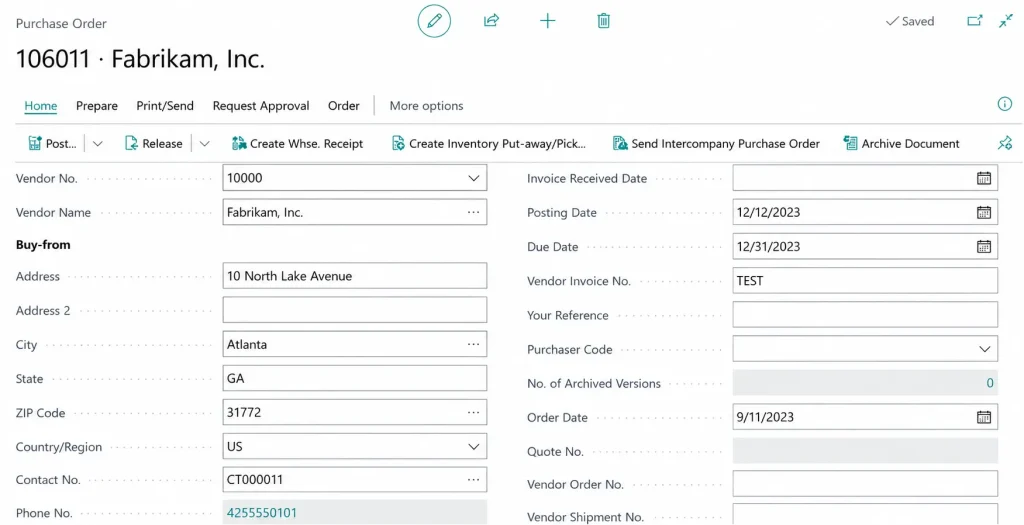
In Dynamics 365 Business Central, purchase documents like orders, invoices, and receipts rely on field-level validation to maintain data consistency across modules. Each time a user edits or enters a value, the system checks whether it aligns with underlying business rules.
Common examples include:
- ‘Order Date is earlier than the Work Date’ appears when the document date precedes the active work date
- ‘Vendor No. must have a value in Purchase Header’ is triggered if a user tries to post a document without selecting a vendor
- ‘Direct Unit Cost must be positive’ is shown when the unit cost field is blank or negative
- ‘Posting Date is not within your allowed posting range’ occurs when the date falls outside the permitted accounting periods
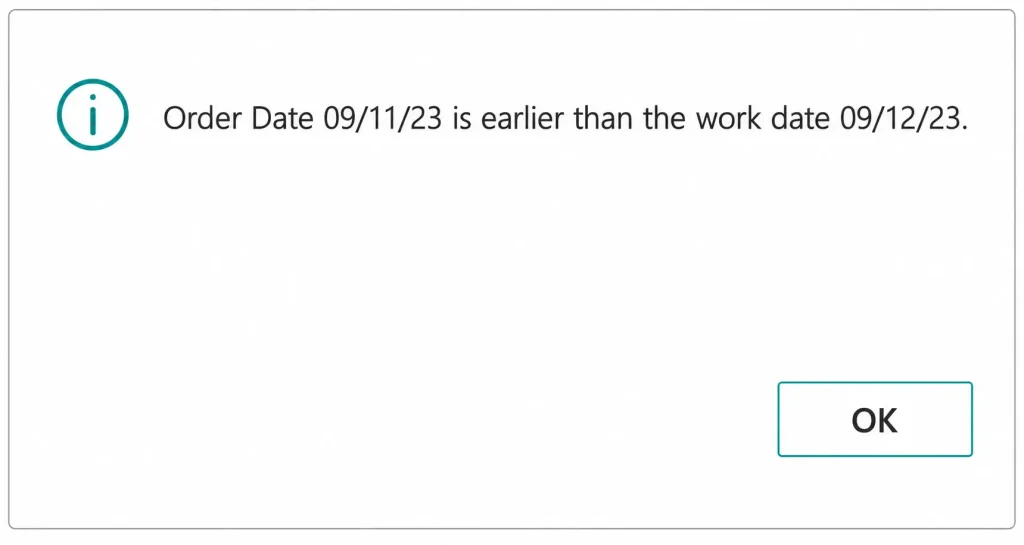
Built-in Features for Message Suppression
Business Central includes several built-in options to manage or reduce validation messages in purchase documents without touching code. These features help improve user experience while maintaining control over critical checks.
Key built-in methods often used by Business Central consultants include:
- Set hide validation dialogs in user personalization: Users can temporarily suppress repetitive warnings for their session, reducing interruptions during bulk data entry
- Use posting setup options: Certain validations, like warnings on dates or inventory issues, can be adjusted via posting setup to avoid unnecessary prompts
- Document-specific options: On some purchase documents, fields such as Order Date or Posting Date can be prefilled or auto-adjusted to meet validation rules, preventing dialogs from appearing
- Configure workflow approvals: Defined approval rules let administrators control which changes trigger messages, ensuring only critical alerts reach the user
Step-by-Step AL Code Example to Hide Purchase Document Messages
Here’s a step-by-step approach to hide messages in purchase documents using AL code and the SetHideValidationDialog method.
Step #1: Create a Table Extension
Before suppressing messages, we need to extend the purchase line table. This allows you to add custom logic without altering the base system.
In Visual Studio Code, create a table extension for Purchase Line and add a trigger on the field you want to control, such as Order Date. Within the OnBeforeValidate trigger, call Rec.SetHideValidationDialog(true). This ensures the validation dialog for the selected field is suppressed while keeping other system validations intact.
tableextension 50100 PurchaseLineExt extends "Purchase Line"
{
    fields
    {
        modify("Order Date")
        {
            trigger OnBeforeValidate()
            begin
                Rec.SetHideValidationDialog(true);
            end;
        }
    }
}
Step #2: Deploy the Extension
After creating the table extension, publish it to your sandbox or production environment.
Check the Extensions page in Business Central to confirm the extension is active. Deploying to a sandbox first allows you to test without disrupting ongoing workflows.
Once deployed, the modified behavior will be active, and the targeted validation message will no longer interrupt users during data entry.
Step #3: Test the Suppressed Message
Testing ensures the suppression works correctly and other processes remain unaffected.
Create a new purchase order and enter an Order Date earlier than the Work Date. You should notice that the validation message does not appear, allowing uninterrupted entry. At the same time, verify that other fields continue enforcing their validations and that the purchase order can be posted without errors.
Step #4: Evaluate Use Cases and Limitations
Suppressing messages can improve workflow efficiency, but it comes with trade-offs. This method is best suited for non-critical warnings that frequently interrupt users, such as date warnings in purchase lines.
Step #5: Maintain and Extend
Once one field works as expected, the same approach can be applied to other purchase document fields that generate repetitive warnings.
Keep a reference of all suppressed validations and review them periodically to ensure core business rules remain enforced. This method provides a controlled way to hide messages in Business Central purchase documents.
Best Practices When Hiding Validation Messages
Suppressing validation messages in Business Central can streamline purchase document entry, but it requires careful planning to avoid hidden errors. Here’s how to do it effectively:
- Be selective: Only hide validations that frequently interrupt workflows. For example, an Order Date earlier than a Work Date is safe. Keep critical warnings, like missing vendor info, visible.
- Test extensively in sandbox: Check single and bulk purchase entries. Include recurring orders and linked workflows, such as inventory updates or ledger posting. This ensures no hidden errors occur.
- Document all changes clearly: Note which messages are suppressed and why. Record the AL code used and include examples or screenshots for future reference.
- Monitor after deployment: Review user feedback and posting logs for at least one business cycle. Confirm suppressed messages do not mask important issues.
Improve Purchase Entry With Message Control
Validation messages in Business Central protect data, but frequent warnings can slow purchase document entry. Knowing how to hide messages in purchase documents lets teams reduce interruptions, speed up workflows, and maintain accuracy.
At Aegis Softtech, we turn complex Business Central implementation and customization requirements into smooth, reliable processes. Our Business Central developers help organizations remove unnecessary interruptions, optimize purchase workflows, and implement precise AL solutions that work exactly as needed.
Every customization we deliver balances efficiency with accuracy, so you can focus on work, not warnings.
FAQs
1. What is SetHideValidationDialog and how do I use it in Purchase Line?
SetHideValidationDialog is an AL method in Business Central that prevents a specific validation or warning message from appearing when a field is updated. In Purchase Line, you use it inside the OnBeforeValidate trigger for the field you want to control.
For example, you can suppress the Order Date earlier than the Work Date warning by calling Rec.SetHideValidationDialog(true) in the trigger.
2. Are there risks to suppressing validation messages in purchase documents?
Yes, suppressing messages can hide issues that may lead to incorrect data entry, posting errors, or workflow problems. Only suppress non-critical messages and always test thoroughly in a sandbox environment to avoid unintended consequences.
3. Which BC versions support HideValidationDialog in purchase workflows?
SetHideValidationDialog is supported in Business Central 2020 release wave 1 and later. It works in both on-premises and cloud environments, but always verify with your version before implementing.
4. Does hiding messages affect audit, compliance, or reporting?
Hiding a message does not remove the underlying validation logic.
Data is still checked and stored correctly, so audit trails, compliance, and reporting remain intact. However, suppressing critical warnings could lead to overlooked errors, so use it selectively.