
Power Apps Component Framework (PCF) enables developers to build reusable custom controls for model-driven apps, canvas apps, and Microsoft Dataverse-powered experiences. If you are creating enterprise Power Apps applications that require a custom user experience, PCF provides an easy way to build reusable custom controls without relying on unsupported customizations.
In this article, we will cover its working mechanism, architecture, creation process, and comparison with JavaScript web resources and canvas components.
At a Glance:
| Topic | Details |
| What is PCF? | A Microsoft framework that enables developers to create custom controls for Power Apps with modern development tools. |
| Works with | Model-driven apps, canvas apps, and Microsoft Dataverse. |
| Primary Languages | TypeScript, HTML, CSS (React optional). |
| Best For | Custom UI, reusable controls, improved user experience, and enterprise Power Apps development. |
| Deployment | Managed through Power Platform solutions. |
| License | Included with Microsoft Power Platform licensing; usage depends on the Power Apps and Dataverse environment licenses. |
What Is Power Apps Component Framework?
PCF is a framework that lets you build TypeScript-based custom controls for Dataverse fields and grids. It fits into Power Apps the same way native controls do.
Here’s the thing about standard controls in Power Apps: they cover the basics fine. Text boxes, dropdowns, date pickers. But sooner or later someone asks for a custom rating widget, or a field that pulls up an interactive map, and suddenly you’re stuck. That’s where PCF comes in. PCF controls behave like built-in Power Apps controls, so they feel native to users. So once you deploy a slider or a signature pad you made yourself, it doesn’t look bolted on. It looks like it was always part of the app.
And because it runs on Dataverse, one control can show up in a model-driven form and a canvas screen at the same time. Data stays in sync either way.
Unlike traditional JavaScript form customizations, Power Apps Component Framework packages custom controls as solution components. It enhances maintainability, simplifies deployment processes, and enables consistency with extensibility guidelines provided by Microsoft for Power Apps.
Why Use Power Apps Component Framework?
PCF is preferred when out-of-the-box controls do not fulfill the business requirements or the same UI has to be shown in multiple applications.
Here are some common reasons:
- Need for custom UI: Sometimes the business requirement cannot be fulfilled using the existing fields. It needs a custom UI, such as a color picker, gauge chart, or drag-and-drop upload area.
- Reusability: The component can be used in ten different model-driven applications after being developed once.
- Better performance: It performs better compared to script workarounds. Power Apps handles the display process directly, improving consistency and performance.
- Device access: Device features, such as camera, GPS, and barcode scanner, become usable right inside a form field.
- Easier governance: IT teams like it because controls get packaged, versioned, and managed like any other solution component. Not just floating scripts nobody remembers writing.
- Better ALM support: PCF components follow Power Platform Application Lifecycle Management (ALM) practices, allowing teams to package, version, test, and deploy controls across development, testing, and production environments using solutions.
Additional advantages include:
- Power Apps custom controls can follow the same deployment and governance process as other solution components.
- PCF controls support consistent user experiences across multiple business applications.
- Developers can integrate external APIs, visualization libraries, and Microsoft services while staying inside the supported Power Apps development model.
Who should use Power Apps Component Framework?
- Power Platform developers building reusable business applications
- Organizations standardizing UI components across multiple Power Apps
- Teams migrating away from unsupported JavaScript customizations
- Enterprises building scalable Dataverse applications
Key Features of Power Apps Component Framework
PCF controls are reusable, portable, and tied to metadata, which gives developers a consistent way to bundle logic and styling into one deployable piece.
| Feature | What It Actually Means |
| Reusability | Build it once, drop it into as many forms or apps as you want |
| Portability | HTML, CSS, and TypeScript all bundle into a single package |
| Data binding | Controls tie directly to Dataverse fields and views |
| Lifecycle events | init, updateView, destroy; the platform calls these automatically |
| Device access | Camera and location become callable from inside the control |
| Responsive rendering | Same control, different screen sizes, no separate build needed |
Other notable capabilities include:
- Native integration with Microsoft Dataverse.
- Support for dataset and field-type Power Apps custom controls.
- Compatibility with React-based component development.
- Solution-aware packaging through the Power Platform CLI.
- Enterprise-ready deployment with version control and ALM support.
Power Apps Component Framework Architecture
The architecture comes down to a manifest file, an index.ts entry point, and a handful of lifecycle methods that Dataverse triggers on its own.
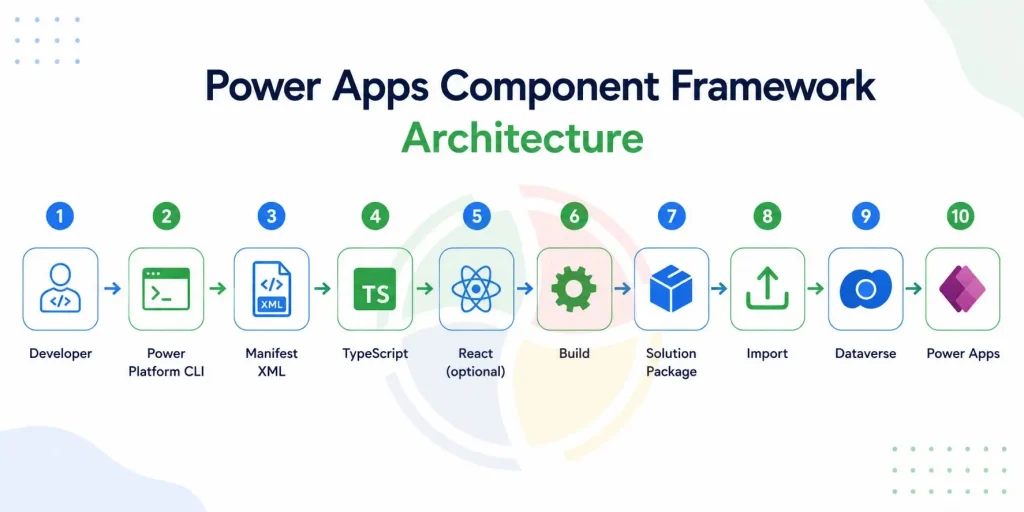
Every Power Apps Component Framework control follows a predictable lifecycle. The framework loads the control, initializes it, renders the UI, exchanges data with Dataverse, and disposes of resources when users leave the page. The following architecture diagram illustrates this workflow.
You start with a file called ControlManifest.Input.xml. This is where you list out properties, resources, and data types the control needs. The real logic lives in index.ts, in a class that implements four methods:
- init(): Runs one time, when the control first loads. Set up the container.
- updateView(): Fires whenever the bound data or context changes. Redraws things.
- getOutputs(): Sends updated values back to whatever form or app is hosting it.
- destroy(): Cleans up when the control gets removed.
Most controls are written in TypeScript, and a lot of teams now add React for state management on top of that. Vanilla TypeScript still works fine if the control is simple. Whatever you write, it all compiles down into one bundled solution.
Behind the scenes, the Power Platform CLI builds the project, packages the Power Apps custom controls, and prepares them for deployment as solution components. This standardized build process makes PCF development easier to maintain across development, testing, and production environments.
How to Build Power Apps Component Framework Controls
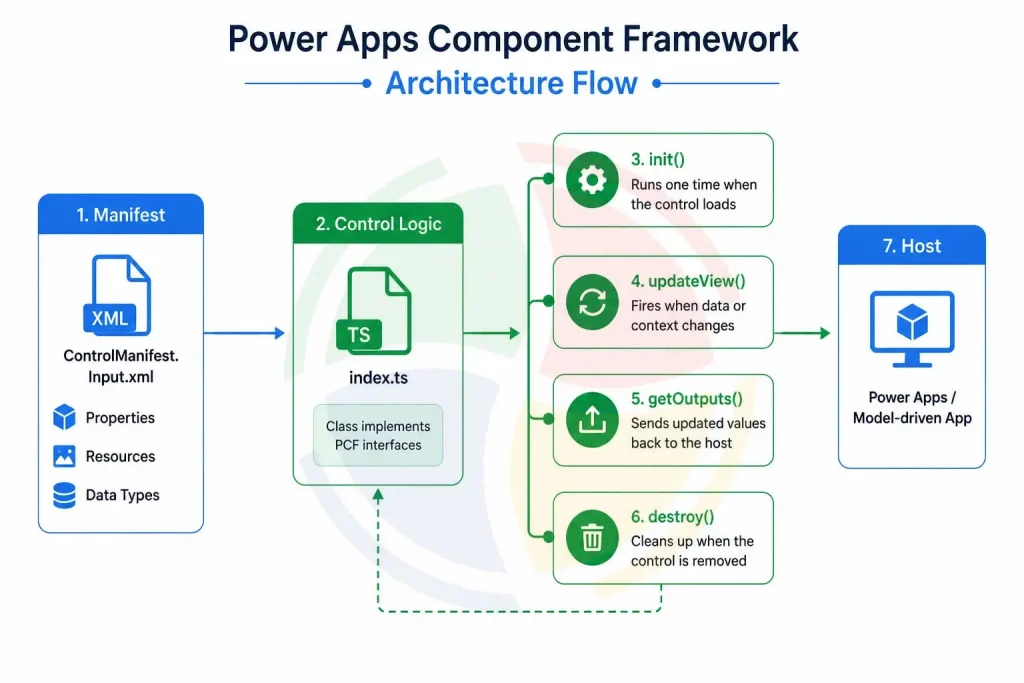
Building a control means setting up the CLI, scaffolding the project, writing the logic, then packaging everything into a solution.
Here’s how it goes:
- Install Node.js, Power Platform CLI, Visual Studio Code, and Git. These cover almost the whole process.
- Run pac pcf init and pick whether you’re building a field-type or dataset-type control.
- Fill out the manifest, inputs, outputs, data types- all of it.
- Write the control logic in index.ts. Handle init, updateView, destroy.
- Test it locally with npm start. A browser test harness pops up; no need for a live environment yet.
- Package it with pac solution init and pac solution add-reference, then build the .zip.
- Import the solution into your target environment and add the control to a form or app screen.
Once it’s live in a test app, debugging is just browser dev tools. Console logs, breakpoints, the usual.
Before deploying to production, validate the control in a sandbox environment, verify solution dependencies, and test against the Dataverse tables it interacts with. This reduces deployment issues and makes Power Apps component development more predictable.
Best Practices for Power Apps Component Development
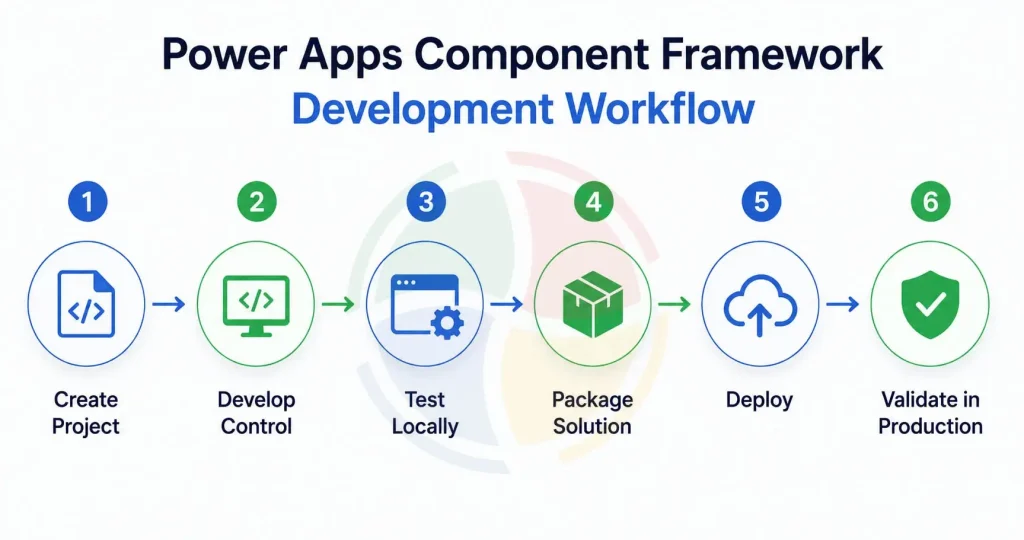
Good PCF work comes down to keeping things light, testing properly, and not skipping documentation just because it feels tedious.
- Keep updateView light: This method fires a lot, so anything heavy in there ends up slowing the whole form down.
- Version things properly: One careless version bump can break forms that were working just fine the day before.
- Test in both app types: If the control needs to live in canvas and model-driven apps, test it in both because sometimes there are discrepancies in their behavior.
- Avoid hardcoding: It is advised to avoid hardcoding URLs or environment IDs and use context parameters instead; otherwise, switching to production becomes inconvenient.
- Turn on strict mode: Switching on TypeScript’s strict mode helps you catch errors at build time instead of in front of a client.
- Document manifest properties: Write down what your manifest properties actually do. Nobody remembers six months later, including you.
- Reduce redundant updates: Ensure rendering runs only when changes are detected in updateView(). Avoid unnecessary re-rendering by checking whether values have actually changed before executing rendering logic in this method.
Additional best practices include:
- Keep business logic separate from UI rendering whenever possible.
- Minimize API calls inside updateView() to improve responsiveness.
- Reuse utility functions instead of duplicating logic across multiple PCF controls.
- Test accessibility and keyboard navigation before releasing custom Power Apps controls.
- Use semantic versioning for every production deployment.
Common Challenges in Power Apps Component Development and How to Overcome
Most problems come from performance on large datasets, testing across environments, or just not knowing the Dataverse metadata model well enough.
| Challenge | What Usually Fixes It |
| Slow rendering with big datasets | Add pagination or virtualization in dataset-type controls |
| Hard to debug inside a live form | Use the local test harness first, then move to a sandbox |
| Version conflicts after updates | Stick to semantic versioning, test upgrades before pushing live |
| Thin documentation for edge cases | Check the Power Platform community forums and sample repos |
| Styling breaks across themes | Use Power Apps theme settings instead of fixed colors. |
| Browser compatibility issues | Test across supported browsers, avoid browser-specific APIs, and validate behavior in different environments. |
Another common issue is trying to rebuild functionality that already exists as a standard Power Apps control. Before starting a PCF project, verify whether configuration can solve the requirement first. Custom development should address genuine business needs rather than replace built-in capabilities.
Power Apps Component Framework vs JavaScript Web Resources
PCF gives you reusable, typed components. JavaScript web resources rely on form scripts that are harder to reuse once things scale up.
| Aspect | PCF | JavaScript Web Resources |
| Reusability | High, build once, use anywhere | Low, usually copied per form |
| Typing | TypeScript, catches errors early | Plain JS, errors show up at runtime |
| UI capability | Full custom rendering | Limited to tweaking existing fields |
| Governance | Solution-based, versioned | Loose, scripts pile up over time |
| Learning curve | Steeper, needs build tooling | Easier if you already know JS |
| Supportability | Fully supported by Microsoft within the Power Platform framework | May become unsupported when relying on custom scripts or workarounds |
Power Apps Component Framework is the framework officially recommended by Microsoft to create custom components on Power Apps. The framework offers reusable solution-aware components which are integrated with the Power Apps lifecycle; thus, it is highly suited for developing custom UIs.
Power Apps Component Framework vs Canvas App Components
PCF works at the platform level with Dataverse binding. Canvas components stay inside one app and lean on Power Fx formulas, which is Microsoft’s low-code formula language.
Canvas components are fine for a quick, one-off tweak- no code needed, built right inside the canvas editor. PCF takes more effort, needs actual development skills, but pays off when the control has to live across model-driven apps, forms, and several canvas apps at once. If it’s only ever going to live in one app, canvas components are probably enough. If it needs to travel, go with PCF.
A simple rule of thumb:
| Requirement | Better Choice |
| Reusable across multiple apps | PCF |
| No-code customization | Canvas Components |
| Deep Dataverse integration | PCF |
| Quick UI improvements inside one app | Canvas Components |
Real-World Use Cases of PCF Controls
Companies use PCF for dashboards, custom data visuals, location-based fields, and approval screens that regular controls can’t handle well.
- A logistics company built a map control right on a Dataverse form, showing live delivery routes instead of a plain address field.
- A retail team swapped a clunky dropdown for a star-rating control on customer feedback records. Small change, people actually use it now.
- Field service crews attach photos straight from a mobile form using camera access built into a PCF control.
- The healthcare industry uses PCF controls in order to facilitate quick patient intake forms that include health information, insurance details, and authorizations using personalized Power App experiences.
- Manufacturers use PCF controls for carrying out inspection processes where technicians can gather information about any defect, inspection details, and even photos.
- The warehousing industry uses PCF controls for the barcode scanning process where workers can scan barcodes and update records.
- Organizations integrate Power BI and Power Apps to embed interactive dashboards and reports directly within custom PCF controls, reducing the need for users to switch between applications.
- A few teams are testing custom PCF controls alongside Power Apps Copilot suggestions. Still early, but the combination is interesting.
Other common enterprise use cases include:
- Interactive organization charts
- Timeline visualizations
- Document preview controls
- QR code and barcode scanners
- Custom approval workflows
- Rich media upload components
Key Takeaways
- Use PCF when built-in controls cannot meet business requirements.
- Build once and reuse controls across multiple model-driven and canvas apps.
- Develop controls using TypeScript and the Power Platform CLI.
- Package everything as managed solutions for easier deployment.
- Test performance early, especially for dataset controls.
- Prefer PCF over JavaScript web resources for new enterprise development.
Conclusion
Power Apps Component Framework hands developers real control over what users see and how they interact with data. Out-of-the-box fields can’t do that once requirements get specific. It’s more setup than a quick canvas tweak, sure. But for teams building at scale across model-driven apps and Dataverse, it’s worth the extra step.
Developers can leverage the Power Apps Component Framework for implementing any kind of interactive dashboard, external service integration, and reusable business components.
Aegis Softtech builds on Power Platform for clients regularly, from one-off custom controls to full Power Apps development projects. Whether you’re writing your first PCF control or cleaning up something someone else left behind, our Microsoft Power Platform consultants help organizations design, develop, and deploy custom PCF controls that align with enterprise governance and long-term maintainability.
Frequently Asked Questions
What is the Power Apps component framework?
It’s a framework for building custom, reusable controls in Power Apps and Dataverse. Developers use it when standard fields and controls can’t meet what the business actually wants.
How to enable the Power Apps component framework?
Open the Power Platform Admin Center, pick your environment, go to Settings, then Product and Features, and switch on the component framework option for canvas apps.
What is a component framework?
It’s a system for building reusable, self-contained pieces of UI that plug into a bigger app without needing to be built from scratch every single time.
What programming language is used for Power Apps Component Framework?
PCF controls are primarily developed using TypeScript, along with HTML and CSS. Many teams also use React to simplify UI development for complex controls.
Can PCF controls access Dataverse data?
Yes. Power Apps Component Framework integrates directly with Microsoft Dataverse, allowing controls to read and update data through supported APIs and bound fields.
Are PCF controls reusable?
Yes. Developers can package a single PCF control into a solution and reuse it across multiple Power Apps, model-driven apps, and environments.
What’s the difference between field-type and dataset-type PCF controls?
Field controls customize individual Dataverse columns, while dataset controls work with collections of records such as grids, lists, and tables.
Can PCF controls be used in Canvas Apps?
Yes, PCF controls can be used in Canvas Apps for adding custom controls that offer better functionalities as well as rich user experience in place of standard controls.
Are PCF controls supported by Microsoft?
Yes, PCF controls are supported by Microsoft because PCF is an officially supported framework of Microsoft that allows developers to build, deploy, and manage custom controls using supported tools.