

Month-end arrives, and the finance team is reconciling numbers. Everything looks fine until invoices show up in the wrong reporting period. Discounts are miscalculated, and finance charges don’t match expectations.
The issue traces back to a simple detail: Document Date and Posting Date moving in different directions.
Learning how to link document date to posting date in Business Central helps avoid these headaches. The setting keeps entries aligned so calculations, reports, and audits hold up without hours of manual correction.
In this blog post, we’ll learn how to link document date to posting date in Business Central step-by-step and outline considerations for teams.
Key Takeaways
- Open Sales & Receivables Setup, find the Link Doc. Date to Posting Date toggle, and turn it on to sync dates for sales documents.
- Go to Purchases & Payables Setup, enable the same setting to keep vendor invoices and purchase orders aligned.
- Check upgrade behavior since Microsoft may have turned it on automatically during updates; confirm settings to avoid mismatches.
- Test with sample documents in a sandbox to confirm Document Date updates when Posting Date changes, and validate calculations like discounts and due dates.
- Train finance users so they understand how the setting works, when to override it, and how it impacts reporting and compliance.
What are Document Date and Posting Date & Why They Matter
In Microsoft Dynamics 365 Business Central, two dates appear on nearly every transaction: Document Date and Posting Date.
The Document Date reflects the actual business event. For example, the invoice date from a vendor, the date on a sales order, or when a purchase was agreed. Business Central uses this date to calculate due dates, apply payment discounts, and determine finance charges.
The Posting Date, on the other hand, tells the system when to record the transaction in the general ledger. This is the date that drives financial reporting and determines which accounting period the transaction belongs to.
These dates matter because:
- Financial reports use the Posting Date to assign transactions to accounting periods, which affects profit, tax, and balance sheet accuracy.
- Document Date drives due date calculations, discount eligibility, and finance charge computations. If it’s wrong, these downstream values become incorrect.
- In some jurisdictions, posting in the wrong period or misdating invoices may expose a business to compliance risks, audits, or penalties.
Step-by-Step Guide to Enable Link Doc. Date to Posting Date
Follow these steps to learn how to link document date to posting date in Business Central.
Step #1: Open Sales & Receivables Setup
First, you’ll find the setting in the module that controls your sales side. Head to Sales & Receivables Setup in Business Central. This is where you’ll toggle link behavior for sales documents.
Here’s how to proceed:
- Navigate to the Sales & Receivables Setup page
- Look for the Link Doc. Date to Posting Date toggle
- Turn this toggle On to update the Document Date to match the Posting Date on sales documents
Step #2: Open Purchases & Payables Setup
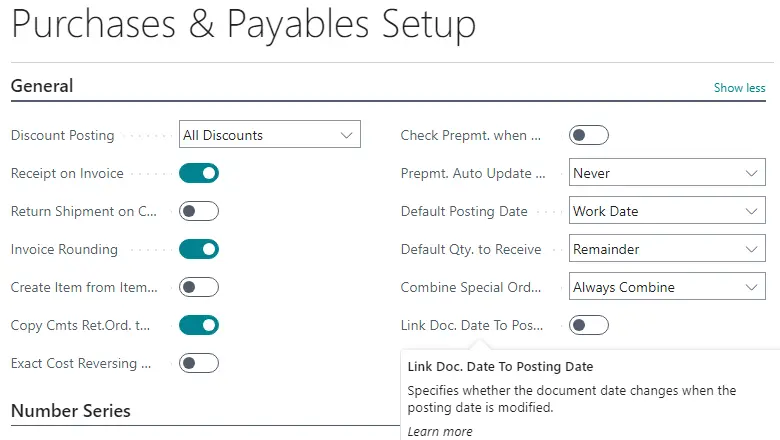
via Microsoft Learn
To apply the same logic for purchase documents, go to Purchases & Payables Setup. This ensures your vendor invoices and purchase orders behave similarly.
Here’s what to do:
- Access the Purchases & Payables Setup page
- Find the Link Doc. Date to Posting Date field
- Switch it on to activate synchronization for purchase transactions
Step #3: Understand Impact on Existing Environments
Since your system may be upgraded from earlier versions, the toggle might already be enabled by default. Microsoft turns it on during upgrades to preserve behavior.
Make sure to review:
- Whether your sales and purchase documents before the change will retain prior dates
- How this setting affects existing entries (journals remain unaffected)
Step #4: Test With Sample Documents
Before using live data, try it with test records. Create a sample sales order or purchase invoice and change the Posting Date. If the Link Doc. Date is active, the Document Date should update automatically.
What to check:
- Document Date matches the changed Posting Date
- Other date-based calculations (due date, discounts) reflect the sync
- That the toggle works as expected without breaking downstream logic
Step #5: Train Users and Monitor Behavior
Once configured, ensure your team knows how this link works and when to use it. Without awareness, they may be surprised when dates shift automatically.
Key actions:
- Update your training materials to explain how changes to Posting Date affect Document Date
- Monitor reports to spot misaligned entries
- Adjust workflows so users understand when to override or leave dates in sync
Use Cases and Business Scenarios Where this Setting Helps
The Link Doc. Date to Posting Date option in Business Central solves practical problems retailers and finance teams face every day. Here are some common scenarios where enabling it makes a difference:
Accurate Finance Charges
Finance charges depend on when an invoice becomes overdue. If dates don’t align, charges may be miscalculated.
Knowing how to link document date to posting date in Business Central ensures charges are applied consistently, and customers are billed correctly.
Correct Payment Terms
Vendors and customers expect credit terms to follow the invoice date. When dates differ, discounts and due dates can be thrown off. Keep both aligned to make document date vs. posting date in Business Central an important part of accurate billing.
Stronger Compliance in Reporting
Compliance depends on accurate reporting by accounting period. The setting supports financial accuracy using posting date, which ensures invoices are assigned to the correct period for tax and audit purposes.
This reduces reconciliation errors and strengthens audit trails.
Consistency When Dates Change
Some companies update posting dates often, to match fiscal calendars, for example.
Without alignment, the document date can drift away and cause confusion. Activating the link through the Sales & Receivables setup in BC keeps both dates consistent and reporting reliable.
Key Considerations and Possible Limitations
The Link Doc. Date to Posting Date setting in Business Central improves accuracy, but it isn’t universal. It’s vital to understand its boundaries to apply it correctly without creating new issues.
What Happens When the Setting is Turned Off
When the feature is disabled, Document Date and Posting Date act independently. This requires manual checks to keep data aligned. Here’s what to expect if it remains off:
- Users must track Business Central document date vs. posting date entries separately
- Reports may show mismatches between accounting periods and invoice terms
- Payment due dates risk being calculated from the wrong date
Documents or Workflows Not Impacted
Journals and special documents remain unaffected with this toggle, so relying on the setting won’t cover every process. In practice, this means:
- General journals will still require manual entry of dates
- Recurring journals and certain custom workflows ignore the toggle
- Teams must review how to link document date to posting date in Business Central case by case for non-standard processes
Versioning and Upgrade Behavior
During upgrades, Microsoft turns the setting on automatically to preserve consistency. This safeguard is useful but can confuse teams if not communicated.
Key considerations include:
- After upgrades, validate the toggle in Sales & Receivables setup in BC
- Review how historical entries are handled to prevent reconciliation surprises
- Train staff on version differences so they know why date handling may look different
Impact on Workflows Using Document Date
Certain workflows depend directly on Document Date, such as discount calculations or vendor terms. Linking dates may affect these outcomes.
Be aware of the following:
- Early payment discounts may calculate differently if Document Date shifts
- Vendor or customer agreements could be impacted if due dates recalculate
- Although linking improves financial accuracy with posting date, some agreements may still need manual validation
Drive Financial Accuracy in Business Central
Small configuration choices often have big effects on accuracy. Learning how to link document date to posting date in Business Central helps you prevent billing errors, keep payment terms consistent, and ensure compliance during audits.
It’s a simple feature, but one that saves time and protects financial integrity across your system.
A well-planned Business Central implementation also ensures these settings are aligned with your organization’s accounting workflows from day one, reducing manual corrections and improving reporting accuracy over time.
At Aegis Softtech, we help businesses configure Microsoft Dynamics 365 Business Central to match real-world processes. Our skilled BC developers create workflows that improve efficiency and support business growth.
Whether you are upgrading your ERP or starting fresh, our experienced Business Central consultants help you build a reliable and scalable system.