
Recently, Aegis Softtech was hired to diagnose why a Dynamics 365 environment was running slow. After a day of clicking through forms and workflows manually, we installed XrmToolBox. Within 20 minutes, the Metadata Browser revealed 47 duplicate plugins firing on the same entity. Problem solved.
That gap between native Dynamics interfaces and what developers need to see is the reason the Dynamics 365 developer toolkit exists.
In this blog post, we break down 10 essential tools for Dynamics 365 CRM developers that turn repetitive admin work into automated, error-free processes.
Key Takeaways
- Core tools, like Power Platform CLI, Plugin Registration Tool, and Configuration Migration Tool, simplify solution management, plugin registration, and data migration.
- Solution and deployment tools, such as Solution Packager, Package Deployer, and Azure DevOps Pipelines, enable automated builds, version control, and CI/CD workflows.
- Customization and extension tools, like XrmToolBox, Visual Studio + SDK, and Power Apps Checker, improve plugin development, code quality, and debugging efficiency.
- Integration, migration, and API tools, including KingswaySoft, CRM Rest Builder, and Postman/Fiddler, streamline data integration, API testing, and client-side development.
Why the Right Tools Matter in Dynamics 365 Development
The right tools for Dynamics 365 CRM developers make daily development, customization, and deployment tasks faster and more reliable. They help maintain consistency across environments and reduce time spent on manual setup or troubleshooting.
Here’s how they add value to your Microsoft Dynamics CRM setup:
- Speed up configuration, customization, and deployment
- Improve code quality and version control
- Support smoother ALM processes
- Simplify dynamics 365 integration and testing workflows
- Help developers focus on building better solutions
We have categorized the tools into four segments: core Microsoft development tools, solution management and deployment tools, customization and extension tools, and integration, migration, and debugging tools.
Read on for the detailed explanation of each tool they cover.
Core Microsoft Development Tools
These tools for Dynamics 365 CRM developers are the foundation of development work and come directly from Microsoft’s official toolkit.
1. Power Platform CLI (PAC CLI)
via Microsoft Learn
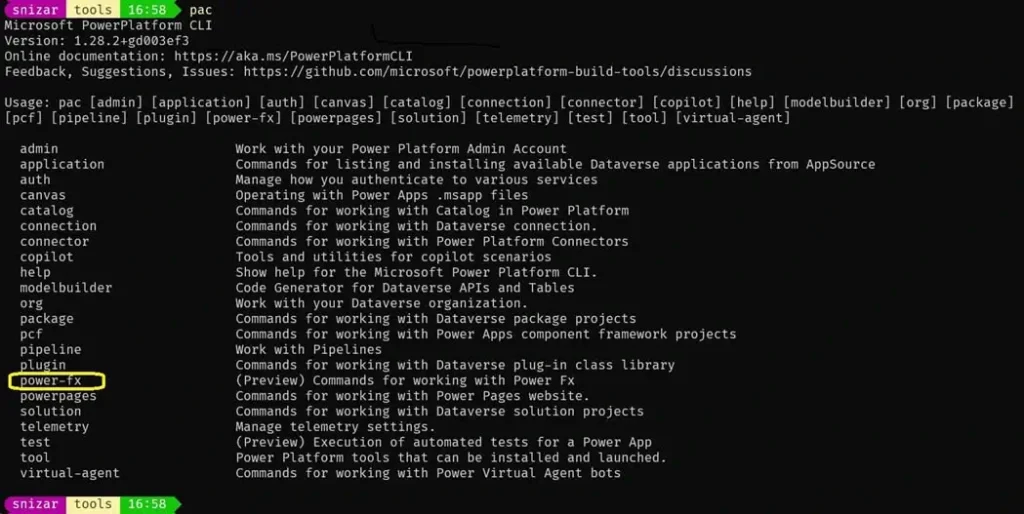
The Power Platform tools ecosystem begins with the Power Platform Command Line Interface (CLI). This cross-platform utility enables developers to authenticate environments, manage solutions, and automate deployment tasks without navigating the web interface.
Common use cases include:
- Solution export and import via scripts
- Environment variable configuration
- Canvas app and Power Automate flow deployment
- Dataverse table and column management
The CLI integrates seamlessly with CI/CD pipelines and eliminates repetitive manual steps during environment provisioning. Our Dynamics CRM developers working on multi-environment projects rely on pac CLI to maintain consistency across dev, test, and production instances.
Whether you need custom dashboards, automated processes, or complex data migration, our team ensures every solution works seamlessly and efficiently.
2. Plugin Registration Tool (PRT)
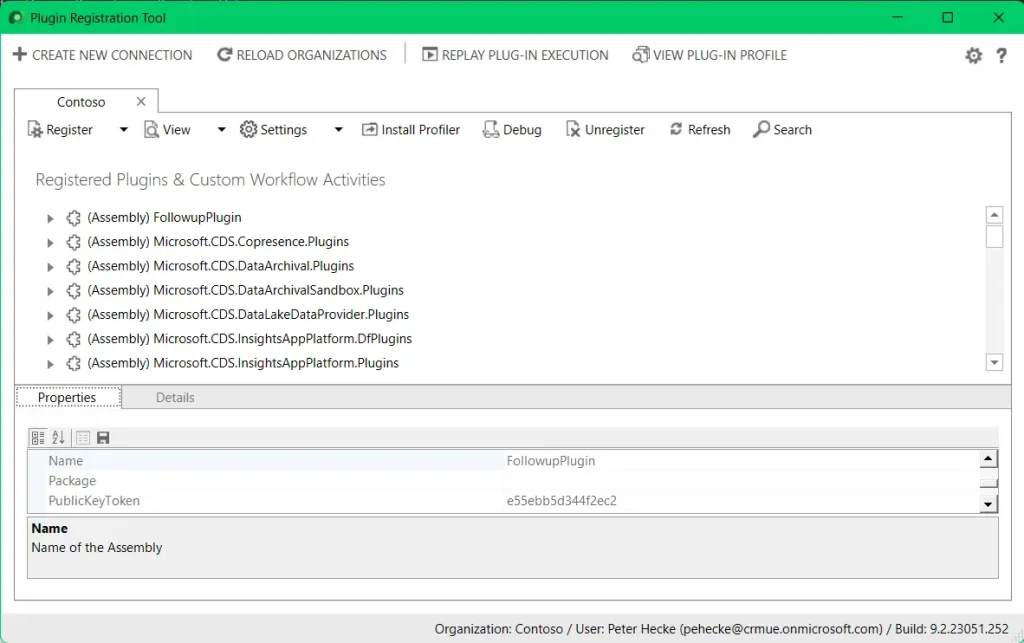
via Microsoft
Every custom business logic layer in Dynamics 365 runs through plugins and custom workflow activities. The Plugin Registration Tool provides the interface to register assemblies, configure step triggers, and define execution contexts. It supports:
- Pre and post-operation event registration
- Synchronous and asynchronous execution modes
- Image registration for capturing before and after entity states
- Service endpoint configuration for Azure Service Bus integration
Developers use PRT to control when and how server-side code executes, making it essential for extending CRM behavior beyond out-of-the-box functionality.
3. Configuration Migration Tool (CMT)
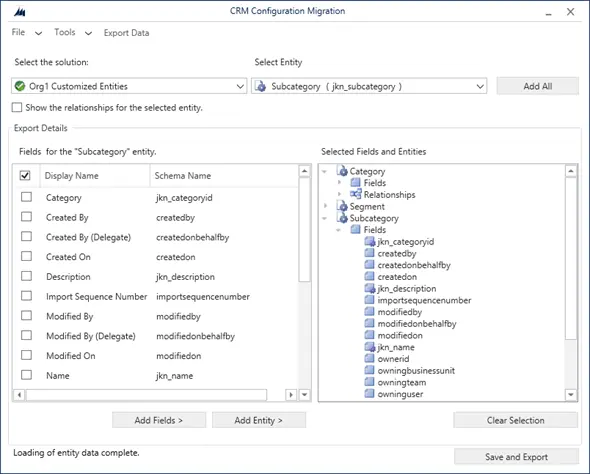
Reference data and configuration settings often need to be moved between environments without triggering full solution imports. The Configuration Migration Tool extracts records from one environment and imports them into another while preserving relationships and lookup references.
Typical scenarios include:
- Migrating security roles and teams
- Moving business units and queues
- Transferring product catalogs or price lists
- Replicating configuration entities that solutions exclude
This tool prevents manual data entry errors and maintains configuration integrity across sandbox and production systems.
Solution Management and Deployment Tools
Structured solution management separates professional deployments from ad-hoc configuration changes.
4. Solution Packager
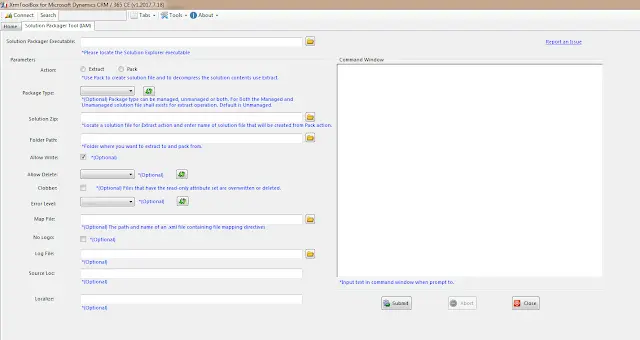
Solution Packager decomposes managed and unmanaged solutions into individual XML files representing entities, forms, views, workflows, and web resources. This decomposition enables:
- Source control integration with Git or Azure Repos
- Granular change tracking at the component level
- Merge conflict resolution during parallel development
- Automated build processes using MSBuild or similar tools
Development teams working with the Dynamics 365 developer toolkit use Solution Packager to maintain version history and implement branching strategies for feature development.
5. Package Deployer
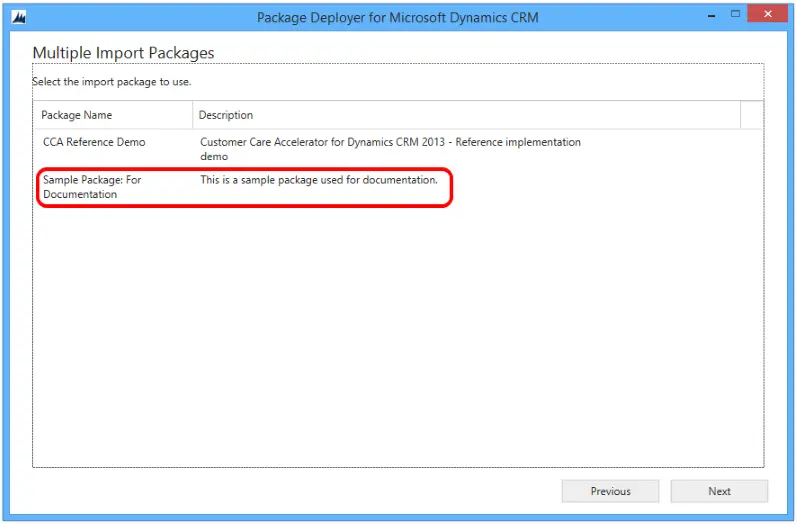
via Microsoft Learn
Complex deployments often require pre- and post-deployment logic, like data imports, configuration updates, or custom validation steps. Package Deployer bundles solutions with C# code that executes before, during, or after solution import.
Key capabilities include:
- Multi-solution deployment in a defined sequence
- Custom error handling and rollback logic
- User prompts for deployment-time configuration
- Integration with the import configuration data
This tool transforms solution files into executable packages that reduce deployment risks and automate environment setup.
6. Azure DevOps Pipelines
via Microsoft Learn
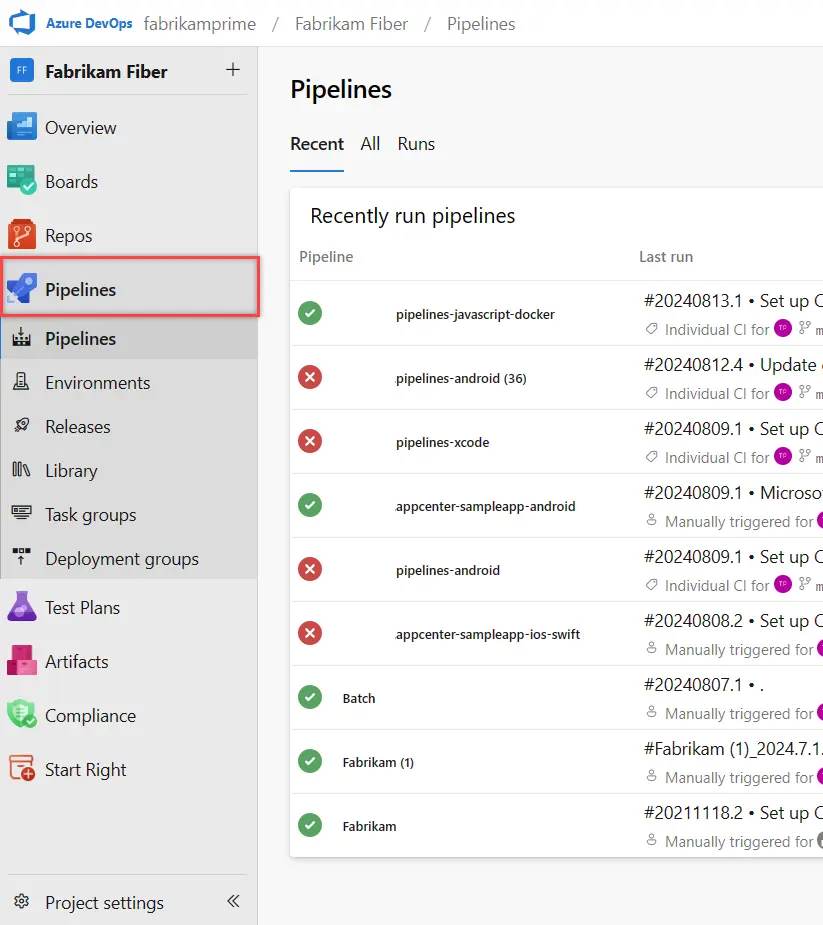
Continuous integration and deployment pipelines automate the entire release cycle for Dynamics 365 customizations. Azure DevOps Pipelines orchestrate build triggers, solution exports, automated testing, and environment deployments.
Dynamics 365 CRM developer tools integrate directly with pipeline tasks through:
- Power Platform Build Tools extension
- Automated solution version incrementing
- Solution checker validation gates
- Environment variable replacement during deployment
Teams implementing DevOps practices eliminate manual deployment errors and establish audit trails for every release.
Customization and Extension Tools
These tools extend development capabilities beyond Microsoft’s native offerings.
7. XrmToolBox
via XrmToolBox
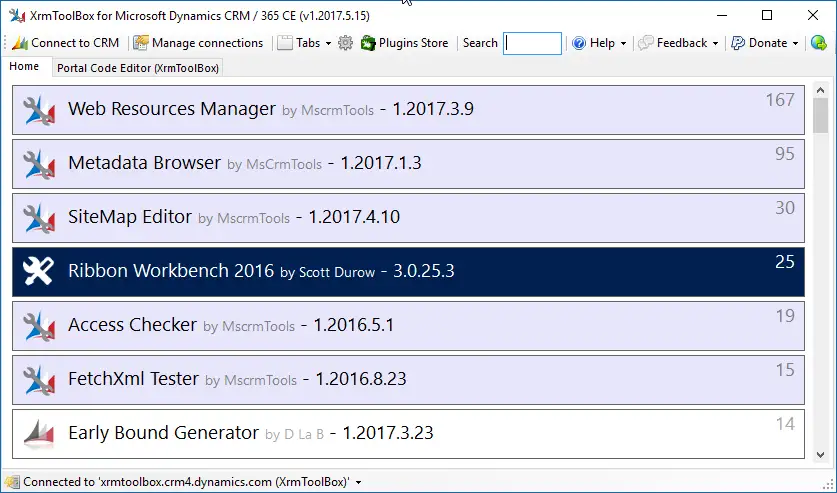
XrmToolBox serves as the Swiss Army knife for Dynamics 365 developers, providing over 200 community-built plugins that address specific development and administrative tasks.
Essential plugins for Dynamics CRM include:
Ribbon Workbench
It enables command bar customization through a visual designer. Developers modify button visibility rules, add custom actions, and control command bar behavior without editing XML directly.
FetchXML Builder
This generates complex queries using a graphical interface. The tool translates visual query design into FetchXML, SQL, or C# query expressions, making data retrieval logic easier to construct and test.
Early Bound Generator
The plugin creates strongly-typed C# classes from Dataverse table definitions. These classes provide IntelliSense support and compile-time validation when writing plugin or custom API code.
The plugin architecture allows developers to contribute new tools, making XrmToolBox a continuously evolving resource.
8. Visual Studio + Dynamics SDK
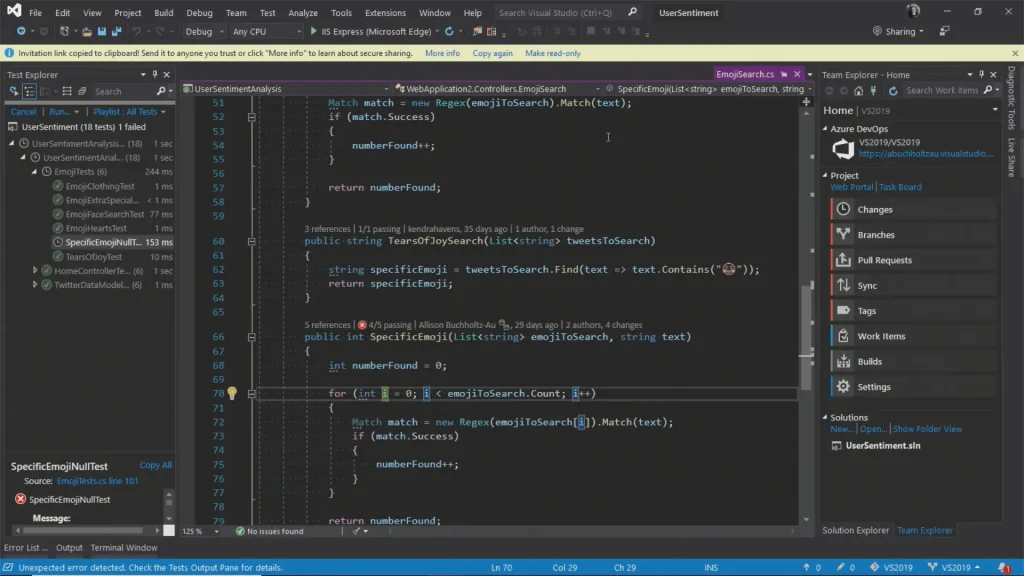
Server-side plugin development, custom workflow activities, and console applications require Visual Studio with the Dynamics 365 SDK—the same toolchain developers use when building PCF controls for custom Power Apps interfaces.
The SDK provides:
- Core assemblies for IOrganizationService and IPluginExecutionContext
- Base classes for plugin and workflow activity development
- Code generation tools for early-bound classes
- Unit testing frameworks compatible with Dataverse services
Professional Dynamics CRM consulting teams standardize on Visual Studio to maintain code quality, implement debugging workflows, and enforce coding standards across plugin assemblies.
9. Power Apps Checker
via Microsoft Learn
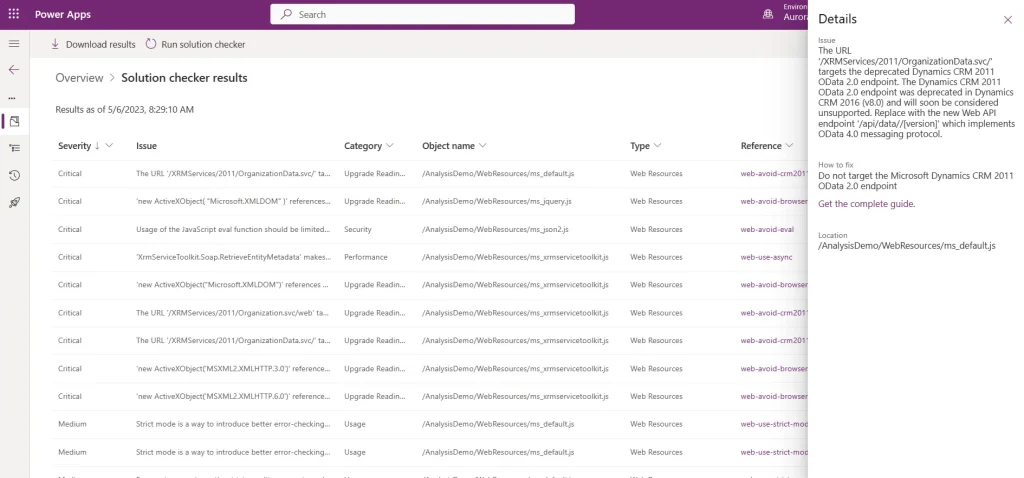
Code quality and solution health directly impact system performance and maintainability. Power Apps Checker analyzes solutions against Microsoft’s best practice rules and identifies:
- Performance bottlenecks in plugins and JavaScript
- Unsupported API usage or deprecated methods
- Security vulnerabilities in custom code
- Accessibility issues in model-driven apps
Running the checker before deployment catches issues that could degrade user experience or violate compliance requirements.
From implementation and customization to system audits and performance optimization, we ensure your CRM delivers value. Our services include workflow automation, reporting and analytics setup, third-party integrations, and end-user training to make your CRM work harder for your team.
Integration, Migration, and Debugging Tools
Connecting Dynamics 365 with external systems and troubleshooting runtime behavior requires specialized utilities.
10. KingswaySoft
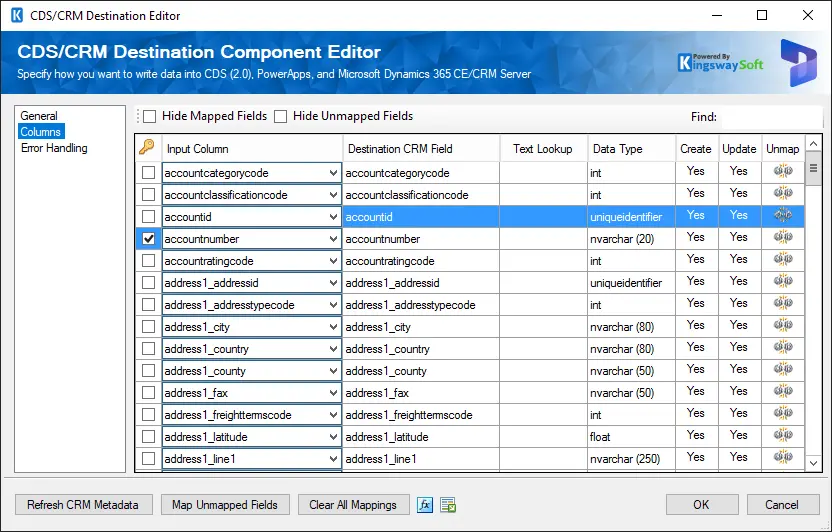
via KingswaySoft
Enterprise integration scenarios like ERP synchronization, data warehouse loading, or Dynamics 365 migration from legacy systems demand robust ETL capabilities. KingswaySoft SSIS Integration Toolkit provides native connectors for Dynamics 365 within SQL Server Integration Services (SSIS).
Features include:
- Upsert operations with automatic duplicate detection
- Bulk data loading with parallelization
- Relationship mapping for lookup fields
- Error logging and retry mechanisms
Organizations moving large data volumes or implementing ongoing synchronization processes rely on KingswaySoft to handle complex transformation logic and scheduling requirements.
11. CRM Rest Builder
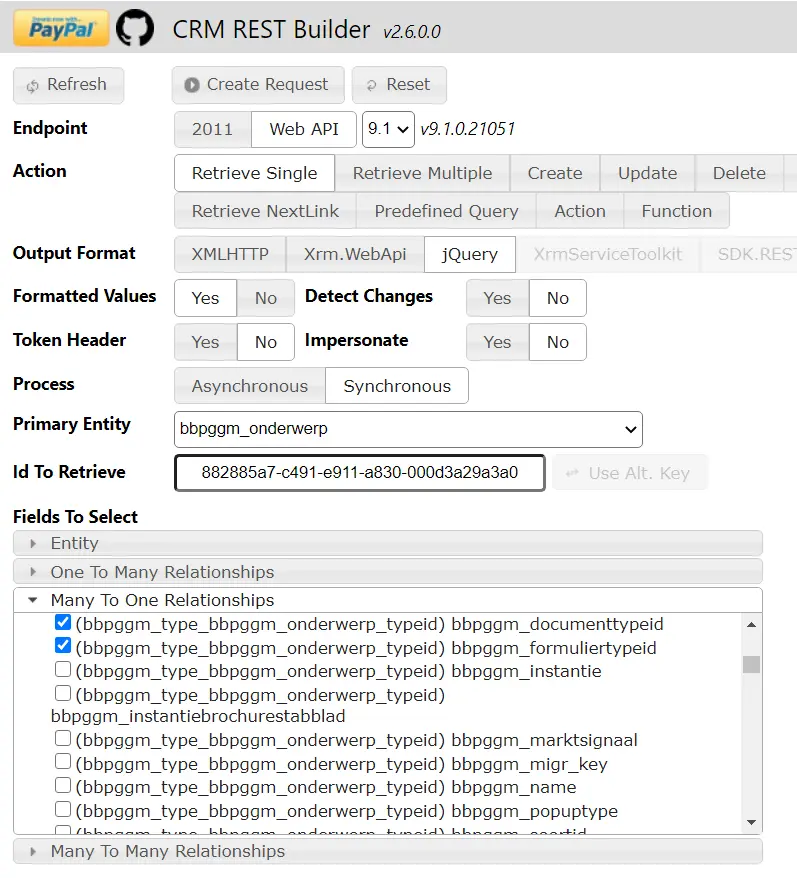
Web resource development and client-side integrations require accurate Web API calls. CRM Rest Builder generates JavaScript code for Dataverse Web API operations by selecting tables, columns, and filter criteria through a UI.
The tool produces:
- Fully formed HTTP requests with proper headers
- Entity metadata references for lookups and relationships
- OData query syntax with filtering and expansion
- Response handling templates
This eliminates syntax errors and accelerates client-side script development for form customizations and portal integrations.
12. Postman/Fiddler
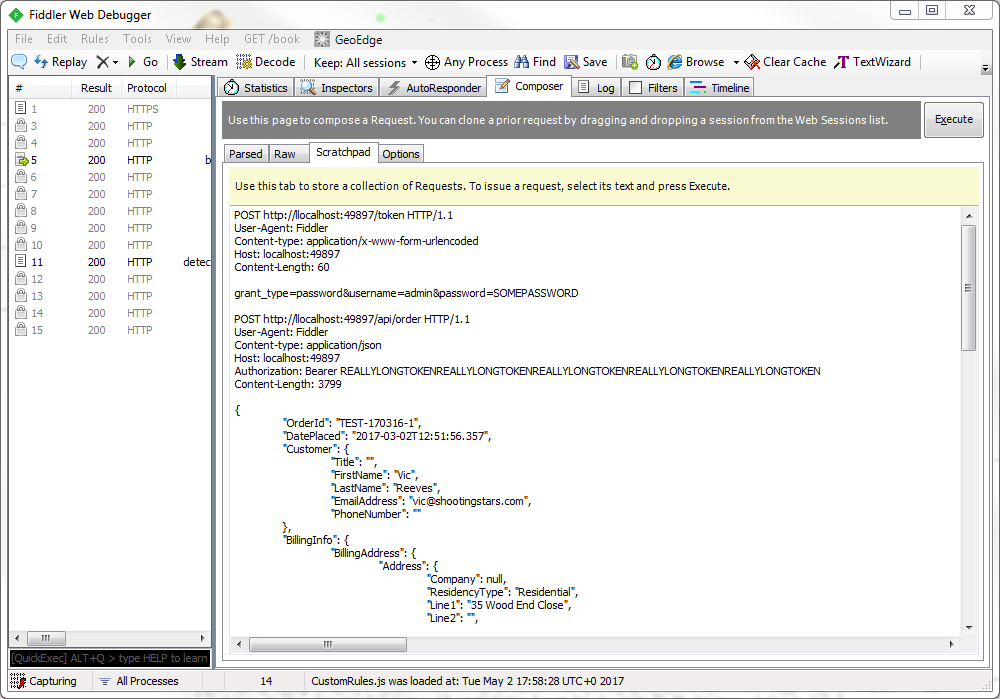
API debugging and authentication troubleshooting need request inspection and response validation. Postman creates reusable collections of Dataverse Web API calls for testing CRUD operations, custom actions, and batch requests.
Fiddler captures HTTP traffic between clients and Dynamics 365, revealing:
- Authentication token content and expiration
- Request payloads and response status codes
- Network latency and performance bottlenecks
- Certificate validation issues
Both tools help diagnose integration failures and validate API behavior before implementing code in production environments.
Best Practices for Dynamics 365 Development Environments
The following Dynamics 365 developer toolkit best practices help teams build stability, efficiency, and long-term scalability into their environments.
Layer Your Environments With Purpose
A multi-tiered setup for development, testing, UAT, and production keeps work organized and minimizes risk.
Developers can build and validate components in isolated sandboxes before they reach users. This structure also supports proper ALM (Application Lifecycle Management), making it easier to track changes, roll back versions, and release updates with confidence. Managed and unmanaged solutions should be used deliberately: unmanaged for active development, managed for final deployments.
Establish a Disciplined Version Control Process
Version control is the foundation for collaboration. Storing your configurations, scripts, and workflows in repositories like Azure DevOps or GitHub helps maintain visibility across teams.
Each change can be reviewed, tested, and approved before it moves forward. When combined with branching strategies and pull requests, version control turns CRM customization into a well-documented, team-driven workflow.
Automate Builds and Deployments
Automation transforms repetitive steps into predictable, repeatable actions.
Incorporating Power Platform Build Tools or Power Platform CLI into CI/CD pipelines brings control and consistency to solution management. Automated builds and imports minimize manual errors, reduce deployment time, and provide clear traceability, especially valuable when multiple teams contribute to the same environment.
Modularize and Document Customizations
Complex scripts or plugins are easier to maintain when broken into smaller, modular components. Each module can serve a defined function, reducing dependencies and simplifying debugging.
Detailed documentation covering logic, triggers, and known limitations ensures future developers can work confidently without needing to reverse-engineer existing logic.
Align Security Roles With Your ALM Process
As teams shift between development and production, access needs evolve. Review and update security roles regularly to reflect these changes.
Giving the right people the right access at the right stage prevents accidental overrides and supports better accountability across environments.
How Aegis Softtech Supports Dynamics 365 Development
Building a functional Dynamics 365 CRM requires developers who understand both the platform and your business operations. Our team at Aegis Softtech brings over 12 years of experience implementing Dynamics 365 across industries like manufacturing, healthcare, retail, and finance, providing ongoing Dynamics 365 support to help businesses maintain and improve their CRM environments.
We handle everything from initial consultation and custom configuration to integration with your existing systems, like accounting software, inventory management, and marketing automation platforms.
Our developers leverage advanced tools for Dynamics 365 CRM developers, including Power Automate for workflow automation, Power BI for analytics dashboards, and custom APIs for third-party connections.
We offer flexible engagement models—hire our team hourly, per project, or on retainer, based on your needs.
FAQs
1. How can developers ensure code security within Dynamics 365?
Developers can protect Dynamics 365 solutions by implementing role-based access controls, validating and sanitizing all inputs, and following Microsoft’s secure coding best practices for plugins, workflows, and custom scripts.
Keeping the platform updated and using secure storage like Azure Key Vault for sensitive data adds an extra layer of protection.
2. What’s the difference between pac CLI and SDK-based development?
The pac CLI is a command-line tool designed for quick builds, deployments, and management of Power Platform projects. SDK-based development relies on programming libraries and APIs (C# or JavaScript) to create highly customized solutions. While pac CLI is faster for routine tasks, the SDK offers more control for complex customizations and D365 integrations.
3. How can teams manage multiple Dataverse environments effectively?
Teams can manage multiple Dataverse environments by maintaining separate Dev, Test, and Prod setups. Automating deployments using Dataverse solutions and ALM pipelines ensures consistency, while standardized naming conventions, proper access controls, and environment monitoring help track usage, performance, and changes efficiently.
4. Which tool is best for automating CRM builds?
For automating CRM builds, pac CLI and Power Platform Build Tools for Azure DevOps are the most effective. They allow teams to automate solution packaging, deployments, and testing, ensuring faster and more reliable builds across all environments.