
Think about the last time your team had to pull a report in Dynamics 365 CRM.
Sales wanted pipeline updates, marketing needed campaign performance, and IT got dragged in to “fix” the view. Hours later, you had numbers, but not the clarity you needed.
Now imagine if those insights surfaced instantly, right when you asked for them. That’s the promise of Copilot integration with Dynamics 365 CRM.
In this guide, we’ll show you how to bring Copilot into your system and fine-tune it for your goals. Let’s get started!
Key Takeaways
- What Copilot Does: AI assistant inside Dynamics 365 CRM for sales, service, and marketing with natural language prompts, summaries, and predictive insights
- Where Teams Benefit: Sales gains lead scoring, follow-ups, and opportunity recaps; service benefits from ticket summaries and suggested replies; marketing automates segmentation, campaign drafts, and reporting
- How Rollout Begins: Rollout starts with data cleanup, security checks, and user training before enabling features, setting role-based permissions, and piloting workflows
- What Drives Adoption: Best practices include mapping features to pain points, customizing prompts, pairing AI with human expertise, and measuring both efficiency and outcomes
- How Security Works: Microsoft compliance and role-based access, with consulting partners providing setup, customization, and adoption support
What is Copilot in Dynamics 365 CRM?
Microsoft has introduced Copilot integration with Dynamics 365 CRM to bring AI assistance directly into Sales, Customer Service, and Marketing. It uses conversational AI and predictive intelligence to simplify work across teams.
With Dynamics 365 CRM with Microsoft Copilot, you can:
- Use natural language prompts to access records, create follow-ups, or summarize interactions
- Draft contextual emails for leads, opportunities, or service tickets without starting from scratch
- Generate predictive insights that highlight customer trends, buying intent, or at-risk accounts
- Support campaigns with automated content suggestions and segmentation
Use Cases for Different Teams
Different teams benefit in unique ways from these AI-powered CRM features in Dynamics 365:
- Sales: Auto-generate meeting recaps, draft personalized follow-up emails, and summarize opportunities to improve sales productivity with Copilot
- Customer service: Provide suggested responses, summarize ticket history, and enhance agent interactions to enhance customer engagement using Copilot
- Marketing: Segment audiences through natural language queries, generate campaign ideas, and simplify reporting for better targeting
Preparing for Copilot Integration With Dynamics CRM
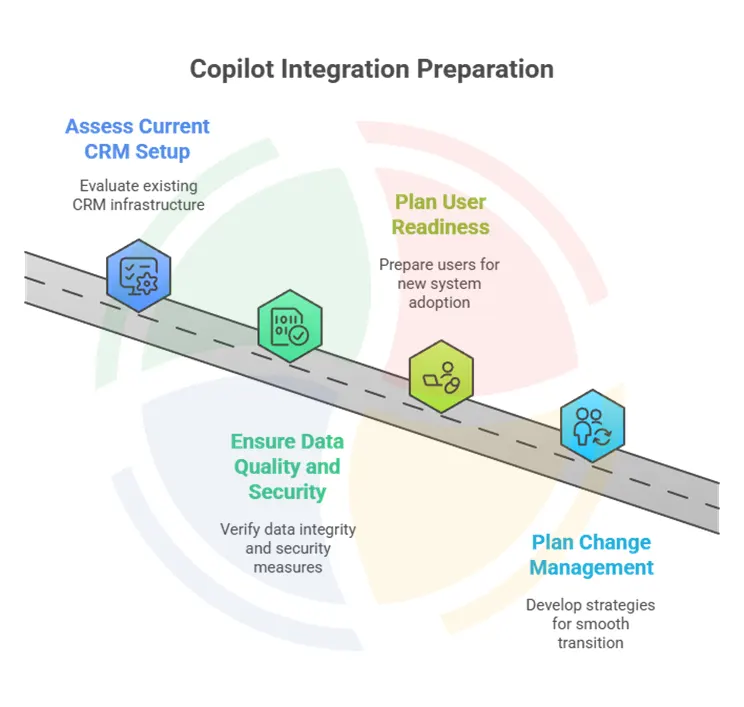
Rolling out Copilot integration with Dynamics CRM requires planning. You need to identify where AI adds the most value, check data readiness, and confirm that security controls are aligned.
Here’s how to get started:
Assess Your Current CRM Setup
Before enabling Copilot, review how your teams currently use Microsoft Dynamics 365 CRM. Look for repetitive, time-consuming tasks where AI can drive efficiency.
Examples include:
- In sales, lead qualification often consumes hours. Copilot can automatically score leads, highlight top prospects, and prepare outreach drafts, helping reps focus only on high-intent opportunities
- In customer service, agents spend significant time writing responses or checking ticket history. Copilot speeds this up with suggested replies and summaries
- In marketing, campaign managers manage segmentation and content drafting. Copilot automates audience filters and generates campaign copy aligned with brand tone
Ensure Data Quality and Security Compliance
AI is only as good as the data behind it.
If CRM records are incomplete or inconsistent, predictions and drafts won’t be reliable. For example, missing fields in customer accounts may cause Copilot to generate vague or incorrect email responses.
To prepare:
- Clean contact records, standardize naming conventions, and merge duplicates
- Validate historical activity logs so AI can accurately summarize interactions
- Ensure compliance by reviewing role-based security permissions, so sensitive financial or personal information doesn’t get exposed in AI-driven suggestions
Strong data governance is a prerequisite to configuring Copilot in Dynamics CRM effectively.
Plan User Readiness and Change Management
Technology succeeds when people are ready for it. AI adoption can fail if employees don’t understand the benefits or fear that automation will replace their roles. Preparing users upfront reduces resistance and speeds up adoption.
To create a smooth transition:
- Communicate clearly how Copilot enhances productivity rather than replacing human judgment
- Involve end-users early with workshops or pilot programs so they see practical value in their day-to-day tasks
- Provide role-specific training—sales teams should focus on lead insights and email drafting, while service agents should practice ticket summaries and suggested replies
- Establish feedback loops so users can flag inaccurate outputs and influence ongoing refinements
Aegis Softtech helps organizations integrate and optimize Copilot in Dynamics 365 CRM, ensuring AI delivers measurable business results without compromising compliance or data integrity. Explore Our Dynamics 365 CRM Consulting Services
Steps to Integrate Copilot With Dynamics 365 CRM
Once your CRM is ready, we follow this step-by-step, structured approach to enable Copilot.
Step #1: Define Clear Business Outcomes
Before enabling any feature, we start with clarity on what you want Copilot to achieve. AI tools deliver the most value when linked to measurable outcomes that matter to your teams.
For example, sales managers may want to reduce the time it takes to qualify leads, service leaders may aim to shorten first response times, and marketing teams may focus on generating more personalized campaigns.
We recommend writing down these goals in precise terms, such as “cut case response times from eight hours to four hours” or “improve lead-to-opportunity conversion by 15%.” This helps you judge the success of Copilot on functionality and its business impact.
Empower your teams to get more out of Dynamics 365 CRM with guided Copilot enablement that aligns AI with real business workflows, security controls, and KPIs. Discover our Dynamics 365 CRM Services
Step #2: Audit CRM Data and Integrations
Copilot recommendations depend entirely on the data it analyzes. If your CRM holds incomplete, duplicated, or inconsistent records, the AI outputs will not be reliable.
Before Copilot integration with Dynamics CRM, we run a thorough data audit. This includes:
- Reviewing customer and lead records for missing fields and duplicates, then merging or updating them
- Standardizing drop-down fields, such as industry or region to prevent Copilot from misinterpreting data
- Validating activity logs, ensuring that emails, meetings, and notes are correctly linked to accounts and opportunities
- Mapping existing integrations with Outlook, Teams, Power BI, ERP, or e-commerce platforms to identify data silos
A clean, connected dataset allows Copilot to summarize interactions accurately, suggest relevant actions, and generate precise forecasts.
Step #3: Prepare Licensing, Environment, and Billing
Copilot requires the right licensing model and environment setup.
Before testing, we confirm that your Microsoft license includes Copilot entitlements. Then, we coordinate with you to decide whether preview quotas, prepaid capacity packs, or a pay-as-you-go model for Copilot usage best suits your needs.
Our team creates a sandbox environment that mirrors production data but masks sensitive details where needed. We connect this environment to the Power Platform Admin Center, so you can track usage, monitor billing, and capture performance telemetry.
This preparation prevents cost surprises and ensures you can experiment without disrupting live operations.
Step #4: Enable Copilot Features in Dynamics 365
Once licensing and environment readiness are in place, we enable Copilot in the Dynamics 365 apps where it will deliver the most value. Copilot features can be activated for Sales, Customer Service, or Marketing.
We also check that the environment is updated to the latest release, as Microsoft frequently rolls out new Copilot capabilities in patches.
If your team plans to use email drafting or meeting recaps, make sure mailbox and communication settings are configured correctly so Copilot has the necessary context.
Step #5: Configure Role-Based Permissions
AI assistance should align with responsibilities, not overwhelm every user with features they don’t need. Our experts configure permissions so sales representatives, managers, service agents, and marketers each see the Copilot options that match their daily tasks.
For example, sales managers might access predictive opportunity scoring, while service agents can generate ticket summaries and draft responses. Marketing specialists may focus on campaign content suggestions.
Role-based permissions also protect sensitive data, ensuring that only authorized users see predictive financial insights or customer details.
Additionally, we:
- Create permission sets/role centers for Copilot actions (who can draft, who can post/approve)
- Use the Agent Card (task pane) settings to scope the Sales Agent or Service Agent functions to the right teams
- Add audit logging to track Copilot-generated proposals, summaries, and autonomous actions
Step #6: Design Pilot Scenarios and Test Cases
Finally, we roll out the Copilot integration with Dynamics CRM by defining pilot scenarios that mirror real workflows. For example:
- In sales, test Copilot’s ability to draft proposals from inbound emails and measure the time saved compared to manual drafting
- In finance-linked processes, use Copilot to reconcile bank statements or match supplier invoices to purchase orders and check match accuracy
- In service, run recent customer tickets through Copilot to assess how accurately it summarizes interactions and suggests replies
Aegis Softtech sets clear benchmarks, such as reducing quote creation time by 50% or achieving 85% accuracy in auto-matched transactions. These test cases prove Copilot’s value before organization-wide adoption.
Step #7: Validate Outcomes and Measure KPIs
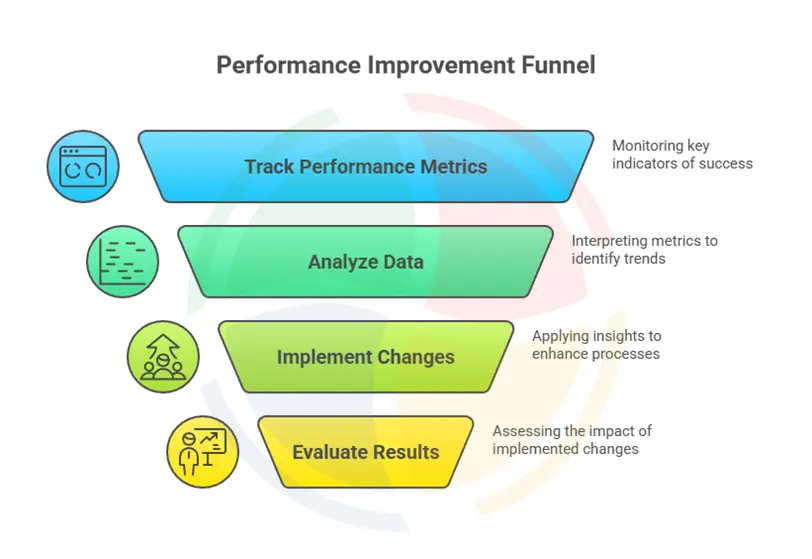
In the end, we track performance metrics aligned with your initial goals, such as:
- Shorter response times in customer service
- Higher lead-to-opportunity conversion rates in sales
- Improved customer satisfaction scores in support interactions
- Reduced time to draft proposals, campaigns, or reports
Power BI dashboards help track adoption rates, monitor AI output accuracy, and measure time saved. Plus, we set approval checkpoints until accuracy levels reach thresholds you are comfortable automating.
Step #8: Scale and Institutionalize Copilot Workflows
Once the pilot demonstrates consistent value, we help you scale gradually across teams and geographies.
Roll out in waves, repeating the pilot process for each group to account for unique workflows. Our team recommends documenting best practices in a governance playbook that covers prompt management, data hygiene, and compliance audits.
What’s more, make Copilot usage part of standard job expectations by linking it to KPIs and performance metrics. This ensures adoption becomes a long-term driver of productivity and engagement.
Best Practices for Using Copilot in Dynamics CRM
To maximize ROI, you should approach Copilot adoption systematically. Here are proven best practices we implement while integrating Copilot in Dynamics 365 CRM:
Map AI Features to Pain Points Before Rollout
Copilot has dozens of features, but not all will matter equally to your business. The smartest way to start is to map specific features to the pain points your teams face today:
- If sales reps spend hours drafting follow-up emails, enable automated email drafts first
- If service teams struggle with long customer histories, prioritize ticket summarization and suggested replies
- If marketers waste time on segmentation, introduce natural language audience queries
This ensures Copilot adoption starts with solving real problems rather than testing “cool features.”
Align Prompts and Workflows with Business Language
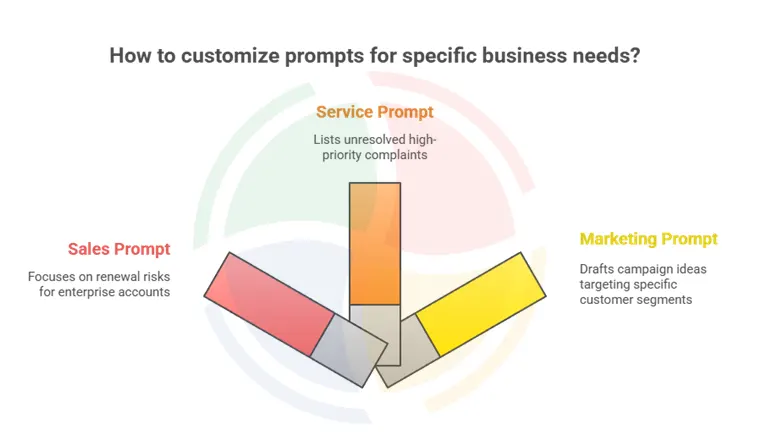
Copilot is conversational, but out-of-the-box prompts may not reflect your industry terminology or workflows. Customize prompts so employees get outputs tailored to their needs:
- In sales: “Highlight renewal risks for enterprise accounts closing this quarter.”
- In service: “List unresolved high-priority complaints in the past 48 hours.”
- In marketing: “Draft a campaign idea targeting customers who bought in Q1 but not Q2.”
Balance AI Suggestions With Human Expertise
Copilot can streamline decision-making, but it should guide teams rather than dictate outcomes. Businesses see the best results when AI insights are paired with human judgment.
For instance:
- Sales reps can use Copilot’s opportunity summaries to prioritize outreach, while still applying their knowledge of client context
- Service teams may rely on AI-generated ticket replies for speed, but refine tone and empathy before sending
- Marketing managers can take Copilot’s campaign drafts as a starting point, then adjust messaging to fit the brand voice
Track ROI With Both Efficiency and Outcome Metrics
Simply measuring “time saved” isn’t enough. To truly assess ROI from AI-powered CRM features in Dynamics 365, track:
- Efficiency metrics: Reduction in case handling time, fewer hours spent drafting proposals, faster campaign turnaround
- Outcome metrics: Higher conversion rates, improved customer satisfaction scores, increased repeat purchases
This dual view helps executives see Copilot as a driver of business growth, not just productivity gains.
Turn CRM Advantage Into a Business Advantage With Aegis Softtech
Successful Copilot integration with Dynamics CRM requires a partner that understands both the platform and the practical realities of AI adoption.
We offer:
- Microsoft-certified Dynamics CRM specialists with experience in AI-driven projects
- Custom AI workflows designed around your business needs, ensuring Copilot recommendations are relevant and actionable
- Ongoing monitoring and performance tuning so AI suggestions improve over time, delivering sustained ROI
With this approach, we ensure integrating Copilot in Dynamics 365 CRM remains focused on embedding intelligence into the way your teams work every day.
“Aegis consulting services have helped us leverage the built-in intelligent features of the Microsoft CRM platform. It has boosted our conversion rates and improved sales productivity. We highly recommend using their consulting services.”
Copilot integration with Dynamics 365 CRM enables sales, service, and marketing teams to work faster and smarter through predictive insights, natural language prompts, and automated content creation.
When implemented strategically, these features improve lead conversion, shorten service response times, and create more targeted campaigns that strengthen customer relationships.
Aegis Softtech supports organizations at every stage, from configuration and workflow customization to training and performance monitoring. We make sure that your CRM’s AI capabilities translate into real business outcomes.
FAQs
1. How can Copilot improve sales productivity?
Copilot integration with Dynamics 365 CRM helps sales teams focus on high-value work. It can draft personalized follow-up emails, summarize meetings, and provide predictive insights on which opportunities are most likely to close.
These AI-powered CRM features in Dynamics 365 reduce time spent on admin tasks and allow reps to engage more effectively with customers, leading to higher conversion rates.
2. How does Copilot help with customer service?
With Dynamics 365 CRM in Microsoft Copilot, service agents get instant support for handling customer cases.
Copilot summarizes interaction histories, suggests empathetic responses, and recommends next steps to resolve issues faster. This improves efficiency and helps teams enhance customer engagement using Copilot by delivering consistent, context-aware service.
3. Is Copilot in Dynamics 365 CRM secure?
Yes. Copilot integration with Dynamics CRM follows Microsoft’s enterprise-grade security framework.
Data is processed within the Microsoft ecosystem with built-in compliance for standards such as GDPR and SOC 2. Administrators can also configure Copilot in Dynamics CRM with role-based permissions to control access, making sure sensitive information is only available to authorized users.