
It was Monday morning, and Maya, a Dynamics 365 developer, was reviewing a new data import for a key client. Everything seemed fine until she noticed several records had slipped through with missing fields. Workflows triggered, emails went out, and suddenly the CRM was full of errors that would take hours to fix.
Prevalidation plugins in Dynamics 365 catch these problems before they ever reach the database. They run at the earliest point in the plugin execution pipeline, giving Dynamics CRM developers the ability to enforce rules, block duplicates, and validate incoming data immediately.
In this guide, we’ll break down the prevalidation stage in Dynamics CRM, explain how it differs from other stages, and show how to use it. All of these will help make your Dynamics 365 plugin development smoother, faster, and far more reliable.
Here we go!
Key Takeaways
- Prevalidation plugins in Dynamics 365 run before security checks and database operations, allowing early interception of invalid data.
- They are ideal for blocking duplicates, enforcing business rules, validating imports, and preventing unauthorized updates or deletions.
- Since they operate outside the transaction scope, failed validations stop operations without affecting system performance or starting database transactions.
- Prevalidation logic should remain light, focusing on simple checks, while complex logic belongs in pre-operation or post-operation stages.
- These plugins are particularly useful for bulk imports, integrations, and scenarios requiring cross-entity or global data validation.
The Plugin Execution Pipeline in Dynamics 365
Every time a user creates, updates, or deletes a record in Microsoft Dynamics 365, that operation passes through a defined plugin execution pipeline. This pipeline determines when and how custom business logic executes. Knowing exactly where your plugin fits in this flow is essential for building a reliable and scalable Dynamics 365 solution.
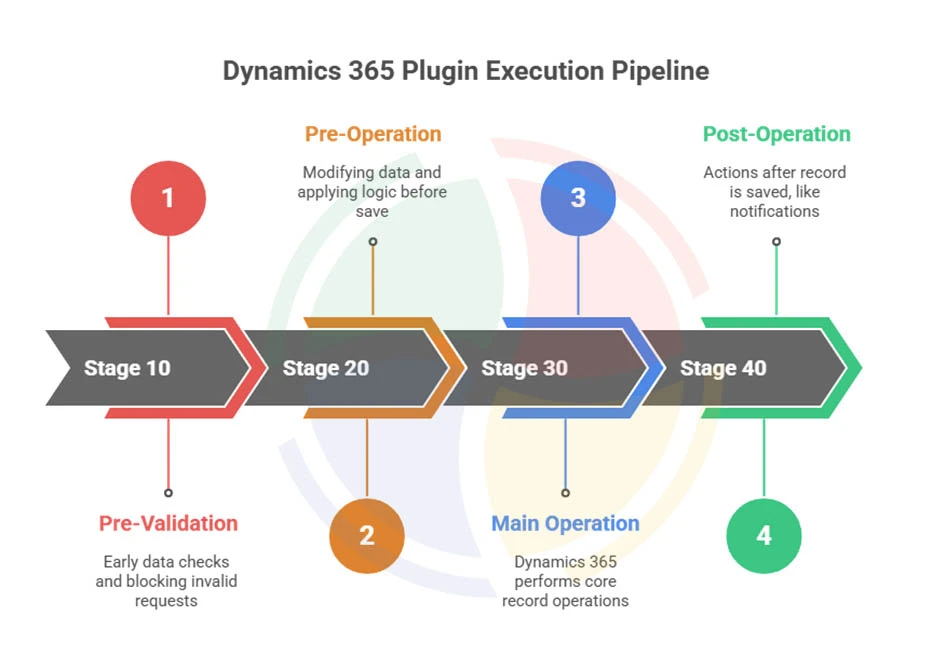
Each stage has a specific purpose and impact on how data moves through the system. Let’s break them down one by one.
Pre-Validation (Stage 10)
The prevalidation stage in Dynamics CRM executes before the platform’s core operations and before any security or database validation occurs. Since it runs outside the transaction, this stage gives developers the earliest chance to act on incoming data.
You can inspect input parameters, run quick data checks, or stop invalid requests before they even reach the system. For example, if an import contains duplicate records or missing mandatory fields, a prevalidation plugin in Dynamics 365 can reject the operation instantly, which saves hours of cleanup later.
When to use it:
- Blocking duplicate records or invalid data
- Enforcing business rules before database interaction
- Validating imports or integrations that push large volumes of data
Pre-Operation (Stage 20)
The pre-operation stage runs after security checks but before the database transaction commits. It’s part of the same transaction, meaning any exceptions you throw here will roll back the entire operation.
This stage is perfect for adjusting field values, applying conditional logic, or ensuring related data is ready before saving. For instance, you could automatically populate fields, calculate totals, or update related entities before the record is persisted.
When to use it:
- Modifying data before it’s saved
- Implementing calculated or dependent field updates
- Performing logic that must execute within the same transaction
Be careful with performance-heavy operations here; anything that slows execution delays the transaction itself.
Main Operation (Stage 30)
The main operation is where Dynamics 365 performs its internal logic: creating, updating, or deleting the actual record. Developers can’t register plugins in this stage, but understanding it helps determine when your pre- and post-operation logic executes relative to the system’s native actions.
Essentially, this is the moment when the data change happens. Your pre-operation logic prepares for it, and your post-operation logic reacts to it.
Learn how we can improve system performance and save time for your team.
Post-Operation (Stage 40)
The post-operation stage fires after the record has been committed to the database. Depending on whether the plugin is synchronous or asynchronous, this can happen either within the same transaction or later as a background process.
This is the best place for actions that depend on finalized data, such as notifications, logging, or updating related records. Now, because the data exists in the database, your plugin can safely access the record’s GUID and other system-generated fields.
When to use it:
- Sending emails or triggering workflows
- Updating related entities
- Logging completed actions or audit data
What are Prevalidation Plugins in Dynamics 365?
Prevalidation plugins in Dynamics 365 are executed before the main transaction pipeline begins. They run even before the platform performs security checks or starts database-level operations, giving developers an early interception point to validate or control incoming data.
These plugins operate outside the transaction scope, so they allow developers to stop invalid operations before they affect system performance or data integrity.
In practical terms, a prevalidation plugin serves as a gatekeeper.
When a record is created, updated, or deleted, the plugin checks whether the data meets predefined business rules before allowing the process to continue. This is especially useful for scenarios that require early data verification, such as checking an email field format, validating mandatory attributes, or preventing duplicate records across multiple entities.
For example, when users create a new contact with an incorrectly formatted email address, a prevalidation plugin can block the request immediately, long before any database write occurs. Similarly, in account creation workflows, developers can use this stage to verify if a record with the same tax ID already exists. This avoids duplicates that could later cause compliance or reporting issues.
When to Use Prevalidation Plugins
Think of the prevalidation stage in Dynamics CRM as your first line of defense—it stops bad data before the system even starts processing it. Let’s look at when you should use it.
Preventing Invalid Record Imports
Bulk imports can go wrong fast. When users upload hundreds or thousands of records, you want to catch issues before the system wastes resources on invalid data. Say you’re importing contacts, and each one needs to link to an active account. A prevalidation plugin in Dynamics 365 checks this before anything gets written:
public void Execute(IServiceProvider serviceProvider)
{
    var context = (IPluginExecutionContext)serviceProvider.GetService(typeof(IPluginExecutionContext));
    var serviceFactory = (IOrganizationServiceFactory)serviceProvider.GetService(typeof(IOrganizationServiceFactory));
    var service = serviceFactory.CreateOrganizationService(null);

    if (context.InputParameters.Contains("Target") && context.InputParameters["Target"] is Entity target)
    {
        if (target.LogicalName == "contact" && target.Contains("parentcustomerid"))
        {
            var accountRef = target.GetAttributeValue<EntityReference>("parentcustomerid");
            var account = service.Retrieve("account", accountRef.Id, new ColumnSet("statecode"));

            if (account.GetAttributeValue<OptionSetValue>("statecode").Value != 0)
            {
                throw new InvalidPluginExecutionException("Cannot create contact linked to an inactive account.");
            }
        }
    }
}
The beauty here is efficiency. If 500 contacts reference dead accounts, they fail immediately. No transactions started, no resources wasted. The user gets clear feedback about what went wrong.
Using system context (CreateOrganizationService(null)) enables the plugin to check accounts regardless of who’s doing the import. The rule applies to everyone, so the plugin enforces it universally.
Restricting Unauthorized Updates or Deletions
Sometimes your business rules go beyond what security roles can handle. You might need to block actions based on record status, not user permissions. Here’s a common one: preventing users from deleting active opportunities. Security roles control who can delete opportunities, but they can’t check whether those opportunities are still open. Prevalidation plugins in Dynamics 365 fill that gap:
if (context.MessageName == "Delete" && context.PrimaryEntityName == "opportunity")
{
    var opportunityId = (Guid)context.InputParameters["Target"];
    var opportunity = service.Retrieve("opportunity", opportunityId, new ColumnSet("statecode"));

    if (opportunity.GetAttributeValue<OptionSetValue>("statecode").Value == 0)
    {
        throw new InvalidPluginExecutionException("Active opportunities cannot be deleted. Close the opportunity first.");
    }
}
This runs before security checks and before any database transaction. The operation stops immediately with a clear message.
The same pattern works for update restrictions. If approved, invoices should become read-only; a prevalidation plugin enforces that:
if (context.MessageName == "Update" && context.PrimaryEntityName == "invoice")
{
    var invoiceId = ((EntityReference)context.InputParameters["Target"]).Id;
    var invoice = service.Retrieve("invoice", invoiceId, new ColumnSet("statuscode"));

    if (invoice.GetAttributeValue<OptionSetValue>("statuscode").Value == 100001)
    {
        throw new InvalidPluginExecutionException("Approved invoices cannot be modified.");
    }
}
These rules protect your data across the board—API calls, manual updates, workflows, everything.
Validating Cross-Entity Business Rules
Data validation in Dynamics 365 CRM often means checking relationships between records. You need to make sure parent-child relationships make sense before committing changes.
Here’s a manufacturing scenario: work orders must link to locations with available capacity. The prevalidation plugin checks this:
if (target.LogicalName == "msdyn_workorder" && target.Contains("msdyn_servicelocation"))
{
    var locationRef = target.GetAttributeValue<EntityReference>("msdyn_servicelocation");

    var location = service.Retrieve("msdyn_servicelocation", locationRef.Id,
        new ColumnSet("msdyn_maxcapacity", "msdyn_currentload"));

    var maxCapacity = location.GetAttributeValue<int>("msdyn_maxcapacity");
    var currentLoad = location.GetAttributeValue<int>("msdyn_currentload");

    if (currentLoad >= maxCapacity)
    {
        throw new InvalidPluginExecutionException("Selected location has reached maximum capacity.");
    }
}
This validation happens before any transaction starts. During bulk work order creation, invalid assignments fail fast without consuming database resources.
Avoiding Duplicates During Create Events
Duplicate detection fits naturally in the prevalidation stage in Dynamics CRM. You want to catch duplicates before creating the record, not after.
If your organization enforces unique email addresses across all contacts, here’s how:
if (context.MessageName == "Create" && target.LogicalName == "contact" && target.Contains("emailaddress1"))
{
    var email = target.GetAttributeValue<string>("emailaddress1");

    var query = new QueryExpression("contact")
    {
        ColumnSet = new ColumnSet("contactid"),
        Criteria = new FilterExpression
        {
            Conditions =
            {
                new ConditionExpression("emailaddress1", ConditionOperator.Equal, email)
            }
        },
        TopCount = 1
    };

    var results = service.RetrieveMultiple(query);

    if (results.Entities.Count > 0)
    {
        throw new InvalidPluginExecutionException($"A contact with email address {email} already exists.");
    }
}
The check runs before the create operation begins. You avoid starting a transaction, attempting the insert, and then discovering the duplicate.
For complex duplicate detection—multiple fields, fuzzy matching, calculated values—evaluate whether prevalidation gives you enough context. Sometimes, pre-operation plugins provide better reliability when you need to compare more sophisticated criteria.
How to Build a Prevalidation Plugin in Dynamics 365
Building a prevalidation plugin in Dynamics 365 follows a straightforward process. This implementation process helps developers configure and deploy custom validation logic as part of a broader Dynamics 365 implementation. Let’s walk through each step thoroughly.
Step #1: Define and Register the Plugin
Start by creating a new Class Library project in Visual Studio targeting .NET Framework 4.6.2 or later. Add the Microsoft.CrmSdk.CoreAssemblies NuGet package to get the necessary references.
Your plugin class needs to implement the IPlugin interface:
using System;
using Microsoft.Xrm.Sdk;

namespace AegisSofttech.Dynamics.Plugins
{
    public class ValidateContactEmail : IPlugin
    {
        public void Execute(IServiceProvider serviceProvider)
        {
            // Plugin logic goes here
        }
    }
}
Build the project and sign the assembly with a strong name key. This creates the DLL file you’ll register with Dynamics 365.
Now comes the registration part. Open the Plugin Registration Tool and connect to your environment. Register your assembly, then register a new step with these settings:
- Message: Create (or Update/Delete depending on your needs)
- Primary Entity: The entity you’re validating (e.g., contact)
- Event Pipeline Stage of Execution: PreValidation (10)
- Execution Mode: Synchronous
- Deployment: Server
The stage selection matters here. Prevalidation corresponds to stage 10 in the pipeline. This ensures your validation runs before security checks and before any database transaction begins.
You can register multiple steps for the same plugin to validate different messages or entities. Each step runs independently based on its configuration.
Step #2: Implement Validation Logic
The validation logic retrieves necessary data, checks conditions, and throws an exception if validation fails. Here’s a complete example that validates email uniqueness:
public void Execute(IServiceProvider serviceProvider)
{
    // Get the execution context
    var context = (IPluginExecutionContext)serviceProvider.GetService(typeof(IPluginExecutionContext));

    // Get the organization service (using system context for universal validation)
    var serviceFactory = (IOrganizationServiceFactory)serviceProvider.GetService(typeof(IOrganizationServiceFactory));
    var service = serviceFactory.CreateOrganizationService(null);

    // Get the target entity from the input parameters
    if (context.InputParameters.Contains("Target") && context.InputParameters["Target"] is Entity target)
    {
        // Check if this is a contact with an email address
        if (target.LogicalName == "contact" && target.Contains("emailaddress1"))
        {
            var email = target.GetAttributeValue<string>("emailaddress1");

            // Skip validation if email is empty
            if (string.IsNullOrWhiteSpace(email))
            {
                return;
            }

            // Query for existing contacts with this email
            var query = new QueryExpression("contact")
            {
                ColumnSet = new ColumnSet("contactid"),
                Criteria = new FilterExpression
                {
                    Conditions =
                    {
                        new ConditionExpression("emailaddress1", ConditionOperator.Equal, email)
                    }
                },
                TopCount = 1
            };

            // For updates, exclude the current record
            if (context.MessageName == "Update")
            {
                query.Criteria.AddCondition("contactid", ConditionOperator.NotEqual, target.Id);
            }

            var results = service.RetrieveMultiple(query);

            // Throw exception if duplicate found
            if (results.Entities.Count > 0)
            {
                throw new InvalidPluginExecutionException(
                    $"A contact with email address '{email}' already exists. Please use a unique email address.");
            }
        }
    }
}
Key points in this code:
- System context (CreateOrganizationService(null)) allows checking for duplicates regardless of user permissions
- TopCount = 1 optimizes the query since we need to know if any duplicates exist
- Update handling excludes the current record when validating updates
- Clear error message tells users exactly what went wrong and how to fix it
- Null checks prevent errors when required data is missing
The validation returns silently if everything checks out. If validation fails, the InvalidPluginExecutionException stops the operation and displays your message to the user.
Step #3: Testing and Debugging
Testing prevalidation plugins in Dynamics 365 requires checking both success and failure scenarios.
Start with the Plugin Registration Tool’s profiler feature. Select your plugin step and click “Start Profiling.” This captures execution details, including any errors, timing information, and trace logs.
Add tracing to your plugin for debugging:
var tracingService = (ITracingService)serviceProvider.GetService(typeof(ITracingService));
tracingService.Trace("Starting email validation for contact");
tracingService.Trace($"Email address being validated: {email}");
These traces appear in the Plugin Trace Log when you enable logging for your plugin step.
For local debugging, use the Plugin Registration Tool to download the profiler results. Then use the Plug-in Profiler Utility in Visual Studio to replay the execution with breakpoints.
Test these scenarios:
- Single record creation through the UI to verify basic validation
- Bulk import using the Data Import wizard with both valid and invalid records
- API calls through tools like Postman or custom code
- Update operations if your validation applies to updates
During bulk imports, check that invalid records fail with your error message while valid records succeed. The prevalidation plugin should handle high volumes efficiently since no transactions start for failed validations.
Monitor execution time in the Plugin Trace Log. Prevalidation plugins in Dynamics 365 should complete quickly—aim for under one second. If validation takes longer, optimize your queries or reconsider whether prevalidation is the right stage.
Common Mistakes and How to Avoid Them
Below are some of the most frequent issues developers face when working with prevalidation plugins in Dynamics 365 and the right ways to prevent them.
| Common Mistake | Impact on System or Logic | How to Avoid It |
| Placing heavy or complex business logic in the prevalidation stage | Slows execution and may cause timeouts during data entry or imports | Keep prevalidation logic light. Restrict this stage to simple validation and filtering; move complex logic to the pre-operation or post-operation stages. |
| Skipping null or type checks | Leads to unexpected exceptions when certain attributes are missing or incorrectly typed | Always validate attribute existence and data types before accessing them. Implement null checks at the start of each operation. |
| Ignoring plugin execution order | Causes conflicts when multiple plugins act on the same entity or message | Define explicit execution order in the plugin execution pipeline in Dynamics 365 to maintain predictable behavior. |
| Failing to handle security context | May cause unauthorized access or skipped validation based on user privileges | Validate user roles and context in the plugin registration. Ensure the plugin runs under a secure, least-privilege user context. |
| Not managing dependencies between plugins | Creates cascading failures when one plugin relies on another to run first | Use shared variables or dependency injection to maintain data consistency and manage inter-plugin communication. |
| Using hardcoded values or static references | Makes code brittle and hard to maintain when schema or configuration changes | Store configurable data in environment variables or custom settings instead of embedding them directly in code. |
| Neglecting exception handling or custom error messages | Causes vague CRM errors and poor user experience | Throw clear, descriptive exceptions that guide users toward corrective actions while logging detailed technical data for developers. |
Strategies to Optimize Prevalidation Plugins for Performance
Since prevalidation plugins execute synchronously, slow validation logic directly impacts user experience and system throughput. Here are some strategies to optimize the pre-validation stage in Dynamics CRM for performance:
Cache Configuration Data
Dynamics 365 plugin development often requires referencing configuration values or lookup tables. Loading this data on every execution creates unnecessary database overhead.
Implement static caching for data that changes infrequently:
private static Dictionary<string, int> _validationThresholds;
private static DateTime _cacheExpiry = DateTime.MinValue;

private Dictionary<string, int> GetValidationRules(IOrganizationService service)
{
    if (_validationThresholds == null || DateTime.UtcNow > _cacheExpiry)
    {
        var query = new QueryExpression("aegis_validationconfig")
        {
            ColumnSet = new ColumnSet("aegis_rulename", "aegis_threshold")
        };

        var results = service.RetrieveMultiple(query);
        _validationThresholds = results.Entities.ToDictionary(
            e => e.GetAttributeValue<string>("aegis_rulename"),
            e => e.GetAttributeValue<int>("aegis_threshold")
        );

        _cacheExpiry = DateTime.UtcNow.AddMinutes(15);
    }

    return _validationThresholds;
}
This pattern reduced one client’s validation from 450ms to 80ms by eliminating repeated configuration queries during bulk imports.
Write Efficient Queries
Query optimization dramatically affects Dynamics 365 CRM data validation performance. Retrieve only the columns you need and limit result sets:
// Slow: Retrieves all columns
var account = service.Retrieve("account", accountId, new ColumnSet(true));

// Fast: Retrieves only needed field
var account = service.Retrieve("account", accountId, new ColumnSet("statecode"));

// For existence checks, use TopCount
var query = new QueryExpression("contact")
{
    ColumnSet = new ColumnSet("contactid"),
    Criteria = new FilterExpression
    {
        Conditions = { new ConditionExpression("emailaddress1", ConditionOperator.Equal, email) }
    },
    TopCount = 1  // Stop after finding first match
};
For duplicate detection in the pre-validation stage in Dynamics CRM, TopCount prevents retrieving thousands of matching records when you need to know if any exist.
Leverage Execution Context
The execution context contains valuable information that avoids additional queries:
public void Execute(IServiceProvider serviceProvider)
{
    var context = (IPluginExecutionContext)serviceProvider.GetService(typeof(IPluginExecutionContext));

    // Use context properties to avoid queries
    var userId = context.InitiatingUserId;
    var organizationId = context.OrganizationId;
    var depth = context.Depth;

    // Skip validation for system-initiated operations
    if (depth > 1)
    {
        return;  // Prevents validation loops in recursive scenarios
    }

    // Check shared variables set by other plugins
    if (context.SharedVariables.Contains("SkipValidation"))
    {
        return;
    }
}
Checking the depth property prevents infinite loops and unnecessary validation when plugins trigger other plugins.
Batch Validation Checks
When validating multiple conditions, structure checks from simplest to most complex:
// Fast checks first
if (string.IsNullOrWhiteSpace(email))
{
    throw new InvalidPluginExecutionException("Email is required.");
}

if (!email.Contains("@"))
{
    throw new InvalidPluginExecutionException("Invalid email format.");
}

// Expensive database query last
var existingContact = CheckForDuplicate(service, email);
if (existingContact != null)
{
    throw new InvalidPluginExecutionException("Duplicate email found.");
}
This approach exists early on, with simple validation failures, avoiding costly database queries when basic checks fail.
Prevalidation, Pre-Operation, and Post-Operation Plugins Compared
Knowing how prevalidation, pre-operation, and post-operation plugins differ helps developers decide where specific logic belongs for optimal performance and maintainability.
Here’s a clear comparison of the three stages:
| Plugin Stage | Execution Timing | Purpose | Transaction Scope | Typical Use Cases |
| Prevalidation | Runs before the core transaction begins and before security checks | Ensures data accuracy and compliance before any database or platform operations start | Outside the transaction scope | Early validation such as checking for missing mandatory fields, duplicate records, or invalid formats |
| Pre-Operation | Executes after security checks but before data is committed to the database | Adjusts or enriches data before the system writes it to the database | Inside the transaction scope | Calculating derived fields, modifying record attributes, or enforcing specific constraints |
| Post-Operation | Runs after the main database operation completes | Performs logic that depends on successfully committed data | Inside the transaction scope (synchronous) or outside it (asynchronous) | Sending confirmation emails, updating related entities, or triggering integrations with external systems |
Debugging and Testing Best Practices
Effective debugging makes Dynamics 365 plugin development predictable and maintainable. These are some of the best practices you can try:
Use Plugin Trace Viewer for Real-Time Diagnostics
The Plugin Trace Log captures execution details when you enable tracing during plugin registration. Add strategic trace points throughout your validation logic:
var tracingService = (ITracingService)serviceProvider.GetService(typeof(ITracingService));

tracingService.Trace("Prevalidation started for contact creation");
tracingService.Trace($"Validating email: {email}");
tracingService.Trace($"Query execution time: {stopwatch.ElapsedMilliseconds}ms");

if (results.Entities.Count > 0)
{
    tracingService.Trace("Duplicate found - validation failed");
}
Access traces through Settings > Plugin Trace Log or by downloading profiler results from the Plugin Registration Tool. These traces show exactly where validation fails and how long each operation takes.
Integrate Application Insights for Production Monitoring
For production environments, Application Insights provides deeper visibility into the plugin execution pipeline in Dynamics 365:
var telemetryClient = new TelemetryClient();
telemetryClient.TrackEvent("PrevalidationExecuted", new Dictionary<string, string>
{
    { "EntityName", context.PrimaryEntityName },
    { "ExecutionTime", executionTime.ToString() },
    { "ValidationResult", validationPassed ? "Success" : "Failed" }
});
This telemetry helps identify performance bottlenecks and validation patterns across thousands of operations.
Test in Isolation
Create a dedicated development environment for testing prevalidation plugins in Dynamics 365. Use the Plugin Registration Tool’s profiler to capture real execution contexts, then replay them locally in Visual Studio with breakpoints.
Test individual validation rules separately before combining them. This isolation makes debugging specific failures easier.
Test Concurrent Updates
Multiple users might trigger the same validation logic simultaneously. Use tools like Postman or custom scripts to send parallel API requests:
var tasks = new List<Task>();
for (int i = 0; i < 50; i++)
{
    tasks.Add(Task.Run(() => CreateContact(service, $"test{i}@example.com")));
}
await Task.WhenAll(tasks);
This stress testing reveals race conditions or caching issues in your validation logic. Monitor the Plugin Trace Log during concurrent execution to confirm thread safety and consistent performance.
Keep Your CRM Data Safe With Prevalidation Plugins
Prevalidation plugins in Dynamics 365 help your CRM stay clean and reliable. They catch errors before they reach the database, enforce business rules, and prevent messy issues from affecting other processes. Combined with pre-operation and post-operation plugins, they keep your data consistent and your workflows running efficiently.
At Aegis Softtech, we create custom Dynamics 365 plugin solutions that fit your business needs. Our Microsoft Dynamics CRM Consulting Services involve building plugins that maintain data quality, optimize system performance, and enforce your rules without disrupting daily operations.
Schedule a free consultation with our team today!
FAQs
1. Can we have an async plugin in preoperative?
No, pre-operation plugins in Dynamics 365 must always be synchronous. This is because pre-operation logic runs within the same transaction as the database operation, and asynchronous execution cannot participate in a transaction. Only post-operation plugins can be asynchronous.
2. What is the difference between asynchronous and synchronous plugins?
Synchronous plugins execute immediately during the plugin pipeline and block the operation until they finish running. Asynchronous plugins, on the other hand, run in the background after the operation completes.
3. Which will execute first in an async workflow and an async plugin?
When both an asynchronous plugin and an asynchronous workflow are registered on the same entity, the asynchronous plugin generally executes first. This is because async plugins registered on post-operation stages are queued immediately after the transaction completes, while asynchronous workflows are processed slightly later by the system’s workflow engine.