
Most analytics teams know this problem well. A business user needs a quick breakdown of last quarter’s campaign performance. They submit a ticket, and an analyst picks it up three days later. By the time the answer arrives, the moment has passed, and a decision was made anyway, on gut feel or stale data.
Tableau self-service analytics exists to break that cycle. It gives business users the tools to explore data, build dashboards, and find answers independently without waiting on a central analytics team for every report.
Here, we’re covering what self-service analytics in Tableau involves and how the platform supports it. We also touch upon building a self-service portal your organization can use, and the practices that keep it from becoming ungoverned chaos. Let’s get started!
Key Takeaways
- What it is: Tableau self-service analytics lets business users explore data, build dashboards, and generate insights without relying on analysts or writing SQL.
- Why it matters: It removes reporting bottlenecks, speeds up decision-making, and allows analytics teams to focus on complex work instead of ad hoc requests.
- How it works: Combines drag-and-drop visualizations, interactive dashboards, broad data connectivity, and governed published data sources.
- What makes it successful: Certified data sources, clear ownership, structured access control, and proper onboarding for business users.
- What to watch for: Without governance, teams create duplicate data sources, inconsistent metrics, poor visualizations, and uncontrolled content sprawl.
What is Tableau Self-Service Analytics?
Tableau self-service analytics is an approach where business users can connect to data, explore it visually, create dashboards, and generate insights without writing SQL. Tableau provides the drag-and-drop interface, the visual exploration tools, and the governance layer that makes this possible without turning the data environment into a free-for-all.
For organizations evaluating BI platforms, a Power BI and Tableau comparison can help clarify the differences in visualization, data connectivity, usability, and governance.
The emphasis is on enabling people who understand their business domain to work with data directly.
A regional sales manager should be able to filter a dashboard to their territory. A marketing analyst should be able to build a campaign performance view without submitting a development request. Tableau analytics for business users is about putting that capability in the hands of the people who need it most.
Why Organizations Adopt Tableau Self-Service Analytics
The case for self-service analytics solves real operational problems:
- Business users get answers at the speed decisions take place
- Central analytics teams start focusing on complex analysis
- Decisions get made on current, consistent data rather than exported docs and gut feel
- Analytics adoption scales without requiring proportional growth in the analytics team
- Organizations build a data culture where asking a question of the data is the default
Core Tableau Self-Service Analytics Features
The self-service capability in Tableau rests on four platform features that work together to give business users genuine analytical independence. Understanding each one helps you see what’s possible and where the boundaries are.
Drag-and-Drop Visualization Builder
via Tableau
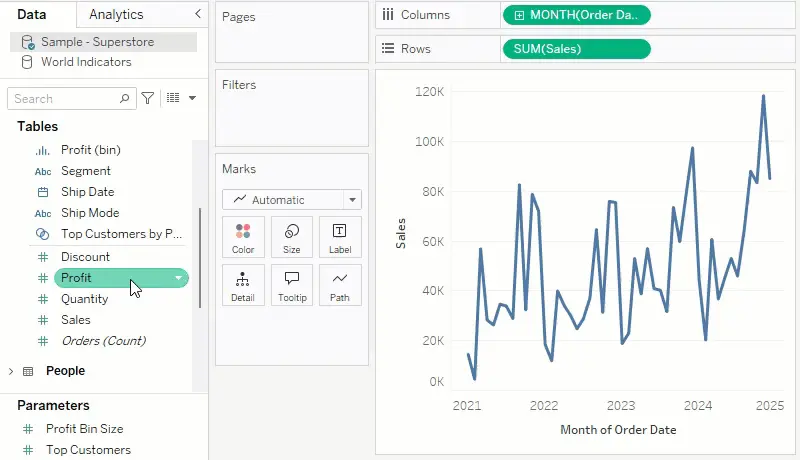
The entry point for most business users is Tableau’s visual authoring interface. You drag fields from the data pane onto shelves, and Tableau renders a chart. The Show Me panel suggests appropriate chart types based on what you’ve selected.
What this enables in practice:
- Building bar charts, line graphs, scatter plots, heat maps, and geographic maps without any technical knowledge
- Switching between chart types with a single click to find the view that best communicates the data
- Creating calculated fields and measures through a formula editor with autocomplete, so users can define custom metrics like profit margin or year-over-year variance without involving a data engineer
- Ad-hoc analysis that answers a specific question quickly, without committing to a formal report build
The drag-and-drop builder actively encourages exploration. Users naturally try different views of the data because it just takes seconds.
Interactive Dashboards and Filters
via Tableau
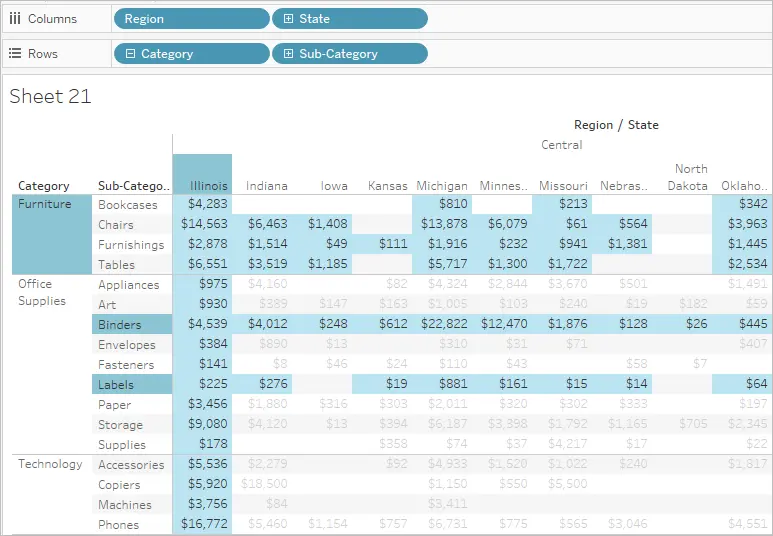
A static report tells you what the data says. An interactive data dashboard in Tableau lets you challenge it. This is where self-service analytics becomes genuinely powerful for business teams. These interactive capabilities are also visible across different Tableau dashboard examples, from sales and marketing analysis to operational and financial reporting.
Tableau dashboards are built with interactivity as a first principle, not an afterthought:
- Filters let users narrow data by date, region, product, customer segment, or any other dimension. A single filter can be applied across the entire dashboard simultaneously.
- Parameters give users control over the calculations themselves. For example, switching between revenue and units, adjusting a threshold, or changing the comparison period without rebuilding anything
- Filter actions connect charts so that clicking a bar in one visualization automatically filters every other chart to the matching context. Clicking North America on a map narrows every metric on the dashboard to North America instantly.
- Drill-down capability lets users move from summary to detail by navigating through hierarchies, revealing the underlying data behind any headline number
For cross-department reporting, this interactivity means a single dashboard can serve multiple teams. Each user filters to their own context rather than needing a separate report built specifically for them.
Data Source Connectivity
via Tableau
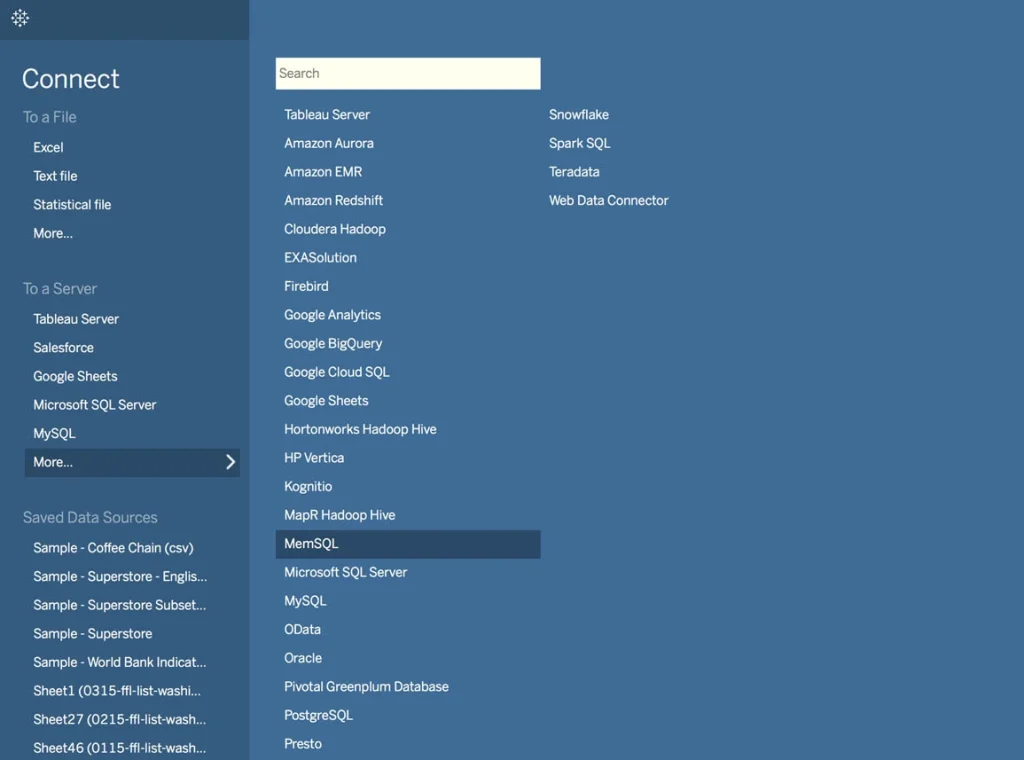
Tableau self-service analytics capabilities deliver value only if users can reach the data they need. Tableau’s connectivity covers a wide range of sources out of the box:
- Databases: SQL Server, PostgreSQL, MySQL, Oracle, and others via direct or ODBC connection
- Cloud data warehouses: Snowflake, Google BigQuery, Amazon Redshift, Azure Synapse Analytics, and Databricks
- Files: Excel, CSV, JSON, PDF, and spatial files
- SaaS platforms: Salesforce, Google Analytics, and others through native connectors
- Published data sources: Certified datasets prepared and published to Tableau Server or Tableau Cloud by IT teams, available to all authorized users without requiring direct database access
The published data source model is particularly important for self-service at scale. IT governs the data layer. Business users connect to trusted, certified sources and build on top of them. This keeps business logic consistent across the organization without restricting who can explore the data.
Collaboration and Sharing
Building a dashboard is only half the story. Getting it to the right people and enabling teams to build on each other’s work is where Tableau business intelligence dashboards create lasting value.
Collaboration in Tableau works across several dimensions:
- Publish dashboards to Tableau Server or Tableau Cloud and share them through workspace access, direct links, or embedded views in internal portals
- Subscribe to dashboards to receive scheduled email snapshots without needing to log in
- Use Tableau Cloud’s web authoring to create and edit dashboards directly in a browser
- Comment directly on published views so discussions about specific data points happen in context
For real-time analytics monitoring, dashboards connected to live data sources update automatically as the underlying data changes. Teams working from the same dashboard always see the same current picture rather than different exports from different points in time.
Aegis Softtech helps organizations design and implement self-service analytics environments that work for both business users and IT teams.
How to Create a Self-Service Analytics Portal with Tableau
A self-service analytics portal in Tableau offers a structured environment where you can find trusted data and build on it. You can also share it without breaking what others depend on. Follow these steps to set it up properly.
Step 1: Publish Governed Data Sources to Tableau Server or Tableau Cloud
Everything starts with the data layer. Before any business user builds a single chart, IT teams or data engineers need to prepare and publish certified data sources to Tableau Server or Tableau Cloud.
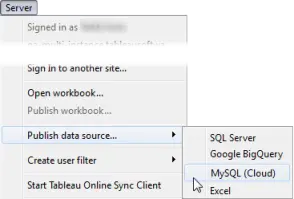
via Tableau
These published sources become the single, trusted connection point for the entire organization. Here’s what to configure on each one:
- Apply row-level security rules so the same source can be shared broadly without exposing data to unauthorized users
- Mark sources as Certified or Promoted so users immediately know which ones are authoritative
- Set scheduled extract refreshes to keep data current without users managing credentials themselves
- Write clear, plain-language descriptions for each source so users understand what it contains before connecting
One well-prepared source can power dozens of dashboards across departments. That’s the efficiency self-service analytics is supposed to deliver.
Step 2: Organize Content into Projects and Workspaces
Access to data means nothing if users can’t find it. Before opening up the portal, set up a logical content structure:
- Create top-level projects by business function: Sales, Marketing, Finance, Operations, HR
- Use nested sub-projects for more specific categories, such as splitting Finance into FP&A and Accounting
- Apply consistent naming conventions to workbooks and dashboards so search actually works
- Certify authoritative dashboards so users can distinguish reliable content from work-in-progress builds
Poor organization is one of the most common reasons self-service portals fail at adoption. When users can’t find what they need in under a minute, they default to asking someone else.
Step 3: Configure Role-Based Access
Not everyone should see everything, and not everyone needs the same level of authoring capability. Tableau Server and Tableau Cloud offer three primary site roles:
- Viewer: Can interact with dashboards, apply filters, and export. Cannot create or edit content.
- Explorer: Can create and edit workbooks using published data sources via Web Authoring. No Tableau Desktop required.
- Creator: Full authoring access, including new data source connections and Tableau Desktop use.
Connect group membership to your identity provider so access updates automatically when someone joins, changes roles, or leaves the organization.
Step 4: Let Business Users Build on Certified Data
Once the data layer is governed and access is configured, business users can start building. Tableau supports two authoring paths:
- Tableau Desktop for data analysts who need full authoring capability, including complex calculations, custom chart types, and advanced formatting.
- Web Authoring in the browser for occasional users who need to create and edit dashboards without installing software.
Both connect to the same certified published data sources, which means you get analytical flexibility, while the data layer stays consistent and governed.
Encourage users to build within existing projects, connect to published sources rather than raw databases, and follow the naming conventions established in Step 2. A brief onboarding session covering these basics before users get access goes a long way.
Best Practices for Tableau Self-Service Analytics
A self-service program that launches well but degrades over time is worse than not having one. These practices keep quality, trust, and adoption high as the environment grows.
Make Certified Data Sources Easy to Find
Certification only helps if users know the certified sources exist. Publish a simple internal catalog, even a shared document listing available data sources with descriptions and owners.
Promote certified sources prominently in the Tableau portal. When the path of least resistance is to use the right source, most users will.
Assign a Named Owner to Every Data Source
Every published data source needs one person accountable for its accuracy, maintenance, and lifecycle. When a metric definition changes or a connection breaks, there’s an immediate point of contact.
Without ownership, sources drift, refresh schedules break quietly, and users lose trust in the data. Low data trust kills self-service programs faster than anything else.
Run Structured Onboarding Before Granting Access
Don’t just hand users a login. Run a structured onboarding session that covers how to find certified data sources, how to use the portal navigation, basic visualization design principles (not just tool mechanics), and who to contact when they have questions.
Users who receive structured onboarding adopt the tool faster and build better dashboards.
Treat Visualization Quality as a Governance Issue
A misleading chart built with good data causes the same problems as bad data. Include basic visualization design standards in your self-service guidelines. This includes when to use which chart type, what color conventions mean across the organization, and what level of context a dashboard needs to be considered publication-ready.
Standards always need to be documented and consistently communicated.
Tableau Self-Service Analytics Use Cases
Tableau self-service analytics features deliver the most value when they’re applied to problems that are too fast-moving or too specific for a central analytics team to keep up with. Here’s where organizations see it work best.
Sales Performance Monitoring
Sales teams use self-service dashboards to track pipeline health, monitor quota attainment by rep and region, and analyze win/loss patterns without waiting for weekly reports. Filter actions let individual sales managers drill into their specific territory without needing a separate dashboard built for them.
Marketing Campaign Analytics
Marketing analysts connect to campaign performance data and build dashboards that track spend, reach, conversion rates, and ROI across channels.
Self-service capability matters here because campaign questions change frequently and the pace of decision-making is fast. Waiting two days for a report on yesterday’s campaign performance isn’t useful.
Operational Performance Dashboards
Operations teams use Tableau to monitor production metrics, track SLA compliance, and identify process bottlenecks in near-real time. Connecting directly to operational databases or warehouse tables gives teams live visibility without requiring a centralized reporting team to produce daily updates.
Financial Reporting and Forecasting
Finance teams build variance analysis dashboards, budget-vs-actuals tracking, and cash flow trend views that update as underlying data refreshes. Self-service capability in finance works best when the data layer is tightly governed, certified datasets are used consistently, and RLS restricts visibility to appropriate users.
Challenges in Self-Service Analytics with Tableau
Self-service analytics programs run into predictable problems. Knowing what they are and what causes them makes them easier to prevent.
| Challenge | Root Cause | Resolution |
| Inconsistent metrics across teams | Each team builds their own version of the same data source with different logic | Publish certified shared data sources and make them the default starting point for all report authors |
| Ungoverned content sprawl | No project structure, naming conventions, or content review process | Define a project hierarchy and naming standards before rolling out broadly. Review and archive stale content regularly. |
| Misleading visualizations built by users | Lack of training on visualization design principles and chart selection | Provide structured onboarding that covers chart selection, design basics, and how to avoid common mistakes |
| Sensitive data accessible to wrong users | Access not configured properly or not reviewed regularly | Implement row-level security on sensitive datasets and conduct quarterly access reviews |
| Low adoption among non-technical users | Tool feels unfamiliar without guided onboarding | Run structured onboarding sessions and publish example workbooks users can explore and modify |
| Data trust breakdown | Users encounter different numbers in different dashboards | Enforce certified data source usage and document agreed metric definitions in a data catalog |
How Aegis Softtech Helps Implement Tableau Self-Service Analytics
Our Tableau consulting services cover the full implementation of self-service analytics. This includes data source architecture + governance, Tableau Server or Cloud deployment, project and workspace organization, dashboard development, and user training.
We work with organizations across healthcare, fintech, and enterprise operations to build self-service environments that are flexible for analysts and secure for IT. Additionally, for teams that need expertise embedded directly within their setup, you can hire expert Tableau developers.
FAQs
1. What is the difference between Tableau and SAS VA?
Tableau is built for business users and analysts who need intuitive, drag-and-drop data exploration. SAS Visual Analytics is oriented toward statistical modeling and is common in organizations already running SAS infrastructure. Tableau has a shallower learning curve for self-service use cases. SAS VA offers deeper statistical depth for data science workflows.
2. Can Tableau connect to a SAS server?
Yes, through ODBC drivers. Tableau reads SAS data files and uses them as sources for visualization and reporting. The connection requires an appropriate ODBC driver configuration and the relevant credentials.
3. What are the four types of data visualization?
Comparison (bar and column charts), relationship (scatter and bubble charts), distribution (histograms and box plots), and composition (pie charts, treemaps, stacked bars). Choosing the right type based on the question you’re answering is the most important design decision you’ll make.
4. Can Tableau call a REST API?
Yes, using the Web Data Connector or the REST API Connector. Tableau pulls data from any REST API returning JSON or XML. More complex integrations involving pagination or OAuth typically work better with an intermediate data pipeline that lands API data into a database first.
5. How does Tableau handle large data volumes in self-service analytics?
Tableau handles large datasets using live connections, data extracts, and optimized query processing. That allows users to perform data exploration without significant performance lag, even in complex Tableau analytics platforms.
6. Is Tableau self-service analytics suitable for small businesses?
Yes, Tableau self-service analytics can be used by small businesses, especially with Tableau Cloud, which reduces infrastructure overhead. It allows smaller teams to adopt self-service BI and build dashboards without needing a large data engineering setup.