

Ask anyone who has worked with Microsoft Dynamics NAV for years, and they’ll often describe the system as dependable but dated. It does the basics, but the moment teams push for faster reporting, smoother integrations, or flexible access, frustration sets in.
The gap between what NAV can deliver and what the business now demands keeps growing.
This is why data migration from NAV to Business Central has become such a critical step. Business Central builds on NAV’s foundation yet removes its limitations, opening doors to cloud capability, better insights, and a user experience designed for today’s pace of work.
In this blog, we’ll walk through the process, explore the available tools, and highlight how businesses can move forward with confidence. Let’s get started!
Key Takeaways
- Why Teams Upgrade: Businesses are moving from NAV to Business Central for cloud access, better integrations, modern UI, and long-term ERP support.
- What Moves Over: Data migration transfers master data, transactional data, and historical records from NAV to Business Central.
- Tools You’ll Use: Microsoft tools (Data Migration Tool, RapidStart Services) handle standard migrations; third-party tools manage heavy customizations or older NAV versions.
- How to Choose: Migration method depends on NAV version, customization level, data scope, and downtime tolerance.
- Steps to Follow: Key steps include planning, data mapping, test migration, final cutover, and post-migration validation.
- Challenges and Fixes: Common challenges can be addressed with data cleanup, AL extensions, selective migration, rehearsals, and user training.
Why Businesses are Moving from NAV to Business Central
Many companies are now planning a Navision to Business Central data migration. Key reasons for this shift include:
- End of support for NAV creates security and compliance risks for businesses still running the platform
- Cloud deployment in Microsoft Dynamics 365 Business Central reduces reliance on servers and provides automatic updates
- Seamless integration with Microsoft 365, Teams, and Power BI enhances collaboration and reporting
- A modern user interface with role-based dashboards improves usability and adoption across teams
- Alignment with Microsoft’s roadmap ensures scalability and long-term ERP stability
What is Data Migration from NAV to Business Central?
Data migration from NAV to Business Central is the structured process of transferring key information from legacy NAV systems into Business Central. It covers multiple categories of business data, including:
- Master data: Core records like customers, vendors, items, and general ledger accounts that support everyday transactions
- Transactional data: In-progress operations such as open purchase orders, sales orders, and journals
- Historical data: Legacy ledger entries and past transactions often retained for compliance and audit purposes
Data Migration Options and Tools
Business Central data migration from NAV depends on your current version, the level of customization required, and the type of data you want to bring across. Microsoft provides built-in paths, while third-party solutions are available for more complex environments.
Navision to Business Central Data Migration Tools
Microsoft’s own tools cover many standard scenarios:
Microsoft Data Migration Tool
Available in Business Central SaaS, this connects directly to supported NAV versions (2015 or later) through Azure Data Factory.
It transfers master data, open transactions, and certain historical records into Business Central. The tool is best for companies transitioning to the cloud and running relatively standard NAV setups.
Configuration Packages
Business Central includes RapidStart Services that allow data to be exported from NAV into Excel or XML, making it easier to cleanse and re-map data before import.
Configuration packages work well for incremental migrations, testing in sandboxes, or cases where businesses want full control over table mapping.
Third-Party Migration Solutions
For organizations with heavy NAV customizations, industry add-ons, or older versions, third-party Navision to Business Central data migration tools can be essential. Solutions like Scribe Insight or custom ETL scripts handle complex transformations, hybrid deployments, and integrations with SQL or Azure storage.
How to Choose the Right Migration Method
Navision to Business Central data migrations look different across all organizations, which makes tool selection critical. Several factors influence the choice:
- NAV version: Later releases can use Microsoft’s built-in migration tool, while older ones often require external solutions
- Customization level: Standard databases migrate smoothly, but heavily modified NAV systems may need redevelopment into Application Language (AL) extensions before data can be transferred
- Data scope: Some companies migrate full histories, while others limit the scope to master and open records, storing legacy data in Azure for reference
- Downtime tolerance: A phased migration or partial cutover may be better for businesses that cannot afford extended downtime during go-live
Step-by-Step Process for NAV to Business Central Data Migration
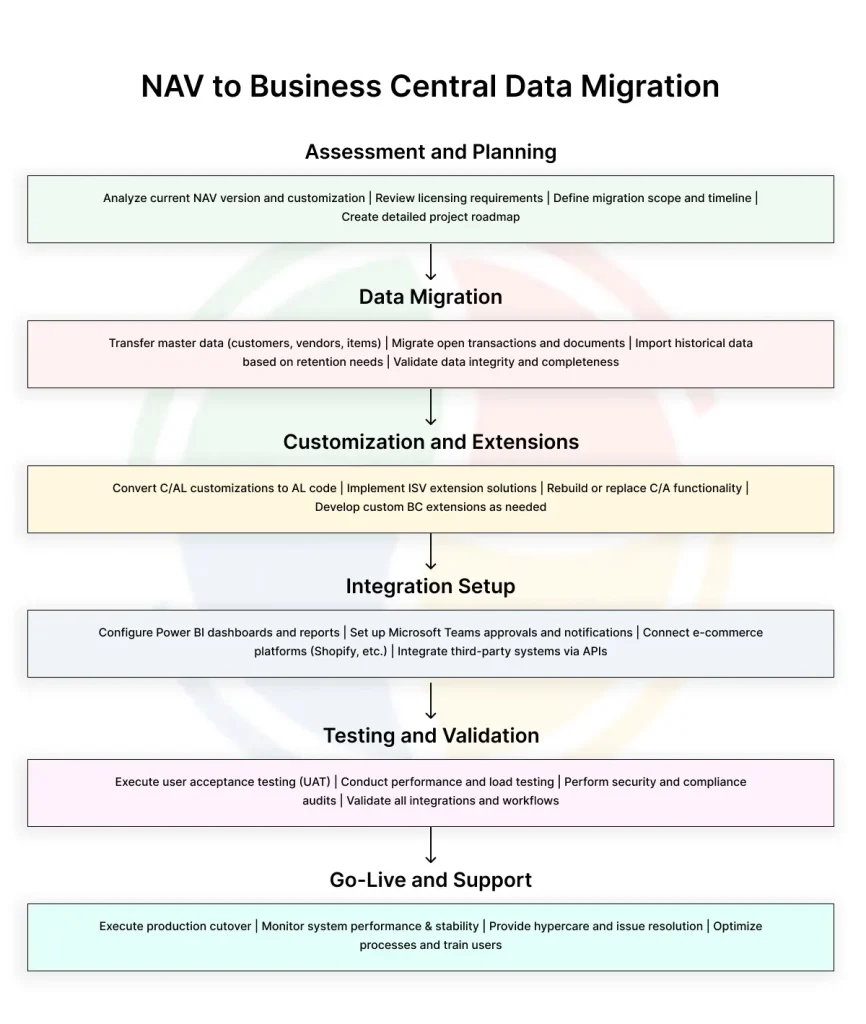
Follow these steps to ensure your data migration from NAV to Business Central protects data integrity and minimizes downtime.
Step #1: Assessment and Planning
The first step is analyzing your current NAV environment to understand its version, size, and customizations. Planning at this stage prevents costly surprises later in the process.
Key activities during assessment and planning include:
- Conducting a NAV audit: Identify the NAV version in use, installed modules, and any customizations. Tools like SQL Server Management Studio (SSMS) help assess database size and structure.
- Cleaning up data: Run SQL scripts or NAV reports to flag duplicates, inactive records, or unused dimensions. Removing these reduces the migration load.
- Defining scope: Decide whether to move the full history or limit the migration to recent transactions. This choice influences performance and storage needs in Business Central’s Azure SQL backend.
- Building a roadmap: Outline timelines, selected tools, and a communication plan for stakeholders.
For instance, a logistics provider preparing for migration might realize that thousands of vendor records have not been used in years. Removing these inactive entries at the assessment stage ensures the Business Central environment starts with cleaner, leaner data.
Step #2: Data Mapping and Transformation
After planning, the focus shifts to mapping NAV data to Business Central’s structure. This ensures that every field and table aligns correctly.
Important tasks for data mapping and transformation include:
- Creating a data dictionary: Map NAV tables such as Customer, Vendor, and Item Ledger Entry to their Business Central equivalents. Use Microsoft’s schema documentation as a guide.
- Transforming fields: Convert legacy elements like Dimension Codes into Business Central’s Dimension Set Entries.
- Rebuilding number series: Align NAV number sequences with Business Central, either by replicating the logic or setting up fresh sequences across sales, purchase, and inventory modules.
Take a manufacturing company as an example. Their legacy NAV setup might rely on dimension codes for cost tracking. Transforming these into Dimension Set Entries during migration would allow their finance team to produce profitability reports in Business Central without relying on custom-coded reports.
Step #3: Tool Setup and Test Migration
Next, focus on configuring the chosen migration tool and running controlled tests in a sandbox environment. This validates both performance and accuracy before the live cutover.
Here’s what this phase involves:
- Configuring tools: Set up the Microsoft Data Migration Tool, configuration packages, or a third-party ETL solution. Define connections, mappings, and transformation rules.
- Running sandbox migration: Transfer 10-15% of the data into a Business Central sandbox. Monitor system performance using telemetry and event logs.
- Validating results: Use Business Central’s reconciliation reports and SQL queries to confirm balances, open orders, and inventory values.
A food and beverage distributor might use this step to trial-run its open sales orders. During testing, mismatched currency codes or incomplete records often surface, and fixing them before go-live prevents disruptions in order posting later.
Step #4: Final Migration and Go-Live
Once the process has been tested, it’s time to move all data and cut over to Business Central. Careful execution here ensures a smooth transition.
The final step for Navision to Business Central data migration involves:
- Freezing transactions: Restrict new transactions in NAV during cutover using permissions or SQL triggers. This prevents changes from being lost.
- Executing cutover: Run the full migration during off-hours to minimize disruption. Large datasets may require batch processing or Azure SQL performance tuning.
- Deploying Business Central: Assign licenses, configure user roles, and deploy custom Business Central AL extensions to replace any modifications.
For example, a retail chain may choose to freeze NAV transactions on a Friday evening, run the migration over the weekend, and start business in Business Central on Monday morning. This approach minimizes downtime while ensuring the cutover happens with minimal disruption to store operations.
Step #5: Post-Migration Validation
After go-live, validation ensures the migrated data works correctly and integrates with connected systems. This phase also involves testing with end users.
Critical checks at this stage close the loop and give confidence that the migration is both accurate and reliable. You can start by:
- Reconciling balances: Run trial balance and subledger reports in Business Central and compare them with NAV outputs.
- Testing integrations: Confirm connections with external systems such as Dynamics 365 Sales, payroll platforms, and e-commerce channels using APIs or Power Automate.
- Conducting user acceptance testing (UAT): Have end users validate real-world processes like posting invoices or running reports to confirm workflows behave as expected.
For instance, a wholesale distributor might reconcile its migrated inventory balances and discover discrepancies linked to missing location codes. Identifying these issues in UAT gives the team the opportunity to correct mappings before business users rely on the system for daily operations.
At Aegis Softtech, we help businesses handle complex data migration projects with confidence. For one manufacturing firm, we migrated customer and vendor masters along with open POs, while archiving seven years of historical transactions in Azure Data Lake for audit purposes. Our expertise reduced the overall migration time by 40%. Business Central Implementation Services
Common Challenges in NAV Data Migration and How to Avoid Them
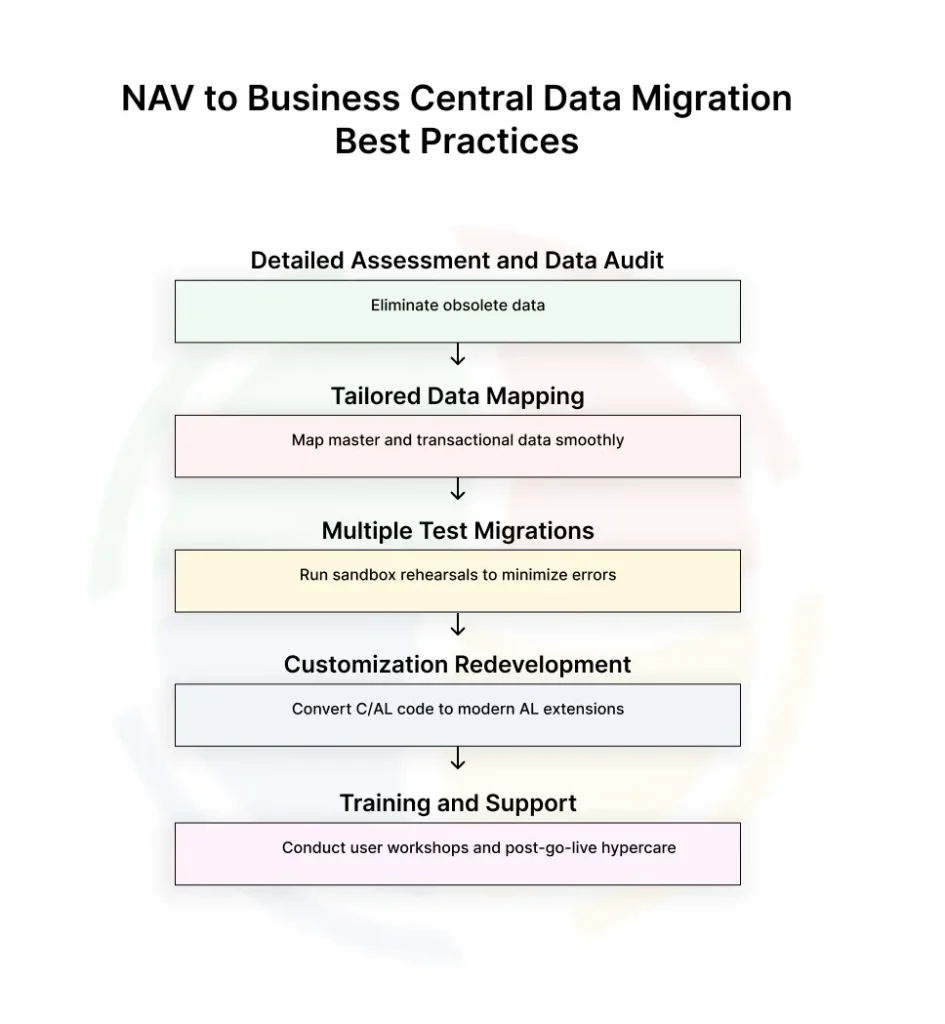
NAV environments often contain years of modifications, layered data, and user habits that complicate your data migration from NAV to Business Central. Here are some common pitfalls to help teams prepare realistic timelines and strategies that keep projects on track.
Data Quality Problems
Most NAV systems hold years of master data and transactions that no longer serve the business.
Customer records may lack contact details, vendors could be duplicated across regions, or items might be tied to outdated units of measure. Migrating this information without cleanup leads to faulty reporting and confusion in Business Central. Inconsistent values also create import errors that delay the process.
How to avoid it: A cleanup effort before migration delivers a stronger foundation. Teams often export data to Excel or use configuration packages in Business Central to normalize fields and remove duplicates.
Focus on the essentials, such as customers, vendors, and items, to ensure accuracy in downstream processes like invoicing and financial reporting.
Customization Conflicts
Years of custom C/AL code and partner add-ons often sit at the core of NAV installations.
These modifications rarely transfer cleanly into Business Central’s AL-based extension model. If you attempt to move them directly, you risk breaking dependent functions, creating unsupported code, or reducing system performance.
How to avoid it: An early review of customizations clarifies what can be retired, rebuilt, or replaced with standard Business Central features. Microsoft’s guidance emphasizes moving to event-driven AL extensions to remain upgrade-safe.
For example, a bespoke pricing module in C/AL may be better rebuilt as an AL extension tied to Business Central’s pricing events.
Moving from NAV to Business Central is never “lift and shift.” Our Business Central developers decode old customizations, map legacy NAV data structures, and rebuild what matters without breaking core processes.
If you want a migration that feels clean instead of chaotic, our team plugs in fast. Hire Business Central Developers
Historical Data Overload
Large NAV databases sometimes include decades of closed transactions.
While complete history feels valuable, moving it into Business Central slows migration and increases cloud storage costs. Too much data also clutters reporting and complicates audits in the new system.
How to avoid it: A selective approach works best. Many companies carry over master data, open balances, and unposted transactions, while archiving older records in a separate SQL database or data warehouse.
This provides historical access when needed but keeps Business Central lean and responsive.
Downtime and Cutover Risks
The final switchover creates pressure. Freezing NAV transactions, running the migration, and starting Business Central must happen quickly to limit operational impact.
A cutover that overruns planned hours leaves employees unable to post sales orders, shipments, or payments, which disrupts daily operations.
How to avoid it: Multiple test runs in a sandbox environment reveal the true time requirements for cutover. These rehearsals also highlight potential errors, such as missing mappings or failed imports.
It’s also ideal to schedule the live migration during low-activity periods, such as weekends or holidays, to reduce business disruption.
User Adoption Challenges
Technical success does not guarantee smooth adoption.
Employees accustomed to NAV often find the modern Business Central interface unfamiliar. Productivity suffers when users hesitate over new Role Centers, page layouts, or navigation paths. Resistance at this stage can erode the overall value of the project.
How to avoid it: Structured training tied to job roles helps employees adapt more quickly. Personalized dashboards in Business Central’s Role Centers present familiar tasks in a clearer format.
What’s more, internal champions who provide peer support create additional confidence and reinforce the benefits of the upgrade.
Data migration shouldn’t put your operations at risk. Aegis Softtech handles full NAV-to-BC migration, all while keeping your business running without disruption. Business Central Services
How Aegis Softtech Ensures Successful NAV to Business Central Data Migration
At Aegis Softtech, we treat data migration from NAV to Business Central as a structured journey that balances technical accuracy and business continuity.
We start by looking closely at your NAV system to find outdated data, custom code, and connections that could slow the process. This early review lets us build a plan that fits your business goals and avoids surprises later.
Our team handles both the technical and practical sides of migration. We rebuild key C/AL customizations as AL extensions, align master data with Business Central, and run test migrations in a sandbox to check accuracy before go-live. Every step is tracked and explained so your team knows exactly what is happening.
We also help people adjust. Role-based training and hands-on support after launch make the new system easier to adopt. With Aegis Softtech, you move to Business Central with less risk and stronger long-term value.
Hear it from our client, Benjamin Rodrigues: “Partnering with Aegis Softtech for our 365 BC implementation was a great decision. They understood our business needs and provided a solution that kept all our remote locations connected and up to date with business changes.”
A data migration from NAV to Business Central gives businesses an opportunity to refresh systems and strengthen operations. When handled properly, it improves reporting, streamlines integrations, and prepares the ERP for future growth.
Let’s show you how to make your transition to Business Central smooth, reliable, and sustainable.
FAQs
1. Are NAV and Business Central the same?
No. NAV, also known as Navision, is the older on-premise ERP system that many companies have used for years. Business Central is its modern successor, built for the cloud, offering more features, flexibility, and seamless integration with other Microsoft tools.
2. What are the advantages of Business Central over Navision?
Business Central provides cloud access, so you can work from anywhere. It gives real-time insights into your business, simplifies updates, and improves collaboration. The ERP software also integrates easily with Microsoft 365 apps and other services, while offering a more user-friendly interface compared to NAV.
3. Which tools are best for NAV to Business Central data migration?
Microsoft’s Data Migration Tool and RapidStart Services are the main options for moving your data. Many companies also use specialized third-party tools to handle complex customizations and ensure a smooth, accurate migration.
4. How long does it take to migrate from NAV to Business Central?
The timeline depends on your current NAV setup, the amount of data, and customizations. Typically, migrations take a few weeks to a few months, with proper planning and testing helping to avoid delays.