

If you’ve spent time customizing Dynamics 365 Customer Engagement (CE), you’ve probably seen sub-grids filled with rows that don’t belong there: inactive leads, closed deals, or records that add clutter instead of insight.
Over time, these unfiltered grids slow users down and make it harder to focus on what’s relevant.
Filtering changes that experience completely. With the right configuration, you can filter sub-grid rows in Dynamics 365 to display only the records that matter, like open opportunities tied to an account or recent activities linked to a contact.
In this blog post, we’ll explore practical ways to achieve that using view filters, FetchXML, and JavaScript, while keeping your Dynamics 365 customizations efficient and easy to maintain. Let’s get started!
Key Takeaways
Get started with customizing sub-grid filters in Dynamics 365 using these methods:
Method 1: Static View (No Code)- Create a custom view and define filter conditions like Status = Active.
- Select and arrange columns, then save and publish.
- Open the parent form, assign the sub-grid, and set the Default View to your custom view.
- Save, publish, and verify the filtered records.
- Create a JavaScript web resource in Power Apps.
- Write a function using setFilterXml() and refresh() to apply FetchXML filters.
- Add the JS library to the form and register the function on OnLoad and OnChange events.
- Use the correct sub-grid name, then save, publish, and test for real-time filtering.
- Create a Quick View form for the related entity and add key fields.
- Place the Quick View and a filtered sub-grid on the parent form.
- Add business rules to show or hide the Quick View based on field conditions.
- Save, publish, and test the setup for proper filtered display.
Why is Sub-Grid Filtering in Dynamics CRM Important?
Here’s why learning to filter sub-grid rows in Dynamics 365 matters:
- Keeps every form focused by showing only the most relevant related records for that specific context
- Helps users work smarter by displaying data tied to their goals, like open deals or pending invoices
- Brings clarity to decision-making with only the data that truly matters in view
- Adapts automatically when paired with dynamic filters that respond to parent record values
- Creates a consistent data experience across departments with standardized filtering logic
- Enhances reporting accuracy by ensuring only valid, up-to-date records feed into analysis tools
Method 1: Filter With a Static View
The most straightforward way to filter sub-grid rows in Dynamics 365 involves configuring a static view at the sub-grid level. This method requires no coding and allows administrators to control which records appear based on predefined criteria.
Step #1: Create a Custom View for the Related Entity
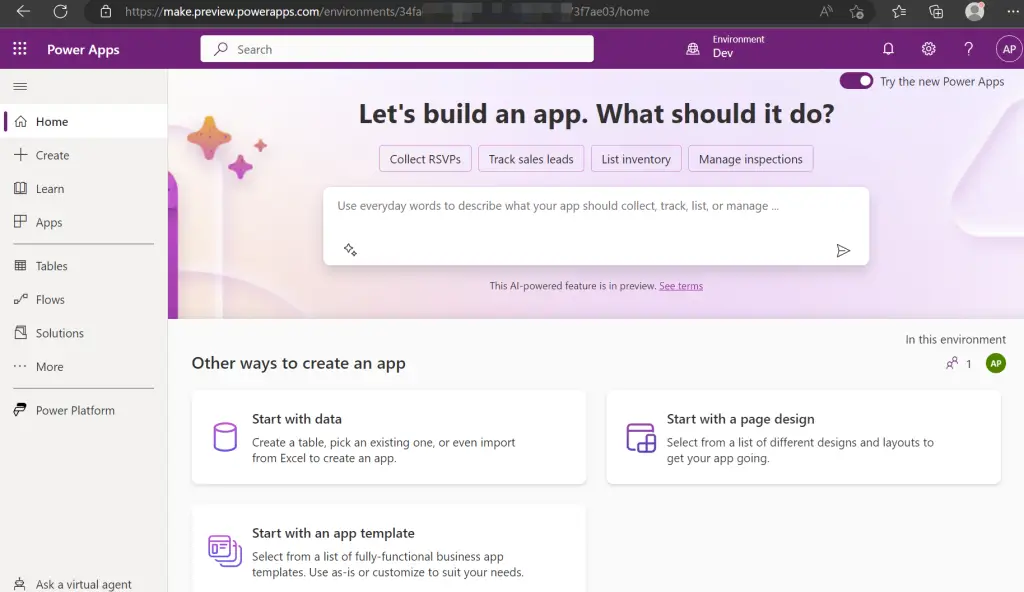
Before you can apply a filter to your sub-grid, you need a view that contains the filtering logic. Navigate to the Power Apps maker portal and follow these steps:
- Select Solutions from the left navigation panel.
- Open the solution that contains your target entity (e.g., Contacts, Opportunities, Cases).
- Locate the entity that will appear in the sub-grid and click to expand it.
- Select Views from the entity components list.
- Click New view (or Add view, depending on your interface version).
- Give your view a descriptive name, such as “Active Contacts – This Year” or “Open Opportunities – High Value.”
Step #2: Define Filter Criteria in the View
Once you’ve created the view, you need to specify which records qualify for display:
- In the view editor, click Edit filters in the command bar.
- Add filter conditions based on your requirements. For example:
- Status Equals Active to show records with an active status
- Created On This Year to display records created in the current calendar year
- Owner Equals Current User to show records owned by the person viewing the form
- Combine multiple conditions using AND or OR logic as needed.
- Click OK to apply the filter.
Step #3: Select Columns to Display
Choose which fields appear in the sub-grid:
- In the view editor, you’ll see a column list on the right side.
- Click Add column to include additional fields.
- Remove unnecessary columns by clicking the X next to each column name.
- Drag columns to reorder them according to priority.
- Click Save to preserve your view configuration.
- Click Publish to make the view available across the organization.
Step 4: Configure the Sub-Grid to Use Your Custom View
Now that your filtered view exists, you can apply it to a sub-grid on a form:
- Navigate back to Solutions and open the solution containing your form.
- Expand the parent entity (e.g., Account, Contact) and select Forms.
- Open the main form where you want to configure the sub-grid.
- Click on the existing sub-grid control, or insert a new one by dragging Subgrid from the component panel onto the form canvas.
- In the properties panel on the right, locate the Data Source section.
- Verify that the Table field shows the correct related entity.
- In the Default view dropdown, select the custom view you created in the previous steps.
- Optionally, enable or disable Dynamics CRM features like Show search box or Show chart based on your requirements.
- Click Save to preserve your form changes.
- Click Publish to make the updated form available to users.
Step #5: Verify the Filter in Action
After publishing, test the configuration to confirm the sub-grid displays the correct records:
- Open a record of the parent entity (e.g., an Account record).
- Scroll to the section containing your sub-grid.
- Verify that the sub-grid shows records matching your filter criteria.
- If the results look incorrect, return to the view editor and adjust the filter conditions.
When to Use Static View Filtering
This approach works well for scenarios where:
- Filter criteria remain constant across all users and records
- You need a reusable filter that applies to multiple forms
- Non-technical administrators will maintain the configuration
- Performance matters, since views execute server-side with optimized queries
Method 2: JavaScript for Dynamic Filtering
JavaScript provides the flexibility to apply filters programmatically. This method allows you to update sub-grid data based on field values, user selections, or custom business logic.
Step #1: Create a JavaScript Web Resource
Before writing any code, you need a place to store your JavaScript functions:
- Open the Power Apps maker portal and navigate to Solutions.
- Select the solution where you want to add the script.
- Click New > More > Web resource.
- Fill in the web resource details:
- Name: Give it a unique name like “AccountSubgridFilter”
- Display name: Use a descriptive name like “Account Subgrid Filtering Script”
- Type: Select JavaScript (JS)
- Click Choose file and upload a blank JavaScript file (you can create one in Notepad and save it as .js), or write your code directly in the editor if available.
- Click Save to create the web resource.
Step #2: Write the Filtering Function
Now you’ll write the JavaScript function that applies the filter.
IS.HPSAAccountPlanning.filterOpportunitiesSubgrid = function (formContext)
{
	var accountControl = formContext.getAttribute("infy_account").getValue();
	if (accountControl)
	{
		var accountId = accountControl[0].id;
		var fetchXml = "<fetch version='1.0' output-format='xml-platform' mapping='logical' distinct='false'>" +
			"<entity name='opportunity'>" +
			"<attribute name='name' />" +
			"<filter type='and'>" +
			"<condition attribute='parentaccountid' operator='eq' uitype='account' value='" + accountId + "' />" +
			"</filter>" +
			"</entity>" +
			"</fetch>";
		// Set the fetchXml to the subgrid
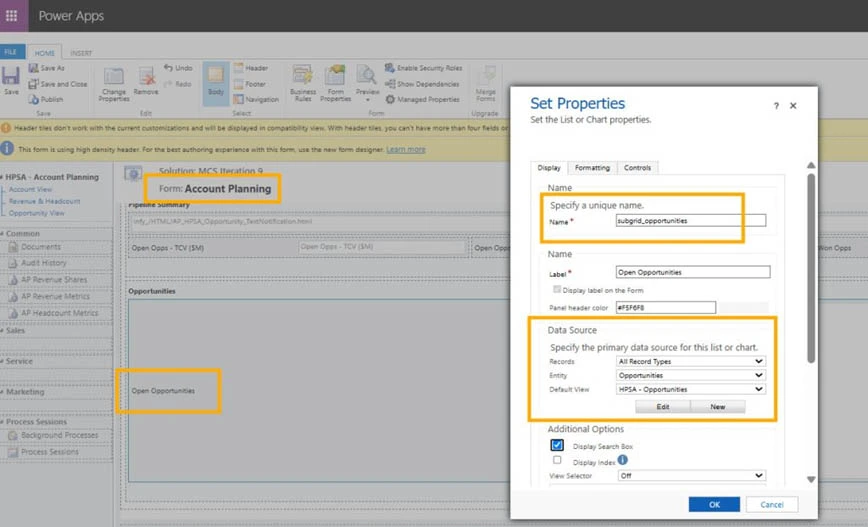
		var gridControl = formContext.getControl("subgrid_opportunities");
		if (gridControl)
		{
			gridControl.setFilterXml(fetchXml);
			gridControl.refresh();
		}
	}
}
Copy this code into your web resource, then click Save and Publish.
Step #3: Attach the Web Resource to the Form
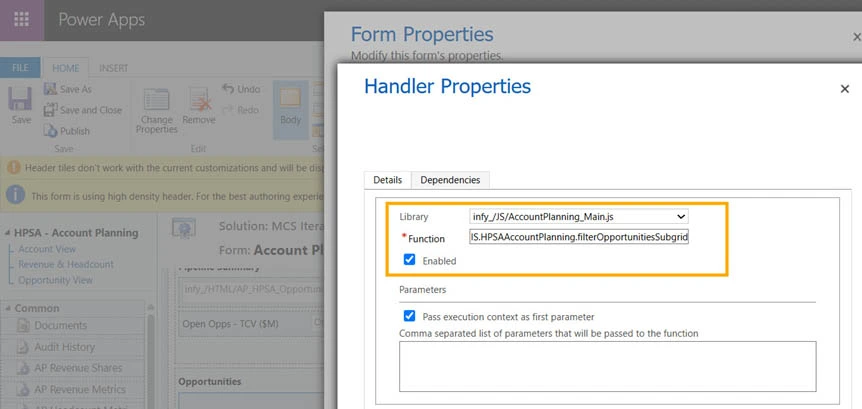
Connect your JavaScript file to the form so Microsoft Dynamics 365 CRM can execute the functions:
- Navigate to your solution and open the form where the sub-grid exists.
- In the form designer, look for the Form libraries section (usually in the left panel or under form properties).
- Click Add library.
- Search for and select the web resource you created in Step #1.
- Click Add to attach it to the form.
Step #4: Register the Function as an Event Handler
Tell Dynamics 365 when to execute your filtering function:
- While still in the form designer, locate the Events section in the left panel.
- Expand Form > OnLoad to register a function that runs when the form loads.
- Click Add event handler.
- In the handler configuration:
- Library: Select your web resource
- Function: Enter the exact function name (e.g., filterContactsByIndustry)
- Enabled: Check this box
- Pass execution context: Check this box (critical for the function to work)
- Click Done to save the event handler.
Step #5: Add Dynamic Filtering on Field Change
To update the sub-grid when a field value changes, register the function on a field’s OnChange event:
- In the form designer, click on the field that should trigger the filter (e.g., the Industry field).
- In the properties panel, locate the Events tab.
- Click OnChange to expand the event section.
- Click Add event handler.
- Configure the handler:
- Library: Select your web resource
- Function: Enter filterContactsByIndustry
- Enabled: Check this box
- Pass execution context: Check this box
- Click Done to save.
Now, whenever a user changes the industry value, the sub-grid automatically refreshes with filtered results.
Step #6: Find the Sub-Grid Name
If you’re unsure of the sub-grid’s name, follow these steps:
- In the form designer, click on the sub-grid control.
- In the properties panel on the right, look for the Name field under the Display section.
- Copy this exact name (case-sensitive) and use it in your JavaScript code where you call formContext.getControl(“SubgridName”).
Step #7: Test the Dynamic Filtering
Verify that your JavaScript executes correctly:
- Click Save and Publish the form.
- Open a record of the parent entity.
- Change the field value that triggers the filter (e.g., select a different industry).
- Watch the sub-grid refresh automatically with filtered results.
- If the sub-grid does not update, press F12 to open browser developer tools and check the Console tab for JavaScript errors.
When to Use JavaScript for Dynamic Filtering
This approach works well for scenarios where:
- Filter criteria must change based on user selections or form field values
- You need real-time sub-grid updates without page refreshes
- Different users should see different filtered results based on form context
- Business logic requires complex conditional filtering that cannot be achieved with static views
- The sub-grid must respond to multiple field changes simultaneously
- You need to combine data from form fields with external calculations or API calls to determine filter criteria
Method 3: Low-Code With Quick View Forms
Quick view forms provide a low-code alternative for displaying filtered related data without writing JavaScript or creating custom views.
While quick view forms traditionally show read-only data from a single related record, you can combine them with filtered sub-grids to create a streamlined user experience that requires minimal technical configuration.
Step #1: Create a Quick View Form
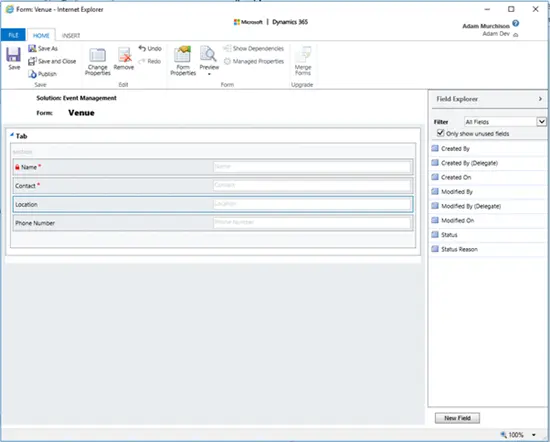
Start by building the quick view form that will display related record data:
- Open the Power Apps maker portal and navigate to Solutions.
- Select your solution and expand the related entity (the entity that appears in the sub-grid).
- Click on Forms under the entity components.
- Click New form > Quick view form.
- Give your form a name like “Contact Summary” or “Opportunity Snapshot.”
- Drag fields from the field list onto the form canvas. Include relevant fields like:
- Name or title field
- Status or state field
- Key metrics (e.g., estimated value, priority, last contact date)
- Owner information
- Arrange the fields in a logical layout.
- Click Save and then Publish to make the form available.
Step #2: Add the Quick View Form to the Parent Entity Form
Now, place the quick view form on the parent form where you want the summary to appear:
- Navigate back to your solution and open the parent entity’s main form (e.g., Account, Contact).
- From the component panel on the left, drag Quick view onto the form canvas.
- In the properties panel that appears:
- Label: Enter a display label like “Primary Contact Details” or “Latest Opportunity”
- Lookup field: Select the lookup field that connects the parent record to the related record (e.g., Primary Contact lookup on Account)
- Related entity: This auto-populates based on your lookup selection
- Quick view form: Select the quick view form you created in Step 1
- Adjust the form layout to position the quick view form near related sub-grids for better visual flow.
Step #3: Configure a Filtered Sub-Grid Alongside the Quick View
Create a sub-grid that complements the quick view form by showing all matching records:
- On the same parent form, drag a Subgrid component onto the canvas.
- In the properties panel:
- Label: Enter a descriptive label like “All Active Contacts”
- Table: Select the same related entity used in the quick view form
- Default view: Choose a view that applies appropriate filters (refer to Method 1 for creating custom views)
- Position the sub-grid below or adjacent to the quick view form.
- Enable Show related records to ensure the sub-grid only displays records related to the current parent record.
Step #4: Use Business Rules to Show/Hide Quick View Forms Conditionally
Add intelligence to your form by displaying the quick view form when specific conditions are met:
- In the form designer, click Business rules from the command bar (or find it in the left panel).
- Click New business rule to create a new rule.
- Give your rule a name like “Show Contact Summary When Primary Contact Exists.”
- In the business rule designer:
- Condition: Add a condition like “Primary Contact contains data”
- Action: Under the “If Yes” branch, add an action to Show the quick view form control
- Action: Under the “If No” branch, add an action to Hide the quick view form control
- Click Activate to enable the business rule.
- Close the business rule designer and return to the form.
Step #5: Create Multiple Quick View Forms for Different Scenarios
You can add multiple quick view forms to the same parent form, each displaying data from different related records:
- Add a second quick view form component to the form canvas.
- Configure it to reference a different lookup field (e.g., “Last Contacted By” or “Account Manager”).
- Create business rules to control visibility based on which lookup fields contain data.
- This approach gives users contextual information without cluttering the interface.
Step #6: Combine Quick View Forms with Tabs and Sections
Organize your form layout to group related quick view forms and sub-grids:
- In the form designer, add a new Tab to the form (e.g., “Related Information”).
- Within the tab, create Sections for different types of related data (e.g., “Contacts,” “Opportunities,” “Cases”).
- Place the relevant quick view form and filtered sub-grid in each section.
- This structure keeps the form organized and helps users find information quickly.
Step #7: Test the Quick View and Sub-Grid Integration
Verify that your configuration works as expected:
- Click Save and Publish the form.
- Open a parent record (e.g., an Account).
- Confirm the quick view form displays data from the related record.
- Verify the sub-grid shows the filtered list of all related records.
- Test the business rules by changing lookup field values and confirming the quick view form appears or disappears accordingly.
When to Use Quick View Forms for Filtered Context
This approach works well for scenarios where:
- You need to highlight key information from a single related record alongside a complete list
- Non-technical administrators must configure the solution without developer involvement
- The relationship between the parent and the related entity uses a lookup field that identifies the most important related record
- Business rules can adequately control when the quick view form should appear or hide
- Users benefit from seeing summary data without opening the full related record
- Form performance matters, and you want to minimize client-side script execution
For scenarios where you need full control over which records appear and how users interact with them, combine quick view forms with the JavaScript filtering approach covered in Method 2.
Scenario Examples and Use Cases
Understanding when and how to apply Dynamics 365 CE sub-grid filtering becomes clearer through real-world scenarios. Check these out!
Filter Child Records Based On Parent Status
When managing accounts or opportunities, displaying all child records regardless of the parent’s status creates unnecessary noise. For example, if an account has been marked as inactive, users rarely need to see active opportunities or open cases associated with that account.
Scenario
Your sales team works with accounts that transition between active, inactive, and on-hold statuses. When an account becomes inactive, the team should see closed opportunities and resolved cases in the sub-grids. And when the account is active, the sub-grids should display open opportunities and active cases.
Solution Using Static Views
Create two custom views for the Opportunity entity: “Active Opportunities” (filtered to Status = Open) and “Closed Opportunities” (filtered to Status = Won or Lost).
Then use business rules on the Account form to show the appropriate sub-grid based on the account status field. When Status = Active, show the sub-grid configured with “Active Opportunities.” When Status = Inactive, show the sub-grid configured with “Closed Opportunities.”
Solution Using JavaScript
Implement a dynamic filter that reads the account status field and applies the appropriate FetchXML to the opportunity sub-grid. Register this function on the form’s OnLoad event and the status field’s OnChange event:
function filterOpportunitiesByAccountStatus(executionContext) {
    var formContext = executionContext.getFormContext();
    var accountStatus = formContext.getAttribute("statecode").getValue();
    var oppGrid = formContext.getControl("Opportunities");

    if (oppGrid && accountStatus !== null) {
        var statusFilter = (accountStatus === 0) ? "0" : "1,2"; // 0=Active, 1=Won, 2=Lost

        var fetchXml = [
            "<fetch>",
            "  <entity name='opportunity'>",
            "    <attribute name='name' />",
            "    <attribute name='estimatedvalue' />",
            "    <filter type='and'>",
            "      <condition attribute='parentaccountid' operator='eq' value='",
            formContext.data.entity.getId().replace(/[{}]/g, ""),
            "' />",
            "      <condition attribute='statecode' operator='in'>",
            "        <value>", statusFilter, "</value>",
            "      </condition>",
            "    </filter>",
            "  </entity>",
            "</fetch>"
        ].join("");

        oppGrid.setFilterXml(fetchXml);
        oppGrid.refresh();
    }
}
This approach ensures the sub-grid automatically updates when users change the account status, providing immediate feedback without requiring a page refresh.
Show Only Related Records Owned by Current User or Team
Security roles control record-level access, but sub-grids often display all related records a user can view. This creates clutter when multiple team members share access to parent records but need to focus on their own assignments.
Scenario
Your customer service team shares access to high-priority accounts.
Each service representative needs to see all cases related to an account in one sub-grid, but their personal cases in a highlighted sub-grid at the top of the form. This helps representatives prioritize their workload without losing visibility into the full case history.
Solution Using Static Views
Create a custom view called “My Active Cases” with two filter conditions: Owner = Current User AND Status = Active. Add two sub-grids to the Account form. Configure the first sub-grid to use “My Active Cases” as the default view.
Configure the second sub-grid to use “All Active Cases” (filtered to Status = Active without owner restrictions). Label the first sub-grid “My Cases” and the second “Team Cases.”
Solution Using JavaScript
Implement a dynamic filter that retrieves the current user’s ID and applies it to the sub-grid:
function filterCasesByCurrentUser(executionContext) {
    var formContext = executionContext.getFormContext();
    var userSettings = Xrm.Utility.getGlobalContext().userSettings;
    var currentUserId = userSettings.userId.replace(/[{}]/g, "");

    var casesGrid = formContext.getControl("MyCases");

    if (casesGrid) {
        var fetchXml = [
            "<fetch>",
            "  <entity name='incident'>",
            "    <attribute name='title' />",
            "    <attribute name='prioritycode' />",
            "    <attribute name='createdon' />",
            "    <filter type='and'>",
            "      <condition attribute='customerid' operator='eq' value='",
            formContext.data.entity.getId().replace(/[{}]/g, ""),
            "' />",
            "      <condition attribute='ownerid' operator='eq' value='",
            currentUserId,
            "' />",
            "      <condition attribute='statecode' operator='eq' value='0' />",
            "    </filter>",
            "  </entity>",
            "</fetch>"
        ].join("");

        casesGrid.setFilterXml(fetchXml);
        casesGrid.refresh();
    }
}
Make Sub-Grid Filtering Work for Your Organization with Aegis Softtech
Clean, filtered sub-grids transform cluttered forms into focused workspaces that help users make faster decisions. Whether you choose static views for consistent filtering, JavaScript for dynamic responses, or quick view forms for contextual summaries, the right method to filter sub-grid rows in Dynamics 365 minimizes cognitive load and improves system performance.
At Aegis Softtech, we help organizations implement robust and maintainable Dynamics 365 solutions, from CRM customization and sub-grid filtering to full Dynamics 365 implementation.
Our Dynamics 365 CRM developers write upgrade-safe client scripts and FetchXML filters, audit existing forms to identify UX improvements, and design filtering strategies that scale with your data growth.
If your Dynamics 365 forms feel overwhelming or your sub-grids slow down user productivity, we can help.
FAQs
1. Can I filter sub-grid data based on the parent record’s field values?
Yes. For example, if you’re viewing an Account form, you can filter the Opportunities sub-grid to show only records with the same “Industry” as the Account. You’d access the parent field using formContext.getAttribute(“industrycode”).getValue() inside your filter logic.
2. What’s the difference between filtering sub-grid data and configuring a related view?
A related view filter is static; it applies every time that view is used anywhere. A sub-grid filter, on the other hand, can be context-specific, changing dynamically based on the parent record or user interaction. This makes it more flexible for tailored user experiences.
3. Are there any performance concerns with dynamic filtering on large datasets?
Yes, each dynamic filter triggers a query to Dataverse. For large datasets or complex filters, this can slow down form load times. Use lightweight filters and limit sub-grid columns to improve performance.