

Suppose you’re reviewing your monthly reports, and Business Central Copilot has already flagged the anomalies, suggested adjustments, and even highlighted opportunities you hadn’t noticed.
Sounds like a dream? It can be reality, but only if the integration is done right. In this guide, we’ll walk you through Business Central Copilot integration best practices to make AI work smoothly, accurately, and intelligently across your business.
Key Takeaways
- What It Does: Microsoft Copilot embeds AI into Business Central workflows with predictive insights, automated suggestions, and natural language queries to drive smarter decisions.
- Where the Value Shows Up: It enhances finance, inventory, reporting, and customer service by automating routine tasks, improving forecasts, and streamlining interactions.
- How to Roll Out: Successful integration relies on piloting in one area, customizing prompts, ensuring clean data, integrating sources, reviewing outputs, training users, tracking KPIs, and enforcing security.
- Ways to Measure Success: The impact is measured through reduced processing time, fewer errors, faster decision cycles, structured feedback, and benchmarking against baselines or peers.
What is Copilot in Business Central?
Copilot for Microsoft Dynamics 365 Business Central adds intelligence to enterprise resource planning by embedding AI into everyday workflows.
With tools for predictive insights, automated suggestions, and natural language queries, it helps employees move from manual processes to smarter, faster decision-making.
Where Copilot Adds Value
The strength of Copilot lies in its ability to improve the day-to-day work of different teams. Here are some of the most impactful use cases:
- Finance: Automates reconciliations, predicts late payments, and provides reliable cash flow forecasts so financial leaders can shift focus from clerical tasks to strategic planning
- Inventory management: Suggests smarter reorder points and safety stock levels, ensuring warehouses are stocked efficiently without tying up excess capital
- Reporting and analysis: Interprets ledger data, highlights unusual trends, and answers natural language queries so managers no longer spend hours building static reports
- Customer service: Summarizes customer histories and drafts responses, helping agents deliver faster and more consistent service
These examples show how AI-powered features in Business Central create efficiency while building confidence in decisions across the organization.
Business Central Copilot Integration Best Practices
Following these proven Business Central Copilot integration best practices ensures that AI works reliably, gains user trust, and delivers measurable business outcomes.
1. Start with a Controlled Pilot Rollout

Rolling out Copilot everywhere at once often overwhelms employees. A pilot program lets you focus on one function, track outcomes, and make refinements before scaling.
When setting up a pilot:
- Select a process with a high manual workload, such as bank reconciliations in finance or demand forecasting in inventory
- Define success metrics, for example, a 25% reduction in reconciliation time or greater forecast accuracy within one quarter
- Keep the pilot team small so feedback loops are faster, and adjustments can be made quickly
Proving value in a focused area builds momentum and makes expansion easier.
Aegis Softtech helps you identify the Business Central processes that benefit most from AI through Dynamics 365 Business Central solutions. We show you where Copilot can save hours, reduce errors, and improve decision-making across your operations.
2. Customize Copilot Prompts for Your Workflows
Generic prompts can feel disconnected from the way your teams actually work. Tailoring queries ensures Copilot reflects your processes and terminology, which increases relevance and adoption.
For example, teams might configure prompts like these:
- Finance: “List invoices overdue by more than 15 days and rank them by value.”
- Inventory: “Show items where stock falls below safety levels for the current quarter.”
- Customer service: “Summarize open cases for top-tier clients with pending issues.”
This level of customization ensures you are using Copilot effectively in Business Central.
3. Maintain High-Quality, Structured Data
AI cannot produce accurate outputs without reliable inputs. Poorly structured records reduce the effectiveness of AI-powered features in Business Central and damage trust in the system.
To prepare your data:
- Standardize item categories, naming conventions, and vendor records so forecasting models use consistent information
- Remove duplicate customer and supplier entries to avoid skewed results
- Ensure historical transaction data is complete so predictions reflect actual patterns
With strong data foundations, Business Central automation with Copilot produces outputs that are both reliable and actionable.
4. Integrate Copilot with Relevant Data Sources
Copilot becomes far more powerful when connected to other systems that expand its context. Linking additional platforms allows teams to optimize Copilot setup in Business Central and enrich AI-driven decision-making.
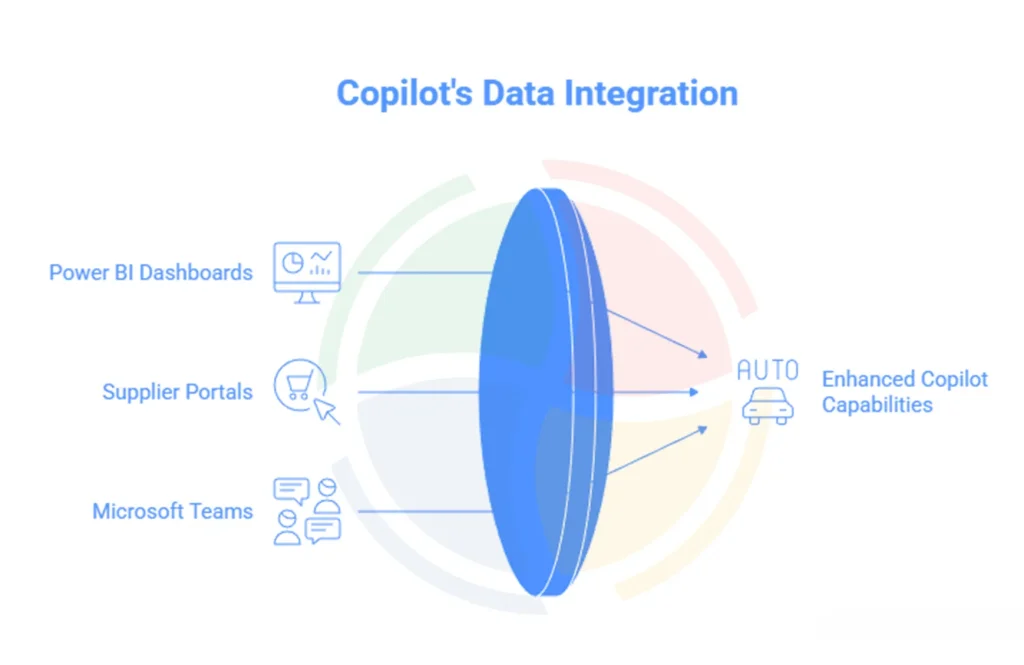
Consider connections such as:
- Power BI dashboards, which give finance leaders advanced visualizations of AI-generated forecasts
- Supplier portals, which provide planners with real-time updates that improve replenishment suggestions
- Microsoft Teams, which allows service teams to pull conversation summaries directly into case records
Integrations like these create a unified view that makes AI insights stronger and easier to act on.
5. Review AI Suggestions Before Automating Actions
Automation should not begin until employees have confidence in Copilot’s accuracy. Building that trust requires a review stage where outputs are checked before being finalized.
Practical approaches include:
- Finance managers comparing Copilot’s forecasts against historical performance
- Inventory planners verifying reorder recommendations against supplier lead times
- Service agents refining suggested replies for tone, accuracy, and clarity
Once users confirm reliability, automation can safely extend into recurring processes, unlocking the full benefit of Business Central automation with Copilot.
6. Train Users on AI-Assisted Workflows
Training is essential for adoption because employees need to see how Copilot supports their daily responsibilities.
Effective training sessions could include:
- Finance workshops showing how to interpret predictive payment insights and act on them
- Service team sessions focused on editing AI-generated responses so they match organizational standards
- Inventory exercises where managers practice querying Copilot to identify low-turnover items and adjust stock levels
This role-specific approach ensures employees gain confidence in using Copilot effectively in Business Central and understand its value.
7. Monitor KPIs and Adjust Configurations Regularly
AI adoption is not a one-time setup. Monitoring performance shows whether Copilot is delivering expected outcomes and highlights where refinements are needed.
KPIs worth tracking include:
- Processing time saved in reconciliations and reporting
- Reduction in posting errors or mismatched transactions
- Faster approval cycles for purchasing or case resolution
- Improved customer satisfaction scores in service interactions
Reviewing these metrics quarterly ensures organizations continue improving productivity with Business Central Copilot as conditions evolve.
8. Keep Security and Compliance a Priority
Since Copilot touches financial and customer data, security must be integral to deployment. Copilot for Business Central operates on Microsoft’s enterprise-grade framework, but internal safeguards are equally important.
Organizations should:
- Define strict role-based permissions to protect sensitive insights
- Run regular audits of Copilot outputs to ensure compliance with regulations such as GDPR
- Log AI-driven actions so decisions remain transparent and traceable
Embedding governance into Business Central Copilot integration best practices builds trust across leadership and ensures compliance obligations are met.
Measuring the Impact of Copilot in Business Central
Using Copilot effectively in Business Central means proving that AI is not only active but also delivering tangible business value. Numbers matter, but they need context. Tracking both performance metrics and adoption patterns gives leaders a complete view of impact.
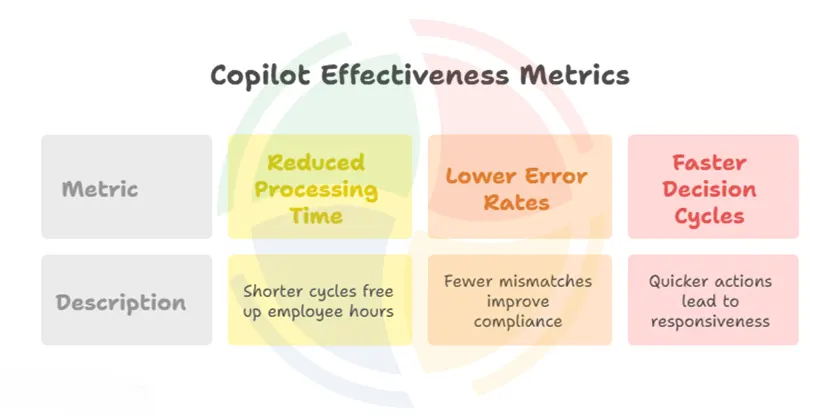
The most common metrics include:
- Reduced processing time: Shorter cycles for reconciliations, report generation, and inventory reviews that directly free up employee hours
- Lower error rates: Fewer mismatches in financial postings, journal entries, or invoice transactions that improve compliance and audit readiness
- Faster decision cycles: Approvals, forecasting, and customer service actions completed in less time, leading to greater responsiveness
While these KPIs provide a baseline, the measurement should extend further. Businesses can build a fuller picture of success through approaches like:
Adoption Tracking
Measuring how often different departments engage with AI-powered features in Business Central (e.g., how many service cases are closed using Copilot-generated summaries).
Scenario-Based Testing
Comparing outcomes of similar processes completed with and without Copilot, such as running a reconciliation manually versus through BC automation with AI.
User Feedback Loops
Gathering structured input from employees to assess whether AI suggestions reduce workload, improve accuracy, or create new friction points.
Business Outcome Analysis
Connecting Copilot usage to higher-level results such as improved cash flow, reduced stockouts, or higher customer satisfaction scores.
Continuous Benchmarking
Reviewing performance quarterly and comparing against industry peers or pre-implementation baselines to validate whether Copilot is delivering a competitive advantage.
How Aegis Softtech Supports Copilot Integration
Adopting AI within ERP requires careful planning and execution. Our Business Central developers help organizations succeed with Copilot integration in BC through a structured approach:
- Reviewing current ERP processes and identifying where Copilot can deliver the most measurable value
- Aligning prompts, connecting relevant data sources, and tailoring Copilot to unique workflows
- Preparing employees with role-based training to increase confidence in using Copilot effectively in Business Central
Monitoring KPIs, refining configurations, and adjusting workflows to continuously improve productivity with Business Central Copilot
Make your Business Central rollout smoother, faster, and aligned with real business needs with our Business Central Implementation Services.
Turn Intelligence Into Impact With Copilot in Business Central
Microsoft Copilot for Business Central enables organizations to manage operations with greater accuracy, speed, and foresight. Through predictive insights, natural language prompts, and workflow automation, ERP becomes a true system of intelligence. When implemented with a clear strategy and strong data foundations, Copilot strengthens decisions and empowers teams. Plus, following proven Business Central Copilot integration best practices ensures AI delivers lasting business impact.
FAQs
1. How to integrate Copilot with Business Central?
The Copilot integration process begins with enabling features in your Business Central environment, assigning role-based permissions, and connecting external data sources.
2. What are the benefits of Copilot in Business Central?
Key benefits of Microsoft Copilot in Business Central include predictive cash flow insights, automated bank reconciliations, smarter inventory planning, and faster reporting. These AI-powered features in Business Central reduce manual effort and support better decisions.
3. How to use Copilot effectively in Business Central?
To use Copilot effectively in Business Central, focus on high-impact workflows such as invoice matching or demand forecasting. Customize prompts to fit your terminology, train employees in practical scenarios, and validate outputs before enabling automation.
4. How to secure data while using Copilot in Business Central?
Data security in Business Central depends on role-based permissions, compliance reviews, and activity logging. Combining Microsoft’s enterprise safeguards with strong internal governance ensures safe and transparent business central automation with Copilot.