
A financial services firm spent eight months manually migrating 12 million customer records to Dynamics 365.
When they finished, 30% of their lookup relationships were broken. Sales teams couldn’t access complete customer histories, and leadership lost confidence in the new system before it even launched.
The problem was treating migration like a simple copy-paste job when it’s actually a complex data engineering challenge. Manual exports, Excel transformations, and sequential imports fall apart at enterprise scale.
Azure Data Factory (ADF) handles what manual methods can’t: orchestration across multiple sources, transformation logic that preserves relationships, and validation that catches errors before data lands in production.
This guide shows you how to go about Dynamics 365 data migration using ADF. Read on to learn more.
Key Takeaways
- Step #1: Audit and clean source data; prepare Dataverse tables and mappings.
- Step #2: Create Linked Services for source and Dynamics 365 connections.
- Step #3: Set up Datasets and map source fields to target columns.
- Step #4: Build migration Pipelines with Control Table and Copy Data activity.
- Step #5: Test with sample data and verify record counts.
- Step #6: Schedule runs, monitor logs, and optimize for API limits.
What is Azure Data Factory (ADF) in Dynamics 365?
Azure Data Factory (ADF) is a cloud-based service that helps you move and transform data between different systems. When migrating to Dynamics 365, ADF connects your old CRM systems, on-premise databases, spreadsheets, or third-party apps directly to Microsoft Dataverse, the data layer that powers Dynamics 365.
Think of ADF as a bridge. It pulls data from where it currently lives and pushes it into Microsoft Dynamics CRM in a structured, repeatable way. You build pipelines, which are automated workflows that define how data moves from point A to point B. These pipelines can handle everything from one-time bulk imports to scheduled incremental updates.
ADF supports over 90 connectors, which means you can pull data from SQL Server, Oracle, Salesforce, SAP, REST APIs, Azure Blob Storage, Excel files, and more. This flexibility makes it suitable for hybrid setups where some systems are in the cloud, and others remain on-premises.
Here’s how Dynamics 365 data migration using ADF works at a basic level:
- Linked services define your source and destination connections, like your legacy CRM database and Dynamics 365 Dataverse.
- Datasets represent the actual data structures you’re migrating, such as Account, Contact, or Opportunity records.
- Pipelines execute the migration logic. They can run on a schedule, trigger based on events, or start manually.
ADF also gives you monitoring dashboards, error logs, and retry options. For large-scale migrations, these features help you track what’s moving, catch failures early, and maintain data quality throughout the process.
Step-by-Step Guide to Dynamics 365 Data Migration Using ADF
Migrating data to Dynamics 365 requires careful planning and execution. Here’s a practical approach to Dynamics 365 data migration using ADF, breaking down each phase with clear steps.
Step #1: Prepare Source and Target Systems
Before building any pipelines, you need to understand what you’re working with. Start by auditing your source data. Check for duplicate records, missing values, and outdated fields that you don’t need to carry over. A broader CRM assessment can also help determine whether the current system is still suitable for the business or needs a CRM upgrade.
Document the relationships between your tables. For example, if Contacts reference Accounts through lookup fields, you’ll need to migrate Accounts first. This mapping exercise prevents errors later when records can’t find their parent entities.
On the Dynamics 365 side, make sure your environment is ready:
- Create or verify that all necessary Dataverse tables exist
- Set up custom fields that match your source data structure
- Configure security roles and business rules before data arrives
- Map source fields to Dataverse columns and note any data type differences
If your source uses text values for status but Dynamics 365 uses option sets, plan how you’ll convert these during migration.
Step #2: Create Linked Services and Datasets in ADF
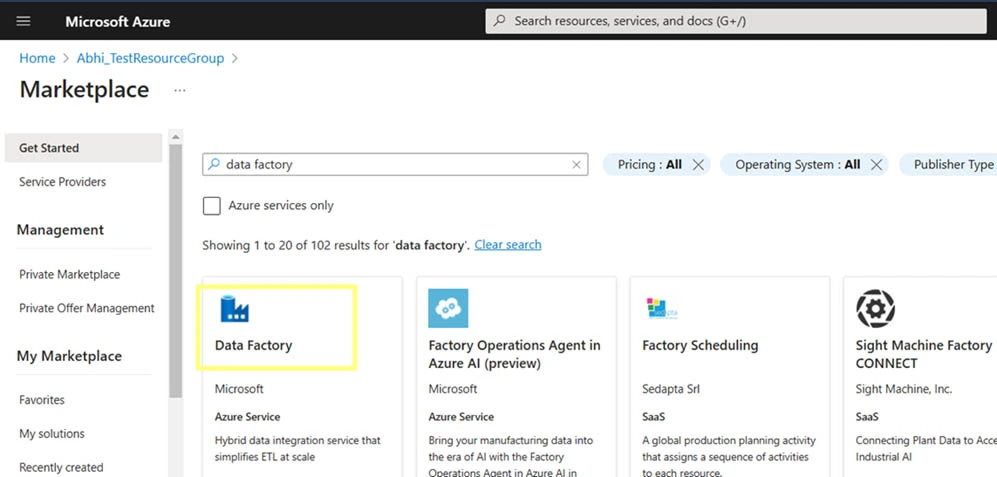
Open Azure Data Factory Studio and set up two Linked Services. Think of these as connection strings that tell ADF where to pull data from and where to push it.
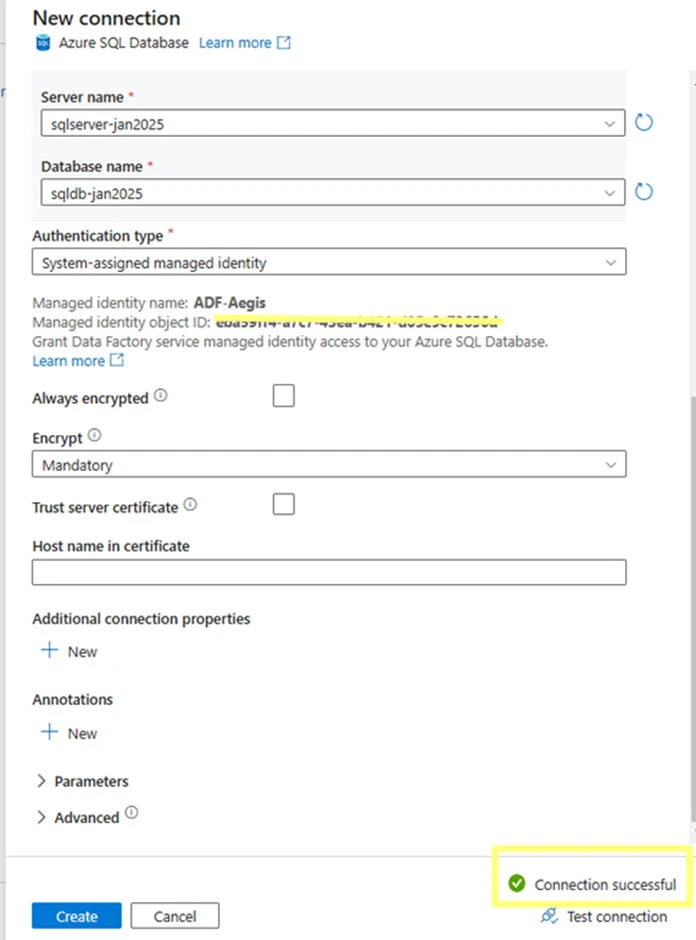
For your Dataverse connection, use Service Principal authentication. This is more secure than storing user credentials. You’ll need an Application ID and Secret Key from Azure Active Directory. Enter these in ADF and test the connection.
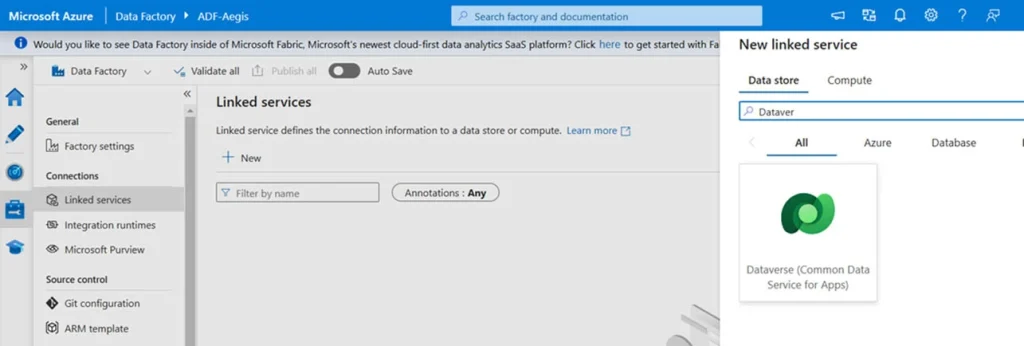
For your source system, create a Linked Service based on what you’re migrating from. If it’s SQL Server, use System Assigned Managed Identity for cloud databases or Self-Hosted Integration Runtime for on-premise systems.
Next, create Datasets in ADF. These define the structure of your data:
- One Dataset points to your source table (like legacy Account data)
- Another points to the corresponding Dataverse table
- Map source columns to Dataverse fields within each Dataset
- Handle data type conversions, like datetime formats or text field length limits
This ADF data migration setup ensures your data lands in the right place with the right format. To further streamline business operations, Microsoft Dynamics CRM Services help manage customer data and improve overall efficiency.
Step #3: Build Pipelines and Configure Data Flows
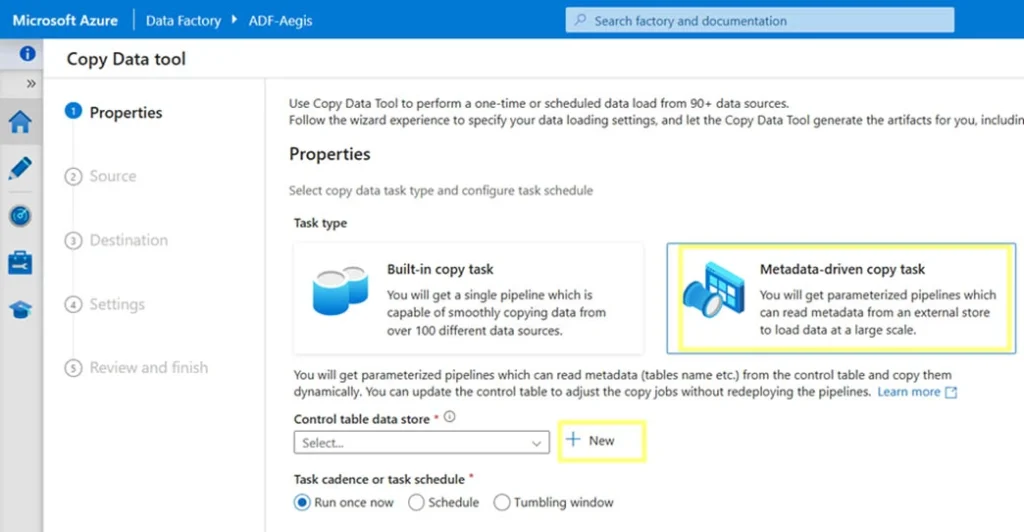
Now you’ll build the pipeline that actually moves your data. ADF uses a metadata-driven approach that simplifies managing multiple tables.
Set up a Control Table in Azure SQL Database. This table works as a checklist, storing which tables to migrate, where they come from, and where they’re going.
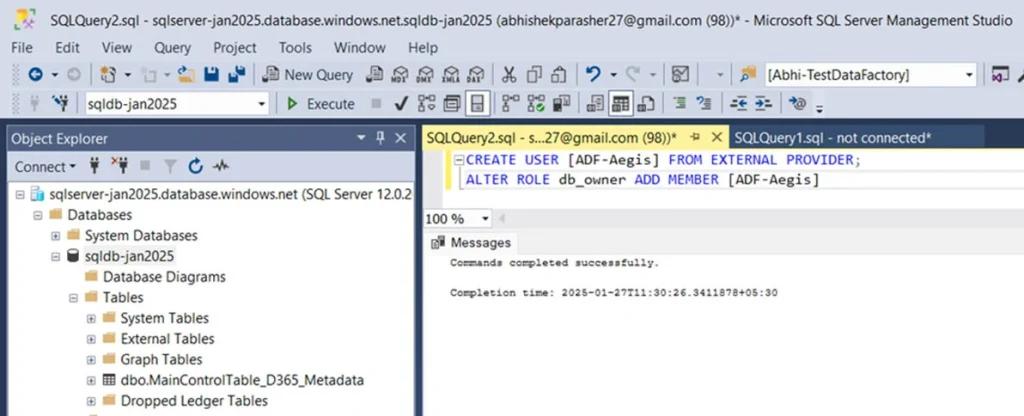
Grant ADF permission to access this Control Table by running this script in SSMS:
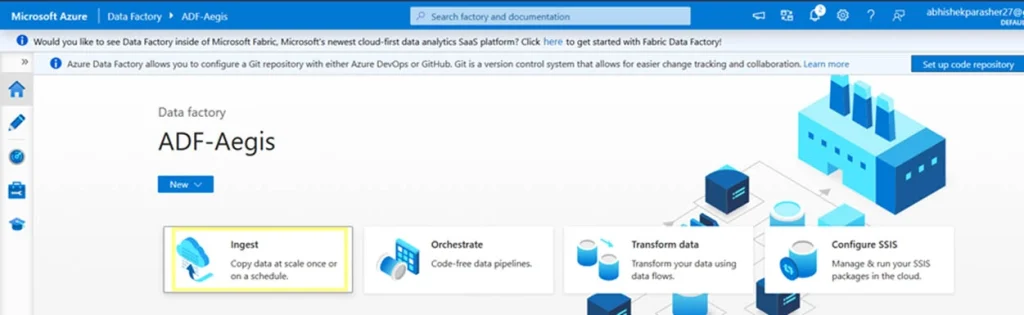
Back in ADF Studio, use the Ingest option and select the metadata-driven Copy Task. This creates a three-level pipeline:
- Top Level reads your Control Table to see which tables need migration
- Middle Level loops through each table entry
- Bottom Level performs the actual data copy
Add a Copy Data activity to handle the transfer. For ongoing migrations, use a watermark column like ModifiedDate to track what’s already been moved. This prevents reprocessing the same records.
Include error handling so failed records get logged to a staging table. This way, one bad record doesn’t stop your entire data migration in Dynamics 365.
Step #4: Test and Validate Data
Don’t run a full migration without testing first. Start small with a subset of data. Click the Debug button in ADF Studio to run your pipeline manually.
Watch the monitoring view as each activity executes. Once it finishes, validate the results by comparing record counts between your source and Dynamics 365.
Check these areas carefully:
- Lookup fields that reference other tables
- Option sets and their selected values
- Date formats and timezone conversions
- Parent-child relationships like Account to Contact
Use staging tables or Power BI reports to spot discrepancies. Run sample queries in both environments to confirm data integrity. If something looks off, fix it before proceeding to full-scale migration.
Step #5: Schedule, Monitor, and Optimize
After successful testing, schedule your pipeline using ADF triggers. Set them to run during off-peak hours or trigger them when new files arrive in storage.
ADF’s monitoring dashboards show you everything happening in real time. You can see pipeline run history, how long each activity took, and detailed logs for any failures. Set up email or Teams alerts so your team knows immediately when something goes wrong.
For large-scale Dynamics 365 data migration using ADF, watch out for Dataverse API limits:
- Dataverse restricts how many requests you can make per minute
- If you hit these limits, adjust your pipeline’s parallelism settings
- Add wait activities between batches to stay within thresholds
- Partition large tables and run multiple pipelines simultaneously
Business Benefits of Using ADF for Dynamics 365 Migration
Dynamics 365 data migration using ADF delivers tangible business value. Here’s a closer look:
Faster Migration Compared to Manual Methods
ADF automates the entire transfer process, handling millions of records in hours rather than weeks. Manual exports and imports require constant oversight and are prone to human error.
Reusable Pipelines for Future Projects
Once you build a pipeline, you can reuse it for incremental updates, testing environments, or additional migrations. This saves time on future data migration in Dynamics 365 initiatives.
Enhanced Governance and Traceability
ADF logs every pipeline run, tracks which records moved successfully, and captures failures for review. This audit trail meets compliance requirements and simplifies troubleshooting.
Lower Total Cost of Ownership
ADF data migration reduces the need for custom code, minimizes manual labor, and scales efficiently. You pay only for what you use, making it cost-effective for both one-time and ongoing migrations.
Common Data Migration Scenarios for Dynamics 365
Different data migration scenarios require different approaches.
Here’s how Dynamics 365 data migration using ADF handles the most common situations organizations face.
Migrating from On-Premise SQL or Dynamics CRM 2016
Legacy on-premise systems present unique challenges. Many organizations running CRM 2011, 2013, or 2015 have customizations that no longer work in cloud environments. Worse, some have custom code that writes directly to the SQL database, bypassing CRM entirely. This creates data that Dynamics 365 doesn’t recognize as valid.
ADF handles this complexity through its Self-Hosted Integration Runtime, which sits inside your network and connects securely to on-premise databases. It pulls data, transforms it to match Dataverse schemas, and validates relationships before loading.
Meanwhile, exporting millions of records to CSV, cleaning data in Excel, and importing them through the Dynamics 365 interface takes weeks and introduces human error. SSIS packages work for SQL-to-SQL transfers but struggle with Dataverse’s authentication and API rate limits. ADF includes native Dataverse connectors that handle these issues automatically.
AX customers planning a similar move can first review our Dynamics AX vs Dynamics 365 comparison to understand the platform, deployment, customization, and migration differences.
Migrating from Third-Party CRMs
Salesforce and HubSpot use completely different data models from Dynamics 365. A Salesforce Account isn’t structured the same way as a Dynamics 365 Account. Picklist values don’t match option sets, plus custom fields in one system might not have equivalents in the other.
With ADF, you can visually map Salesforce objects to Dataverse tables, convert picklist values to option sets, and handle lookup relationships through data flows.
On the other hand, manual methods break when you’re dealing with related records. For example, migrating Opportunities requires Accounts to exist first, and Products need Price Lists. ADF processes these dependencies automatically by running migrations in the correct order.
Third-party migration tools charge per-record fees that become expensive fast. ADF data migration uses consumption-based pricing where you pay only for active pipeline runs, making it cost-effective even for multi-million record migrations.
Data Consolidation Across Multiple Legacy Systems
Companies having multiple acquisitions often end up with several CRM systems running simultaneously. Consolidating these into one Dynamics 365 instance requires cleanup.
ADF handles this through metadata-driven pipelines that pull from multiple sources at once. You can set up staging tables in Azure SQL that collect data from all systems, apply standardization rules, identify duplicates, and merge records before the final load to Dynamics 365. For example, one system might store phone numbers as (123) 456-7890 while another uses 123-456-7890. ADF data flows can normalize these formats during migration.
Manual consolidation at enterprise scale is nearly impossible. Each system needs separate exports, manual deduplication, and sequential imports that take months. SSIS could technically work, but it requires extensive custom code for each source and lacks cloud-native monitoring.
Data migration in Dynamics 365 through ADF gives you real-time visibility into what’s moving, what failed, and why.
ADF Architecture for Dynamics 365 Data Migration
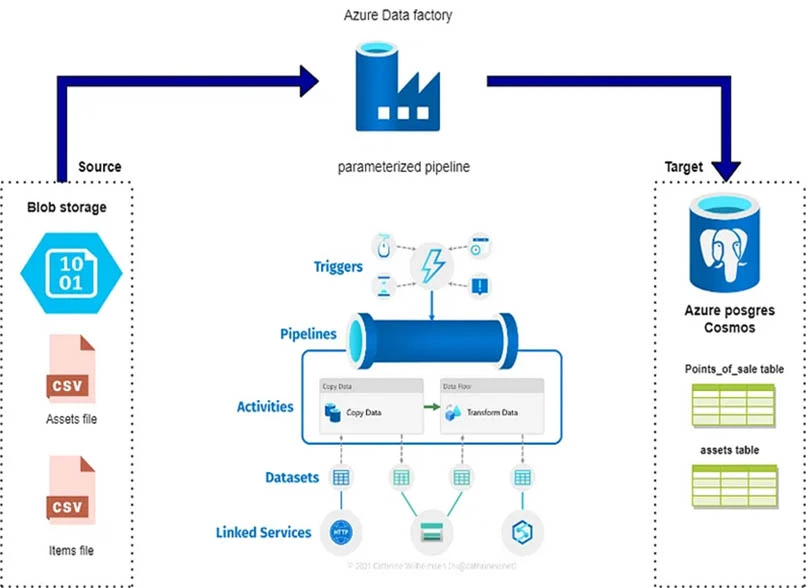
Here’s how each component fits into your ADF data migration architecture.
Linked Services
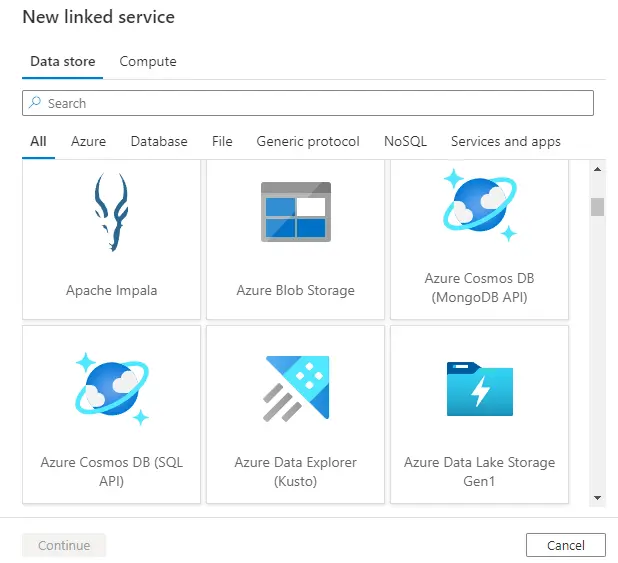
via Microsoft Learn
Linked Services are your connection managers. They store authentication credentials, server addresses, and connection strings for both source and destination systems.
For our purpose, you’ll typically create at least two:
- One pointing to your source (legacy CRM, SQL Server, Salesforce, or cloud storage)
- Another to Dynamics 365 Dataverse using Service Principal authentication
- Optional connections to staging areas like Azure SQL or Blob Storage
The key advantage is reusability. Once you configure a Linked Service for Dataverse, every pipeline in your factory can use it. You don’t need to repeat the connection setup for each migration task. This also centralizes security management. If credentials change, you update one Linked Service instead of dozens of individual pipelines.
Datasets
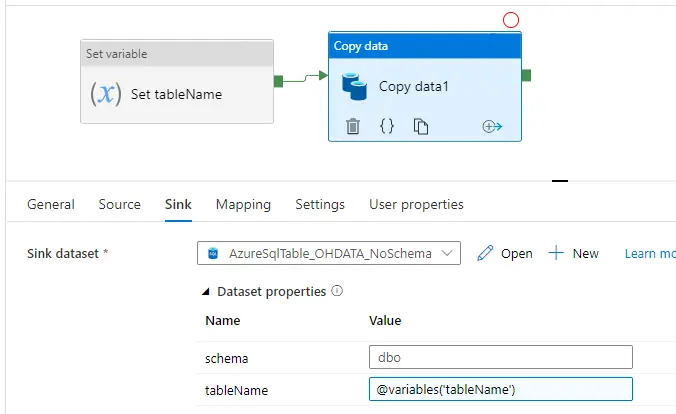
via Microsoft Learn
Datasets define the structure of your data without moving it. Think of them as blueprints that describe what your data looks like and where it lives.
A Dataset points to a specific table and describes its characteristics:
- Field names and data types
- Location (server, database, container)
- Format (SQL table, JSON file, CSV)
- Any schema transformations needed
In ADF data migration, you create source Datasets representing your legacy data structure and sink Datasets matching Dataverse tables. The mapping between them happens in your pipeline.
Pipelines
Pipelines are where the actual work happens. They contain activities that execute in sequence or parallel based on your migration logic.
Common activities in migration pipelines include:
- Copy Data moves records from source to destination
- Lookup queries metadata or checks for existing records
- ForEach loops through multiple tables or batches
- If Condition handles branching logic based on data validation
- Wait adds delays to respect API rate limits
For enterprise migrations, metadata-driven pipelines reduce complexity dramatically. Instead of building separate pipelines for each table, you create one master pipeline that reads table names from a Control Table and processes them dynamically.
Integration Runtime (IR)
Integration Runtime is the compute engine that executes your pipelines. It determines where your data processing happens and how securely it moves between systems.
ADF offers three types:
- Azure IR runs in Microsoft’s cloud and handles cloud-to-cloud transfers like Azure SQL to Dataverse. It’s fully managed and requires no setup.
- Self-Hosted IR installs on a server in your network and enables secure access to on-premise systems without exposing them to the internet. It establishes an outbound connection to Azure, so you don’t need to open inbound firewall ports.
- Azure-SSIS IR runs existing SSIS packages if you’re migrating legacy ETL logic to the cloud.
For on-premise Dynamics CRM 2016 migrations, Self-Hosted IR is essential. Data flows through a secure tunnel, keeping your network protected while enabling cloud migration. You can also use it to access file shares, local databases, or any system behind your corporate firewall.
Common Challenges in ADF Data Migration
Migrating data to Dynamics 365 using Azure Data Factory can speed up delivery, but it comes with practical hurdles. These are the most common ones, and how to resolve them.
| Challenge | Description | Practical Resolution |
| Managing API throttling | Dynamics 365 APIs limit the number of requests per time frame. Exceeding this can slow or halt migrations. | Use ADF retry policies and batching to control request rates. Spread calls over intervals, monitor throttle response codes, and implement automatic pause-and-retry logic. |
| Handling lookup and option set relationships | Migrating records with dependencies (lookups or option sets) can fail if parent records are missing. | Migrate parent entities first, maintain mapping tables for IDs, and validate option set values before loading. |
| Dealing with large datasets | Processing millions of records at once can cause memory issues or pipeline timeouts. | Use batching and pagination in ADF pipelines. Split datasets, process incrementally, and track progress to resume from failures without restarting. |
| Ensuring data type compatibility | Mismatched source and target field types can trigger import errors. | Map fields carefully and use ADF data flow transformations to cast, convert, or truncate data. Validate a subset of records to catch issues early. |
| Maintaining data integrity during transformations | Complex transformations or calculated fields can result in incorrect or incomplete data. | Apply data validation checks after transformations, use staging tables to compare source and target data, and log errors for troubleshooting. |
Best Practices for Data Migration Using ADF
Follow these proven practices to ensure your Dynamics 365 data migration using ADF runs smoothly and delivers clean, reliable data to your new environment.
Prioritize Data Quality and Cleansing
The biggest mistake organizations make is assuming they’ll clean data after migration. This rarely happens because once data is in Dynamics 365, everyone focuses on going live, not fixing historical records.
Run pre-validation checks before starting your transfer:
- Identify duplicates using composite keys, not just names. Match on email + company name, or phone + address. Single-field matching misses variations like “John Smith” vs “J. Smith” at the same company.
- Test your lookup mappings with sample data before full migration. If your source uses Account IDs that don’t exist in Dynamics 365, child records, like Contacts, will fail to load. Create a lookup reference table that maps old IDs to new GUIDs.
- Set data type validation rules in ADF data flows, not in Dynamics 365. If a text field in your source contains 500 characters but Dataverse allows only 100, truncate or split it during migration. Waiting until load time creates failures that are harder to diagnose.
Build validation rules into data flows using conditional splits. Route problem records to Azure SQL staging tables with error descriptions. This gives business users a clear list of what needs fixing without technical jargon about pipeline failures.
We work with your business teams to define validation rules that match your data governance standards.
Enable Logging and Monitoring
ADF’s built-in monitoring shows that a pipeline failed. It doesn’t tell you why 5,000 out of 50,000 Contact records didn’t load or which specific validation rule they violated.
Custom logging tables should capture business-level context. The source record ID, destination GUID, error message, and actual data values that caused the failure need to be recorded. This turns “lookup reference not found” into “Contact ABC123 failed because Account XYZ789 doesn’t exist in Dataverse.”
Azure Monitor metrics help detect patterns:
- Error rates suddenly jumping from 0.1% to 5% signal something systemic changed
- Alerts based on error rate thresholds work better than binary success or failure notifications
- Real-time Power BI dashboards showing migration velocity and projected completion time keep stakeholders informed
Alerts configured with actionable context prove more useful. Instead of “Pipeline failed,” sending “Account migration failed after processing 45,000 of 50,000 records.”
“Last successful batch: Accounts modified between 2025-01-15 and 2025-01-16″ gives teams clear starting points for troubleshooting.
Document Your Migration Process
Documentation seems obvious, but most teams document what they built, not why they built it that way. Future administrators need context for decisions.
Comprehensive data lineage documentation should explain why certain records were excluded, with business justification. “Accounts with no activity in 5 plus years excluded per finance team directive on 2025-02-10” provides more value than a SQL WHERE clause without context.
Data conflict resolution when merging multiple sources needs clear documentation:
- Three legacy systems having different addresses for the same customer require noting which source you prioritized and why
- Assumptions made about data quality should be recorded for future reference
- Transformations that are reversible versus those that aren’t need specification
A “lessons learned” document after each migration phase captures what worked, what didn’t, and what you’d do differently. This turns your Dynamics 365 data migration using ADF project into organizational knowledge that improves future initiatives.
Make Dynamics 365 Data Migration Work for You With ADF
Dynamics 365 data migration using ADF works best when teams look beyond moving records and focus on building a data foundation that lasts. Each pipeline you create, each validation you run, strengthens the integrity of how information flows across systems.
When data arrives clean and connected, your users spend less time fixing errors and more time acting on insights that matter. At Aegis Softtech, we approach every migration as a chance to simplify how teams manage data. Our Dynamics 365 CRM developers design ADF processes that reduce manual effort, improve traceability, and keep your Dynamics 365 environment performing smoothly even as your needs evolve.
FAQs
1. How do I handle incremental or delta loads with ADF pipelines?
Incremental loads work best using watermark columns such as ModifiedOn or CreatedOn to track changes. ADF pipelines can then query only records that have changed since the last load. Storing the last processed timestamp in a control table helps filter each pipeline run efficiently.
2. How can I secure sensitive CRM data during ADF transfer?
Sensitive data should be protected through encryption both at rest and in transit. Azure Key Vault stores credentials and connection strings securely. Restricting pipeline access with role-based access control (RBAC) ensures only authorized users can run or modify pipelines, and temporary files or logs should avoid storing sensitive information.
3. Can I automate validation and reconciliation after data migration using ADF?
Validation can be built into the pipeline using mapping data flows or stored procedures to compare source and target datasets. Automated error logs or discrepancy reports can help quickly identify issues. Some teams also integrate dashboards in Power BI or Azure Monitor to track ongoing reconciliation results.
4. How do licensing and cost management work for ADF during a Dynamics 365 migration?
Costs depend on pipeline runs, data movement, and integration runtime usage. Tracking activity runs and the volume of data processed helps estimate total expenses. Azure Cost Management provides visibility, and scaling integration runtimes according to workload can optimize costs.