

You can filter lookup fields in Dynamics 365 CRM using two main methods: Related Records Filtering and JavaScript. Related Records Filtering is the simpler no-code option when your tables already have defined relationships. JavaScript gives you greater control when you need multiple conditions, dynamic filtering, or cascading lookup fields.
For example, when a sales rep selects United States as the country, the City lookup should display only cities from the United States—not records from every country in the CRM.
Filtering lookup fields makes forms easier to use, reduces incorrect selections, and helps maintain cleaner CRM data. In this guide, we’ll explain both methods step by step and show you how to troubleshoot common lookup filtering issues.
Key Takeaways
- Lookup fields in Dynamics 365 CRM connect related entities like Accounts, Contacts, and Opportunities for better data relationships
- Unfiltered lookups can cause clutter, confusion, and errors when users select unrelated records
- You can filter lookup fields using Related Records Filtering (no-code) or JavaScript filtering (code-based), depending on complexity
- Testing and event configuration are key, especially enabling OnLoad and OnChange handlers in form properties
- Common issues include missing relationships, incorrect schema names, and empty results, which can be fixed through careful setup and validation
What are Lookup Fields in Dynamics 365 CRM?
Lookup fields in Microsoft Dynamics 365 CRM are form controls that link one record to another by referencing a related entity. They create relationships between data tables, like connecting a Contact to an Account or linking an Opportunity to a specific Product.
When users click a lookup field, they see a searchable list of records from the target entity. Selecting an entry establishes a connection that maintains referential integrity across your CRM database.
Methods to Filter Lookup Fields in Dynamics 365 CRM
There are two main ways to filter lookup fields in Dynamics 365 CRM: no-code filtering using Related Records and code-based filtering using JavaScript. The right method depends on your table relationships, filtering requirements, and the level of control you need over the records displayed.
1. No-Code Filtering Using Related Records

Step #1: Verify the Entity Relationship Exists
- Before configuring filters, you need to confirm that the underlying relationship connects your entities properly.
- Open your solution in Power Apps (make.powerapps.com) and navigate to Tables. The entity containing the lookup you want to filter should appear in your list. Click on Relationships to view all connections.
- A relationship must exist between your entities for native filtering to work. For example, the Contact entity should have a Many-to-One relationship with Account through parentcustomerid.
- If the relationship does not exist, create one by clicking New Relationship. Define the parent and child entities, then save and publish your changes. Missing relationships will cause filters to fail silently, so this verification step prevents troubleshooting later.
Step #2: Enable Related Records Filtering
- The form editor contains built-in filtering options that appear once relationships are established. Navigate to the form where filtering should apply. Click on the lookup field you want to filter, such as Primary Contact on an Account form. The field properties panel opens on the right sidebar.
- Locate the Related Records Filtering section within properties. Toggle on Only show records where to activate filtering.
- A dropdown menu appears showing available relationships. Select the appropriate relationship from this list. The dropdown only shows valid connections based on the entities involved in your form, which prevents configuration errors.
Step #3: Configure the Filter Relationship
- Open the OnBeforeValidate trigger for the Shipment Date field in your Sales Line table extension.
- Define a Boolean condition, such as ShouldSuppressValidation, to specify when the validation message should be hidden.
- Add the SetHideValidationDialog(true) method within the condition so the dialog is suppressed only when the condition is met.
- Review the condition to ensure validation messages remain visible during regular sales document entry and are hidden only for the intended workflows.
Step #4: Test and Publish
- Save the form configuration and publish all customizations.
- Open an existing record to test the filtered lookup behavior.
- Select a value in the parent field, then open the child lookup. Only related records should appear in the filtered list. Test with records that have no matching results to check empty state handling.
- Clear the parent field and confirm the child lookup responds appropriately.
If no records appear when you expect results, the relationship field may lack data on one or both entities.
2. Code-Based Filtering Using JavaScript
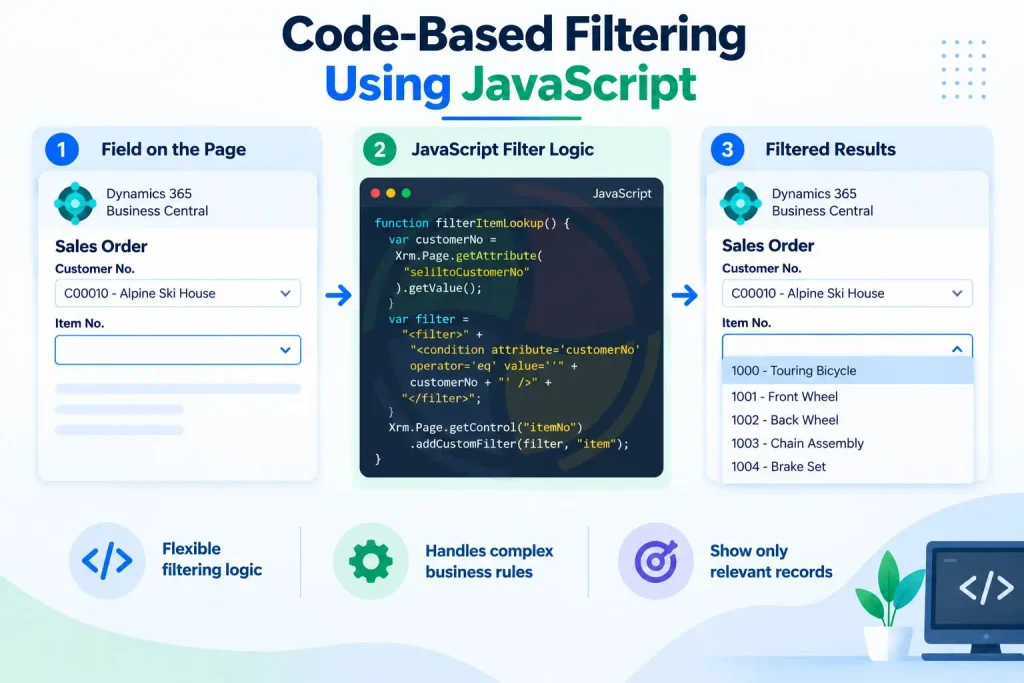
Step #1: Create the JavaScript Web Resource
Your filtering logic lives in a JavaScript file that gets stored as a web resource in Dynamics 365. Open your solution in Power Apps and navigate to Web Resources. Click New Resource and select JavaScript as the type. A descriptive name like filterLookups.js helps with future maintenance.
Write your function using the addPreSearch event pattern. Here is a template for filtering a City lookup based on Country selection:
function filterCityByCountry(executionContext) {
    var formContext = executionContext.getFormContext();
    var countryLookup = formContext.getAttribute("new_country").getValue();
    if (countryLookup !== null) {
        var countryId = countryLookup[0].id.replace(/[{}]/g, "");
        var cityControl = formContext.getControl("new_city");
        cityControl.addPreSearch(function() {
            var fetchXml = "<filter type='and'>" +
                          "<condition attribute='new_countryid' operator='eq' value='" + countryId + "' />" +
                          "</filter>";
            cityControl.addCustomFilter(fetchXml, "new_city");
        });
    }
}
Replace schema names with your actual field names. The addPreSearch function executes before the lookup query runs, injecting your filter criteria into the request.
Save and publish the web resource to make it available for forms.
Step #2: Register the Script on the Form
- Forms need explicit references to web resources before they can execute the functions inside them.
- Navigate to the target form and click Form Properties in the command bar. The properties dialog opens with several tabs visible.
- Switch to the Form Libraries tab. Click Add Library and select your JavaScript web resource from the list. Loading order matters when scripts reference functions from other libraries, so position your filter script after any dependencies.
- Multiple scripts on the same form require careful ordering to prevent reference errors.
Step #3: Add the OnLoad Event Handler
- The form must call your function when it loads to initialize filtering behavior. Stay in Form Properties and switch to the Event Handlers tab. The Event dropdown should display OnLoad as an option.
- Click Add to create a new event handler. Choose your web resource library from the Library dropdown. Enter your function name in the Function field, such as filterCityByCountry.
- The Pass execution context as first parameter checkbox must be enabled—event handlers without execution context will fail because the function cannot access form data.
- Set the execution order if multiple OnLoad handlers exist on the same form.
Step #4: Configure the Parent Field OnChange Event
- Filters must update dynamically when users change the parent field value. Click on the parent lookup field (Country in this example) directly on the form canvas. The properties panel opens on the right sidebar.
- Navigate to the Events tab within field properties.
- The OnChange event should appear in the dropdown. Click Add and choose your JavaScript library from the list. Enter the same function name used in the OnLoad event. Enable Pass execution context as first parameter here as well. This configuration ensures the City lookup refreshes its filter whenever the Country selection changes.
Step #5: Handle Edge Cases
- Real-world usage includes scenarios where users clear fields or select values with no matching results.
- Add logic to clear the filtered field when the parent becomes empty. The code formContext.getAttribute(“new_city”).setValue(null) resets the child field appropriately.
- Place this code at the function start when countryLookup equals null.
Edge case handling prevents orphaned data where a City remains selected after removing its Country. Consider adding user notifications when filters return no results, so users understand why the lookup appears empty. Test behavior when switching between parent values rapidly to catch race conditions.
Common Filter Lookup Field Issues in Dynamics 365 CRM
A filtered lookup field in Dynamics 365 CRM can be configured exactly right and still not work — relationship settings, a wrong schema name, form configuration, a JavaScript conflict, any one of them can be the actual cause. Here are the common problems and how to fix them.
| Issue | Why It Happens | Troubleshooting Tip |
| Filter not applying correctly | The relationship between the parent and child entities is missing or incorrectly defined. | Check entity relationships in Power Apps. Ensure the lookup field references a valid Many-to-One or One-to-Many relationship before enabling filtering. |
| Lookup shows all records instead of filtered ones | Related records filtering is turned off or not linked to the correct parent field. | In form properties, open the lookup field settings and confirm that “Only show records where” is toggled on and mapped to the correct field. |
| Filter works inconsistently | Cached form data or unrefreshed scripts can cause filters to behave unpredictably. | Clear browser cache, republish the form, and reload it in an incognito window to test fresh behavior. |
| JavaScript filter not triggering | The script is not properly linked in Form Properties, or the event handler is missing. | Add the web resource under Form Libraries, then register the function for both OnLoad and OnChange events with “Pass execution context” enabled. |
| Filtered lookup returns empty results | Parent lookup has no value, or the filter query returns no matches. | Add logic to handle null or empty parent values in the JavaScript function. Optionally, display an alert to inform users when no related records exist. |
| Incorrect records appear in lookup | Field schema names used in code don’t match the actual CRM field names. | Double-check schema names in the table designer and update the JavaScript function accordingly before publishing changes. |
Optimize Dynamics 365 Lookup Fields With Aegis Softtech
Filter lookup fields turn messy dropdown lists into precision tools. Your sales team stops scrolling through 5,000 contacts to find the three that matter. Dynamics 365 support agents see the right products instantly. Data entry becomes faster, cleaner, and way less frustrating.
The setup varies. Basic filters take ten minutes with point-and-click configuration. Complex cascading hierarchies or role-based rules need JavaScript expertise and real testing across different user types by Dynamics CRM developers.
At Aegis Softtech, our Dynamics CRM Services team has built these systems for businesses across industries. Conditionally filter lookup fields that adapt to user roles, multi-entity chains that work under pressure, Dynamics 365 form scripting examples that handle edge cases gracefully—we handle the tricky parts so your forms just work.
Frequently Asked Questions
1. How do I filter a lookup field in Dynamics 365 CRM?
You can filter a lookup field in Dynamics 365 CRM using Related Records Filtering or JavaScript. Related Records Filtering works well when tables already have the required relationship. JavaScript is better when you need conditional logic, multiple criteria, or more complex cascading lookup behavior.
2. Can I filter a Dynamics 365 lookup field without JavaScript?
Yes. Dynamics 365 has no-code lookup filtering using associated records. If the correct relationship is established between the tables, you can set up the lookup to only show records that are related to the chosen parent record.
3. How do I create dependent lookup fields in Dynamics 365?
Create a relationship between the relevant tables, with the child lookup configured off the parent field — that’s the base case. Anything more complex needs JavaScript, using addPreSearch and addCustomFilter to control which records actually appear.
4. Why is my filtered lookup showing all records in Dynamics 365?
The possible reason could be related records filtering disabled, the wrong relationship selected, or a JavaScript filter that isn’t triggering — any of these can cause it. Check the relationship configuration, schema names, form libraries, and the OnLoad or OnChange event handlers before assuming it’s something else.
5. Can I filter a Dynamics 365 lookup based on multiple conditions?
Yes. JavaScript filtering can apply multiple conditions before Dynamics 365 displays lookup records. This is useful when records need to be filtered by criteria such as country, account, status, business unit, or other form values.